Forex Trading Platforms Comparison: MetaTrader vs cTrader vs TradingView
You pick a forex platform, then you live in it. Your charts, orders, risk controls, and execution all run through that choice.
This guide compares MetaTrader, cTrader, and TradingView across what matters in daily trading. You will learn how each platform handles order types, charting depth, indicators, automation, backtesting, broker support, pricing, and device access. You will also see where each one breaks down, so you can match the platform to your trading style, account size, and workflow.
If you want a deeper two-platform breakdown, read our MetaTrader vs cTrader comparison.
Key Takeaways
- In het kort: Choose MetaTrader if you need the widest broker support, EAs, and a proven workflow.
- In het kort: Choose cTrader if you want better built-in depth of market, cleaner execution tools, and modern order handling.
- In het kort: Choose TradingView if charting, alerts, and multi-device layouts drive your process, then route execution through a supported broker.
- In het kort: If you automate and backtest hard, MetaTrader and cTrader fit better than TradingView for full trade automation.
- In het kort: Your broker list will narrow your real choices more than feature lists.
Key takeaways
- Broker availability decides first. MetaTrader has the deepest broker coverage. cTrader has fewer options. TradingView depends on broker integrations.
- Execution and order tools. cTrader gives you strong depth of market and order management out of the box. MetaTrader stays reliable, but much depends on broker setup and add-ons. TradingView focuses on chart-based orders, but features vary by connected broker.
- Charting and indicators. TradingView leads on chart UX, layouts, drawing tools, and cross-device syncing. MetaTrader and cTrader cover core technical work well, but feel more terminal-like.
- Automation. MetaTrader runs EAs natively and has the biggest ecosystem. cTrader automation is solid, but smaller. TradingView scripts help with signals and alerts, not full hands-off execution for most traders.
- Backtesting. MetaTrader and cTrader suit strategy testing and iteration. TradingView backtests strategies in Pine, but live automation and broker-side execution remain the gap.
- Cost and access. MetaTrader and cTrader usually come free through your broker. TradingView often needs a paid plan for higher alert limits, more indicators, and advanced layouts.
- Best practical match. Use MetaTrader if you trade with EAs or you change brokers often. Use cTrader if you trade manually and care about order control. Use TradingView if you build trades from charts and alerts, then execute through a compatible broker.
Next step: If you want a tighter two-platform decision, read our MetaTrader vs cTrader comparison.
What a Forex Trading Platform Really Is (and What It Isn’t)
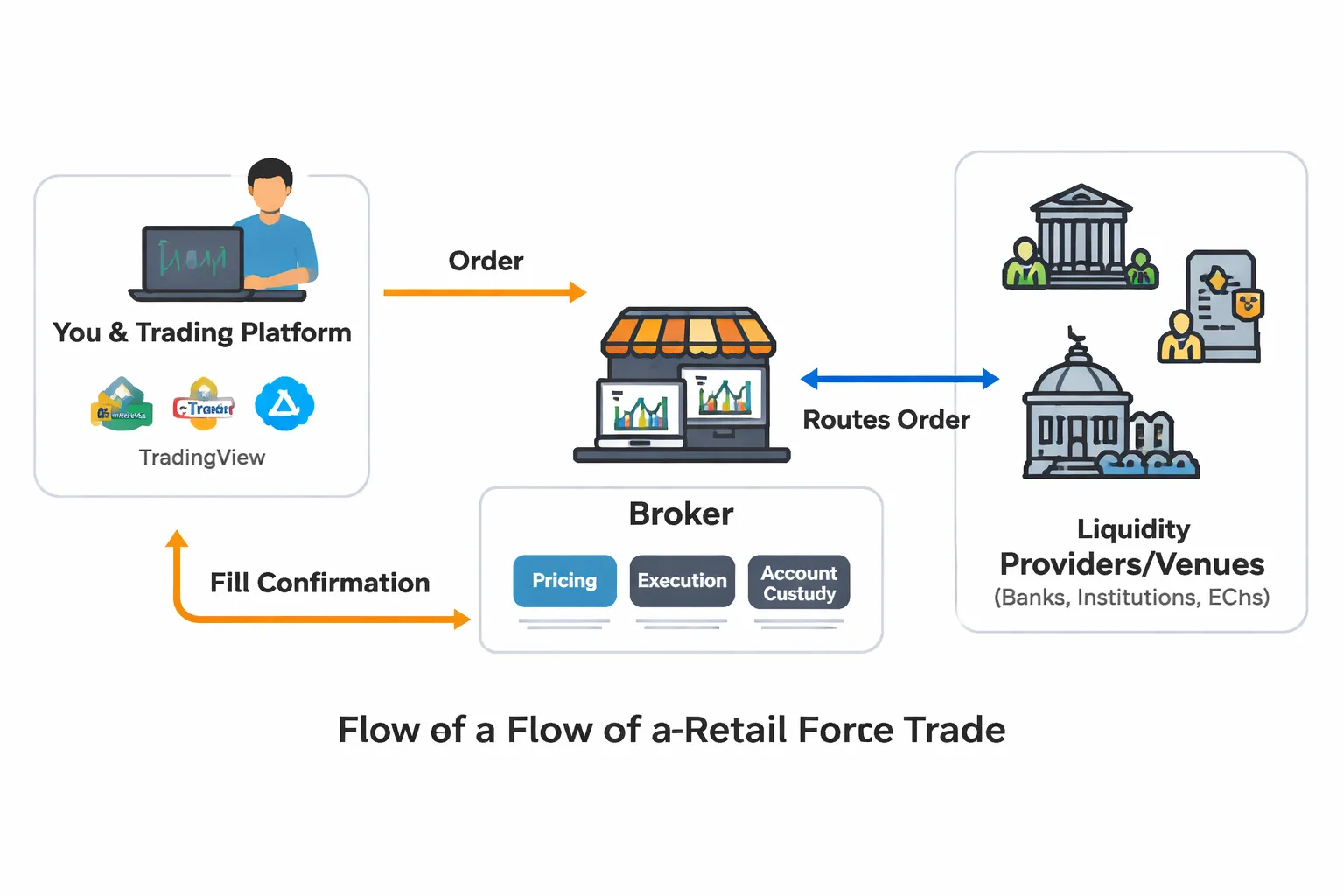
Platform vs broker vs liquidity, who does what in your trade
A forex trading platform is your trading interface. It shows prices, charts, order tickets, positions, and account history. It sends your orders to your broker.
Your broker holds your account. Your broker sets margin rules, leverage, fees, and what instruments you can trade. Your broker routes and fills your orders.
Liquidity providers and venues sit behind the broker. They supply prices and take the other side of trades, directly or through aggregation. You do not connect to them in most retail setups.
- Platform: charting, order entry, automation tools, alerts, trade management, reporting.
- Broker: account custody, pricing model, execution rules, spreads and commissions, swaps, slippage handling, risk controls.
- Liquidity: bid and ask streams, depth, fill quality, market impact during fast moves.
Do not treat a platform as a broker. MetaTrader, cTrader, and TradingView do not guarantee your pricing or execution. Your broker does.
Why the same platform can feel different across brokers
Two brokers can offer the same platform and give you a different trading experience. The platform stays similar. The trading conditions change.
- Pricing: spread-only vs raw spread plus commission, different average spreads by pair, different swap rates.
- Execution: speed, slippage, re-quotes, partial fills, and how orders behave in volatile markets.
- Symbols: different instrument lists, different symbol names, different contract sizes, different minimum lot sizes.
- Trading hours: session times can differ on indices, metals, and crypto CFDs.
- Order rules: stop distance limits, hedging vs netting, FIFO rules in some jurisdictions, restrictions around news trading.
- Server quality: platform stability depends on the broker’s servers, bridges, and data feeds.
This is why a platform comparison matters, but it is not the full story. You still need to check the broker’s spreads, commissions, swaps, and execution stats for your pairs and trade size.
Core evaluation pillars for a forex trading platforms comparison
- Order control: market, limit, stop, stop-limit, trailing stop support, partial close, one-click trading, depth of market.
- Charting and analysis: indicator set, drawing tools, multi-timeframe workflow, layout management, replay and backtesting features.
- Automation: EA or bot support, strategy tester quality, language and tooling, hosting options like VPS, limits on execution frequency.
- Broker compatibility: how many brokers support it, how easy it is to switch brokers, how portable your templates and tools are.
- Costs you can control from the platform: commission visibility, swap display, spread display, reporting and exports for journaling.
- Reliability: uptime, crashes, update cadence, order ticket responsiveness, mobile stability.
- Mobile and web: whether web matches desktop features, alert quality on mobile, watchlist sync, layout sync.
- Data and alerts: economic calendar integration, custom alerts, webhook support, notification speed.
If you want to narrow the decision to two platforms, read our MetaTrader vs cTrader comparison.
Quick Comparison Snapshot: MetaTrader vs cTrader vs TradingView
At-a-glance feature matrix
| Category | MetaTrader (MT4/MT5) | cTrader | TradingView |
|---|---|---|---|
| Best use case | Broker-based forex and CFDs with heavy EA use. | Forex and CFDs with strong execution tools and clean UI. | Charting, scanning, alerts, and multi-broker workflow. |
| Order types and execution tools | Strong basics. Depends on your broker for depth tools. | Strong. Better native depth of market and order controls. | Solid basics. Broker integration varies by region and broker. |
| Charting | Good. Feels dated. Many add-ons. | Very good. Fast. Clean layouts. | Excellent. Best-in-class indicators and drawing tools. |
| Automation | Best known for EAs and indicators. Large ecosystem. | Strong. Uses cBots. Solid backtesting and controls. | Strong for alerts and scripts. Full automation depends on broker and setup. |
| Strategy testing | Built-in tester. Quality varies by data and broker feed. | Built-in tester. Clean reporting. | Bar replay and strategy tools. Results depend on plan and data source. |
| Data and alerts | Basic alerts. Economic calendar varies by version and broker tools. | Good alerts. Platform feels responsive. Calendar support depends on setup. | Best alerts and workflows. Webhooks available. Fast notifications. |
| Costs | Platform usually free via broker. You may pay for tools, VPS, EAs. | Often free via broker. You may pay for VPS and add-ons. | Freemium. Paid plans unlock more alerts, indicators, and features. |
| Availability | Desktop first. Mobile and web exist. Broker support is wide. | Strong web and desktop. Mobile is solid. Broker list is smaller than MetaTrader. | Web first. Desktop and mobile are strong. Broker connections vary. |
| Best if you care about | EA library, broker choice, and familiar workflows. | Order handling, depth tools, and a modern feel. | Charts, alerts, watchlists, and cross-device sync. |
Best platform by trader profile
- Beginner: TradingView if you want clean charts, simple watchlists, and strong alerts. MetaTrader if your broker onboarding centers on MT4 or MT5.
- Scalper: cTrader if you need depth of market and fast order controls. MetaTrader if your broker offers tight spreads and your setup is stable.
- Swing trader: TradingView for charting, multi-timeframe analysis, and alert-driven entries. cTrader if you place fewer trades but want cleaner execution tools.
- Algo trader: MetaTrader if you rely on EAs and marketplace tooling. cTrader if you prefer a modern automation stack and cleaner control over bots.
- Multi-asset trader: TradingView for broad market coverage and one watchlist across asset classes. MetaTrader or cTrader only if your broker offers the instruments you need on that platform.
Decision tree: pick your platform in 60 seconds
- If you want the best charting and alerts across devices: choose TradingView.
- If you trade forex and CFDs and care most about order handling and depth tools: choose cTrader.
- If you run EAs or you want the widest broker support: choose MetaTrader.
- If your broker offers only one of these platforms: start there, then switch only if you hit clear limits in charts, alerts, or automation.
- If you narrowed it to MetaTrader vs cTrader: read our MetaTrader vs cTrader comparison.
MetaTrader (MT4/MT5): Strengths, Trade-Offs, and Best Use Cases
MT4 vs MT5, practical differences that matter in forex
MT4 stays popular because brokers keep offering it and many legacy EAs depend on it. MT5 improves the core engine, testing, and market coverage, but you need MT5-specific tools.
- Markets: MT4 targets forex and CFDs. MT5 supports forex, CFDs, plus exchange-traded products when your broker offers them.
- Timeframes and tools: MT5 adds more built-in timeframes and more objects for charting. MT4 feels simpler and lighter.
- Order handling: MT5 supports more order types and execution modes at the platform level. Your broker still controls what you can actually use.
- Programming: MT4 uses MQL4. MT5 uses MQL5. You cannot run MT4 EAs on MT5 without porting.
- Testing: MT5 has the stronger tester. If you do serious optimization, MT5 usually wins.
If you want the shortest path to “it just works” with the widest broker list, pick MT4. If you build and test systems, pick MT5. For a deeper breakdown, see MetaTrader 4 vs MetaTrader 5 for forex.
Expert Advisors and the automation ecosystem
MetaTrader’s main advantage is the size of its automation market. You get thousands of EAs and indicators, plus a large pool of developers.
- Built-in automation: You run EAs inside the desktop terminal. No separate app required.
- Marketplaces: You can buy or rent EAs and indicators through the MetaTrader Market. Quality varies. You must vet sellers, logic, and risk controls.
- Signals and copy: The platform supports signal subscriptions. Execution quality depends on your broker, your VPS, and your account settings.
- VPS hosting: Many traders run EAs on a VPS to reduce downtime and latency spikes.
MetaTrader fits you if you rely on off-the-shelf EAs or you hire MQL developers. It fits less if you want clean code workflows, strict version control, and modern testing practices without extra setup.
Strategy testing essentials
Backtests can mislead you. Your results depend on data quality, modeling assumptions, and how you handle spreads, swaps, and execution rules.
- MT4 tester: Single-threaded for most workflows. Slower optimization. Commonly used with imported tick data and third-party tools to improve modeling.
- MT5 tester: Multi-threaded and supports distributed optimization. Faster parameter sweeps. Better for iterative research.
- Data: Broker history can differ from live conditions. If you scalp or trade news, weak tick history can break your conclusions.
- Costs: Many tests ignore realistic spreads, commissions, and swaps. You should model them or your edge disappears live.
- Overfitting risk: The easier it is to optimize, the easier it is to curve-fit. Use out-of-sample checks and forward testing.
Execution features and limitations
MetaTrader gives you solid retail execution tools, but you still depend on broker implementation and bridge quality.
- Order types: You get market, limit, stop, and stop-limit support on MT5. MT4 typically gives market, limit, and stop. Broker rules can restrict these.
- Partial fills: MT5 can handle partial fills more cleanly in some execution modes. In practice, most forex CFD fills still behave like full fills unless liquidity fragments.
- Slippage control: You can set deviation parameters on market orders. You cannot force a true price guarantee.
- Depth of market: MT5 has DOM, but forex CFD DOM often reflects broker liquidity streams, not a central order book.
- Limits: Advanced order handling and rich Level 2 style workflows usually feel stronger on cTrader. Chart-first workflows and cloud alerts feel stronger on TradingView.
Who should choose MetaTrader, and who shouldn’t
- Choose MetaTrader if: you run EAs, you need the widest broker support, you want a large library of indicators, or you trade simple discretionary setups with basic alerts.
- Choose MT4 if: your broker supports it well and your strategy depends on older EAs or custom indicators built in MQL4.
- Choose MT5 if: you optimize systems, you need a stronger tester, or you want broader market support under one terminal.
- Skip MetaTrader if: you need strong native depth tools, you rely on advanced order tickets, or you want modern chart layouts and cloud alerts across devices without workarounds.
cTrader: Strengths, Trade-Offs, and Best Use Cases
cTrader: Strengths, Trade-Offs, and Best Use Cases
cTrader targets active forex traders who want clear pricing, fast execution tools, and tighter control over orders. It works best with brokers that run an ECN style model and expose real depth.
Depth of Market (DOM) and Level II pricing for active traders
cTrader puts market depth at the center of the platform. You can read liquidity levels and route entries with less friction than on many MetaTrader setups.
- Level II depth: You see multiple price levels, not a single best bid and ask. This helps when you scale in, scale out, or trade around thin liquidity.
- DOM panels: You can place orders directly from the ladder style view. You can react faster than clicking around on a chart ticket.
- What to verify: DOM quality depends on your broker. Check if the broker streams full depth, how many levels you get, and whether depth changes during news.
- Reality check: Level II does not remove slippage. It helps you see conditions. Your fills still depend on liquidity, execution rules, and order type.
Order management tools (advanced protection, quick trading, templates)
cTrader shines when you manage trades in real time. It gives you more control per click.
- Advanced protection: You can set stop loss and take profit logic as part of your workflow, including server side protection where supported by the broker. Confirm what stays on server versus client.
- Fast order entry: One click and double click trading can reduce delay. Use it only after you lock down size defaults and confirm your account settings.
- Order templates: You can save common setups, size rules, and protection rules. This helps if you trade a repeatable playbook across sessions.
- Trade management clarity: You get clean position views, quick partial closes, and fast reverse options. Test each action on a demo first. Some brokers implement features differently.
cTrader Automate (cBots) and the C# ecosystem
cTrader uses C# for automation. That matters if you want a modern programming stack and better code tooling than MQL for many developers.
- Language and tooling: You can build cBots and indicators in C#. You can use strong IDE support, testing habits, and version control workflows.
- Cleaner engineering path: If you come from software development, C# can shorten your build cycle. You can structure projects, refactor safely, and maintain code over time.
- Trade off: The marketplace and legacy library depth often trails MetaTrader. If you rely on niche third party bots, you may find fewer ready made options.
- Broker support varies: Confirm your broker supports the full Automate workflow, hosting options, and any API limits that affect your system.
Backtesting and optimization: what to verify before going live
Backtests can mislead you if your data and execution model do not match live trading. Treat results as a filter, not proof.
- Data quality: Confirm the source of historical data, the time zone, and how the platform handles missing ticks. Bad data can create fake edge.
- Spread and commissions: Use realistic costs. Include commissions, typical spreads, and spread widening during volatile periods.
- Slippage model: Check how the tester simulates slippage, fills, and partial fills. Your scalping results can collapse if the model stays too clean.
- Execution rules: Verify how stop orders trigger, how limit orders fill, and whether the test assumes instant execution. Match settings to your broker account type.
- Walk forward checks: Split in sample and out of sample periods. If performance drops hard outside the tuned window, your logic may overfit.
Who benefits most from cTrader
cTrader fits traders who care about microstructure, execution detail, and fast handling of positions.
- Scalpers: You get DOM tools, rapid order entry, and clearer trade management. Your broker and latency still decide the real outcome.
- ECN style execution seekers: If you pick brokers that expose depth and pass through pricing, cTrader can feel closer to a pro ticket.
- System traders who code: If you build your own tools, C# can be a strong advantage. If you depend on a large third party EA library, MetaTrader often stays easier.
If you want a direct platform level breakdown, read our cTrader vs MetaTrader comparison.
TradingView: Strengths, Trade-Offs, and Best Use Cases
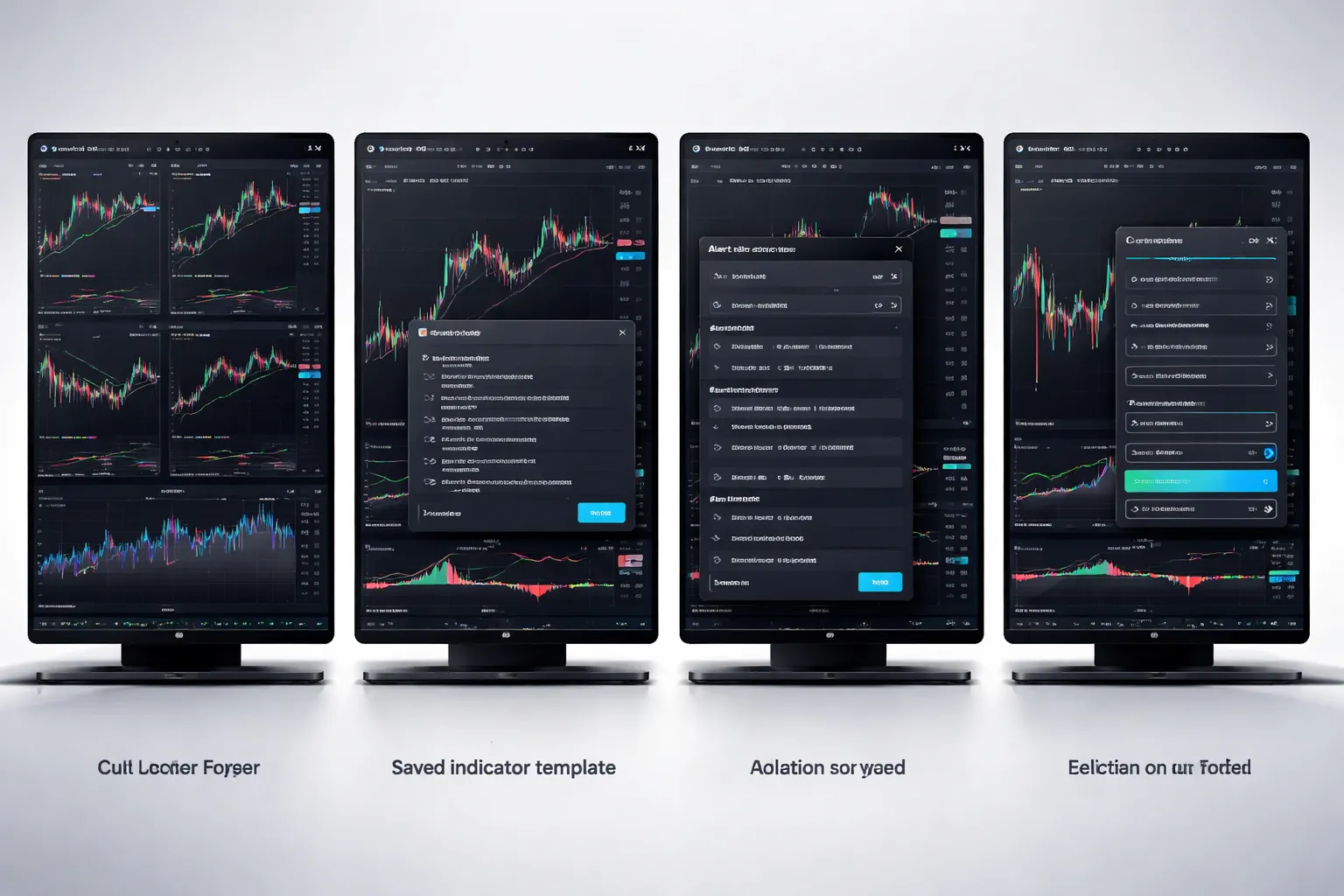
Charting quality and multi-timeframe workflow
TradingView sets the bar for charts. You get fast rendering, clean scaling, and deep drawing tools.
For multi-timeframe work, use layouts and synced symbols. Save templates for indicators and visual styles. Save separate layouts for your main pairs, your indices, and your event week setups.
- Layouts: Build 1 to 8 chart grids. Link charts by symbol and keep timeframes independent.
- Templates: Save indicator sets and chart themes. Apply them across markets in seconds.
- Alerts: Set price, indicator, and drawing based alerts. Route alerts to app, email, or webhook, based on your plan and setup.
If your workflow depends on fast context switching, TradingView fits. If you need integrated execution logic across multiple accounts, MetaTrader and cTrader usually fit better.
Pine Script for indicators and strategies: capabilities and constraints for FX
Pine Script makes it easy to build indicators and backtest simple rule sets. You can prototype fast and iterate without building a full desktop stack.
- Strong at: Custom indicators, signal conditions, visual tools, alerts, and quick strategy tests.
- Weak at: Full automation, advanced order management, and broker specific execution rules.
For forex, the main constraint is data and execution realism. Your backtest uses the chart feed you selected. Spreads, slippage, and swap costs often do not match your broker. Tick level realism varies by symbol and feed.
If you trade short-term, treat TradingView strategy results as a filter, not proof. Validate on your broker platform before you size up.
If you want a step-by-step setup, read our TradingView for forex guide.
Broker integration and order routing: what happens when you click buy or sell
TradingView can connect to supported brokers. When you place an order, TradingView sends it to your broker. Your broker handles pricing, execution, and fills.
- Execution quality: Depends on the broker, not the chart.
- Order types: Depends on broker support. Some brokers limit advanced order handling from TradingView.
- Data differences: Your TradingView chart feed may not match your broker quote feed. You can see a small mismatch between chart price and tradable price.
Use TradingView for analysis and clean execution clicks when your broker integration works well. Use your broker platform when you need full control of fills, partials, order rules, and platform logs.
Screeners, watchlists, and community ideas: how to use them safely
Screeners and watchlists help you stay organized. They work best for routine filters and repeatable scanning.
- Watchlists: Group by session and strategy. Example, London break pairs, US data pairs, carry pairs.
- Screeners: Use simple conditions. Example, 20 day range expansion, ATR threshold, trend filters.
- Alerts as workflow: Scan once, then let alerts pull you back only when price reaches your level.
Community scripts and ideas can save time, but you need controls.
- Check the script inputs and default settings. Many look good only on one market.
- Test on multiple pairs and timeframes. Reject tools that fail outside one sample.
- Avoid strategy curves that rely on tight stops without spread assumptions.
- Do not copy trade ideas. Use them to find levels, scenarios, and invalidation points.
Who should choose TradingView
Choose TradingView if you lead with analysis and you trade more than one asset class. It works well when you want one charting workspace for FX, indices, commodities, and crypto.
- Analysis-first traders: You rely on structure, levels, and alert driven execution.
- Multi-asset traders: You want one layout system across markets.
- Discretionary traders: You want speed, clean charts, and simple order entry through a supported broker.
Skip TradingView as your main platform if you need heavy automation, broker specific execution tools, or precise backtests that match your real spreads and fills.
Pricing & Total Cost of Trading: Where the Real Differences Show Up
Spread vs commission accounts and how platforms display costs
Your biggest cost is the dealing model your broker assigns to your account. The platform changes how clearly you see it.
- Spread-only accounts. Your cost sits inside the bid-ask spread. You pay it every time you enter and exit.
- Commission accounts (raw, ECN). You pay a smaller spread plus a fixed commission per lot, per side or round turn.
MetaTrader can hide the true picture if you only watch the spread box. Many MT4 and MT5 setups show spread in the Market Watch, but they do not always show commission in the same place. You often need to read the contract spec, check your trade history, and calculate the all-in cost yourself.
cTrader usually makes commission pricing easier to read. It tends to show commission and expected costs in the order ticket and position details. You spend less time guessing what you paid.
TradingView can look cheap on charts because chart spreads do not equal broker execution. The real spread and commission depend on the connected broker. If you trade on alerts and manual orders, confirm the broker feed and the live order ticket cost fields before you size up.
Non-trading fees and hidden costs (data, inactivity, withdrawals, VPS)
Platforms rarely charge you to place trades. Brokers and add-ons charge you to keep trading.
- Market data. Forex is usually included. CFDs, futures, and equities may require paid exchange data. TradingView often gates more data and features behind paid plans. cTrader and MetaTrader depend more on what your broker provides.
- Inactivity fees. Common at brokers. Easy to miss if you rotate accounts or pause trading.
- Withdrawals. Some brokers charge per withdrawal or after a free quota. Bank wires often cost more than cards or e-wallets.
- Currency conversion. If your account base currency does not match your funding or instrument quote currency, you can pay a spread on conversions.
- VPS and hosting. If you run EAs, bots, or need low-latency execution, you may pay monthly VPS fees. MetaTrader automation makes this common. cTrader algo traders also use VPS. TradingView automation runs in the cloud for alerts, but broker execution still depends on your connection and order routing.
Budget for these costs before you compare spreads. They hit your net return even when you trade less.
Swap, rollover visibility and overnight holding implications
Overnight costs can beat spreads if you hold for days.
- MetaTrader. You can view swap long and swap short in the symbol specification. You can also see swap applied in your history. Many traders still miss it because it sits outside the main order ticket flow.
- cTrader. Swap and financing details tend to show more directly in instrument info and position details. You can spot the daily carry cost faster.
- TradingView. Swap depends on the broker you connect. The chart does not warn you about rollover. You must check the broker ticket and product info.
Three details matter. Triple swap day. Holidays. Symbol type. Spot FX, CFDs, and futures can all finance differently. Your platform does not change the charge, but it changes how quickly you notice it.
Measuring effective cost: all-in spread + slippage + rejected orders
Stop comparing platforms on spread alone. Track your effective cost per trade.
- All-in spread. Take the live spread at entry and add commission converted into pips for your lot size.
- Slippage. Measure the difference between your requested price and your fill price. Track it by session and during news.
- Rejected orders and requotes. Count them. A rejected order often costs more than a wider spread because it breaks your plan and timing.
MetaTrader can show slippage and fills in reports, but you may need exports to analyze properly. cTrader gives cleaner execution stats inside the platform for many brokers. TradingView depends on the broker integration. Some connectors route orders well, others add friction.
If you want a direct breakdown of how MetaTrader and cTrader handle execution and cost visibility, use this cTrader vs MetaTrader guide as a deeper reference.
| Cost factor | MetaTrader | cTrader | TradingView |
|---|---|---|---|
| Spread and commission clarity | Spread visible, commission often harder to surface | Commission and expected cost usually clearer in ticket | Depends on broker integration, charts do not equal fills |
| Swap visibility | Available in specs and history, easy to ignore | Often easier to spot per position | Broker dependent, not chart-led |
| Non-trading fees exposure | High for VPS and add-ons if you automate | Moderate, still common for VPS in algo setups | Higher chance of plan and data fees |
| Execution frictions to track | Needs exports for deeper review | Often easier to review execution quality | Connector dependent, varies by broker |
Execution Quality & Reliability: How to Compare Like a Pro
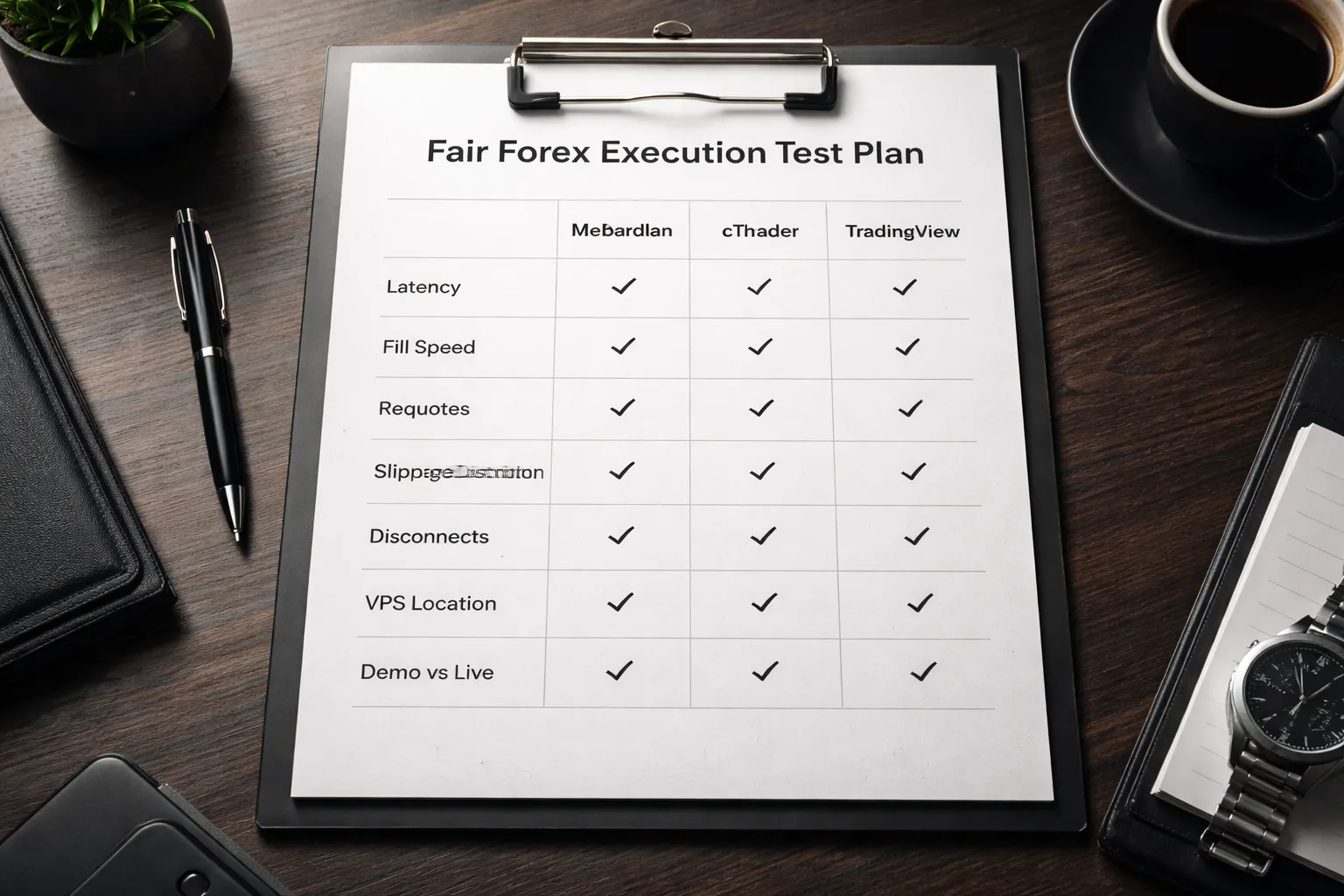
Key metrics to evaluate
Execution quality decides your real cost per trade. Spread and commission show the plan. Execution shows the truth.
- Latency. Measure the time from click to broker acknowledgement, and from acknowledgement to fill. Track median and worst cases. Worst cases hurt the most.
- Fill speed. Record milliseconds from order send to final fill. Separate market orders, limit orders, and stops. They behave differently.
- Requotes and rejects. Count how often you get a requote, partial fill, or rejection. Note the reason codes when the platform shows them.
- Slippage distribution. Do not track average slippage only. Track how often you get positive slippage, zero slippage, and negative slippage. Then track the tail, like worst 5 percent of fills.
How each platform affects what you can measure
- MetaTrader. You can review trade history and logs, but deep analysis often needs exports. Many brokers run different bridge setups, so results vary even on the same platform.
- cTrader. Trade reporting often makes fill review easier. You can inspect order events with less friction, which helps you spot patterns faster.
- TradingView. Your charting can look perfect while execution depends on the broker connector. You must judge the broker connection, not the chart tool.
Scalpers and news traders should test execution differently
Your strategy dictates the test. Use the same pair, same session, same order type, and same size across platforms.
- Scalping tests. Use high frequency, small targets, and tight stops. Track slippage in pips and in money. Focus on consistency and the worst fills, not the best fills.
- News tests. Place stop entries and stop losses around scheduled events. Track slippage spikes, reject rates, and delay to first fill. Expect spreads to widen, you want to know how your broker and platform behave under stress.
- Limit order tests. Test at the bid and ask during liquid hours. Track fill rate and queue priority effects. Many platforms show a fill, but they cannot show where you sat in the liquidity queue.
Server location, VPS, and connection stability
Your execution can look bad when your connection causes the problem. Fix the plumbing before you blame the platform.
- Broker server location. Ask where the trading server sits. Then choose a VPS in the same data center region. Distance adds latency.
- VPS basics. Use wired networking on the host. Avoid overloaded cheap VPS plans. Monitor packet loss and jitter, not only ping.
- Platform stability. Track disconnects, login drops, and session freezes. Count them per week. One drop during news can erase a month of edge.
- Routing consistency. Run tests at the same time each day. Internet routing changes can shift latency without you touching anything.
Demo vs live differences and how to run a fair platform trial
Demo results rarely match live execution. Use demo for workflows. Use live for fills.
- Use a small live account. Trade the minimum size you can. You need real fills, real liquidity, and real rejects.
- Standardize your setup. Same broker, same account type, same symbol, same session, same order size, same order types.
- Collect enough trades. Aim for at least 100 fills per setup. Split by market conditions, calm sessions and volatile sessions.
- Log every order event. Record send time, ack time, fill time, requested price, filled price, and any reject or requote message.
- Compare distributions. Build a simple table of median slippage and worst case slippage. A platform that wins on median but loses on tails can still cost you more.
- Do not mix platform and broker variables. If you change brokers, you changed the execution engine. Keep the broker constant when comparing platforms.
| What to track | How to record it | What “good” looks like |
|---|---|---|
| Click to fill time | Order timestamps and platform logs | Stable median, tight worst case range |
| Reject and requote rate | Count per 100 orders | Near zero in liquid hours |
| Slippage distribution | Requested vs filled price, bucket results | Small negative tail, some positive fills |
| Disconnects | Platform connection logs | None during active sessions |
If you need a platform specific decision framework, use our cTrader vs MetaTrader comparison and then rerun the same execution test plan on your broker.
Charting, Indicators, and Workflow: Picking What Fits Your Trading Style
Indicator libraries and customization depth
MetaTrader (MT4, MT5). You get the deepest retail indicator and EA library. Most custom tools run through MQL. If you rely on niche indicators, copied templates, or paid EAs, MetaTrader gives you the widest selection. The tradeoff is workflow friction. You manage files, versions, and settings across installations.
cTrader. You get strong built-in indicators and cleaner customization. Custom tools run in C# via cTrader Automate. If you build your own indicators or you want code you can maintain like a normal software project, cTrader fits better. The third-party library is smaller than MetaTrader, but quality and organization tend to be higher.
TradingView. You get the best discovery and sharing. Pine Script makes it fast to prototype indicators and scans. You will find more community scripts than you can test. The tradeoff is portability. Many scripts break, repaint, or rely on settings the author never documents. Treat community indicators like unverified inputs, not a system.
- If you buy indicators and EAs. MetaTrader wins on supply.
- If you code in C#. cTrader wins on maintainability.
- If you iterate ideas fast. TradingView wins on speed and sharing.
Multi-monitor and multi-chart productivity
MetaTrader. Profiles and templates work, but window management feels dated. Multi-monitor setups usually need manual tiling and constant cleanup. If you run many symbols and timeframes, expect more clicks and more chart housekeeping.
cTrader. Workspaces feel like they were built for active execution. Detachable charts and clean panel layouts make multi-monitor setups easier to keep consistent. If you scalp or manage many positions, you will notice the faster navigation.
TradingView. Layouts and tabbed workspaces scale well. You can clone layouts, sync watchlists, and move between devices with fewer breaks. Limits depend on your plan. More charts per layout and more saved layouts usually require a paid tier. For a practical walkthrough, see TradingView for Forex.
- If you run 20 to 40 charts. TradingView layouts stay organized, cTrader stays fast, MetaTrader needs more manual control.
- If you need identical chart templates across accounts. cTrader and TradingView keep consistency with less effort than MetaTrader.
Alerts: price, indicator, and webhook automation
MetaTrader. Basic price alerts exist, but most serious alerting comes from custom indicators or EAs. You can push notifications to mobile. Webhook style routing usually needs a bridge, a VPS service, or custom code. It works, but you own the plumbing.
cTrader. You get solid native alerts tied to charts and watchlists. For automated routing you still end up in code. If you already run C# bots, alert logic and trade logic can live in one place with fewer hacks.
TradingView. This is the cleanest alert stack. You set price and indicator alerts fast. Webhook alerts run well for automation workflows. If you route signals to a bot, a trade copier, or a dashboard, TradingView reduces setup time.
| Need | Best fit | Why |
|---|---|---|
| Simple price levels | All three | Core feature everywhere |
| Indicator alerts without coding | TradingView | Fast setup, stable delivery |
| Webhook signal routing | TradingView | Native webhook alerts |
| Alerts integrated with execution bots | cTrader, MetaTrader | Alert logic can sit inside the bot |
Journaling and performance analytics integrations
MetaTrader. You can export history and feed it into a journal. Many traders rely on third-party tools because the built-in reporting stays basic. If you run multiple accounts, you will spend time standardizing exports and tags.
cTrader. The platform history and trade statistics are easier to read. Exports tend to be cleaner. If you review execution quality and position management daily, cTrader reduces friction.
TradingView. TradingView focuses on charting and alerts. Journaling usually happens outside the platform. If you take trades on a broker terminal but analyze on TradingView, build a routine. Export fills from the execution platform, then log reasons, screenshots, and rule checks in your journal.
- If you track execution metrics. Prioritize clean fill exports and timestamps. cTrader often makes that easier.
- If you track strategy discipline. Prioritize screenshots and tagged setups. TradingView layouts help, but journaling still lives elsewhere.
- If you need maximum tool compatibility. MetaTrader exports have the widest third-party support, but you may clean data more often.
Automation & Copy Trading: What’s Possible on Each Platform
Algorithmic trading, EAs vs cBots vs Pine-based strategies
MetaTrader (MT4, MT5) runs automation through Expert Advisors (EAs). You build or install them in MQL4 or MQL5. You can run many EAs at once, manage multiple symbols, and optimize in the Strategy Tester. Your results depend on your broker feed, your spread model, and whether you test with tick-level quality data.
cTrader runs automation through cBots in cTrader Automate (formerly cAlgo). You code in C#. You get clean separation between manual trading and automation. You also get strong order and execution controls. Backtests can look tight, but you still need to validate on your broker’s live conditions.
TradingView uses Pine Script. You can build indicators and strategies fast. You can backtest on chart data, then trigger alerts. Full hands-off execution needs a bridge, a broker integration that supports trading, or a third-party connector. Treat Pine strategies as research and signal engines unless you have a proven execution path.
| Platform | Automation unit | Language | Best use | Main constraint |
|---|---|---|---|---|
| MetaTrader | EA | MQL4, MQL5 | Retail algo depth, huge EA market | Testing quality varies, broker plugins can change fills |
| cTrader | cBot | C# | Cleaner execution tooling, developer-friendly stack | Smaller code marketplace than MT |
| TradingView | Pine strategy plus alerts | Pine Script | Fast prototyping, visual testing | Automation depends on integration and alert routing |
Signal services and copy trading options
MetaTrader offers a native Signals marketplace inside the platform. You can subscribe, set a risk multiplier, and auto-copy. Many brokers also support PAMM, MAM, or their own copy systems alongside MT.
cTrader has cTrader Copy, integrated into the ecosystem. You can browse strategies, review performance stats, and allocate by equity amount. Broker availability varies, but the copy layer stays consistent when supported.
TradingView focuses on community ideas and alerts. Copy trading is usually broker-provided or third-party. You can follow traders for analysis, but trade mirroring depends on the broker integration or an external service.
- If you want one-click platform-native copy, MetaTrader and cTrader usually fit better.
- If you want alert-based execution, TradingView works, but you must verify the bridge, latency, and order handling.
Risk controls to demand before you automate or copy
Do not judge automation by strategy returns first. Judge it by controls. You need hard limits that your platform, broker, or bridge actually enforces.
- Max drawdown stop, equity-based, not balance-based. Stop trading and close positions when the threshold hits.
- Position sizing rules, fixed lot, percent risk, or volatility-based sizing. Make the rule explicit and consistent.
- Trade filters, time of day, news windows, spread limits, slippage limits, and max trades per day.
- Symbol and direction limits, cap exposure per pair, cap correlated pairs, cap net long or short.
- Execution safeguards, reject trades if requotes rise, spreads widen, or latency spikes.
- Kill switch, manual override you can trigger fast from mobile or web.
MetaTrader and cTrader can enforce more of this inside the algo code. TradingView usually enforces it in your execution layer, your broker, or your connector. Map each control to where it lives, then test it.
Common automation pitfalls you must plan for
- Overfitting. You optimize to the past and trade noise. Use out-of-sample tests, forward tests, and fewer parameters. Prefer robust logic over perfect equity curves.
- Data leakage. You accidentally use future information. Watch for repainting logic, bar-close assumptions, and indicators that change after the fact. This hits TradingView users hard if you do not validate bar states.
- Execution mismatch. Your backtest assumes fills you will not get live. Spreads widen, slippage appears, and stop orders behave differently. Validate with live micro-size trades on your target broker feed.
- Broker and bridge differences. MetaTrader EAs can behave differently across brokers due to symbols, contract specs, and execution rules. TradingView connectors can drop alerts or duplicate orders if you do not handle retries and idempotency.
- Hidden risk in copy accounts. A provider can change risk, switch pairs, or average down. You need max loss rules and allocation caps that you control.
If you want a deeper platform-level breakdown between the two desktop-first stacks, read MetaTrader vs cTrader.
Mobile & Web Experience: Trading on the Go Without Compromising Safety
Mobile charting and order entry, usability differences that matter
Mobile trading works when the app lets you do three things fast, confirm price, set risk, and avoid fat finger errors.
- MetaTrader (MT4/MT5): Strong for quick execution and basic indicators. Chart space feels tight. Modifying stops and limits takes more taps. It is easy to place trades fast, it is also easy to mis-tap size or price if you rush.
- cTrader: Cleaner order tickets and depth of market on supported brokers. Risk controls and position management feel closer to desktop. It handles one tap actions well if you set confirmations.
- TradingView: Best mobile charting and drawing tools. Alerts work well for monitoring. Execution depends on your broker connection. If you trade through a connector, treat order placement as a separate system with its own failure points.
For order entry, pick the platform that shows lot size, pip value, stop distance, and estimated margin before you confirm. If your app hides that data behind extra screens, you trade slower or you trade blind.
Syncing watchlists and templates across devices
- MetaTrader: Watchlists and templates can drift across devices unless you manage profiles carefully. Indicators and templates do not always carry cleanly from desktop to mobile. Do not assume your phone chart matches your desktop chart.
- cTrader: Better cross device consistency when you stay inside the cTrader ecosystem. Workspaces and watchlists usually sync. Verify symbol naming because some brokers label pairs differently.
- TradingView: Strong sync. Watchlists, layouts, drawings, and alerts follow your login across web and mobile. This helps if you scan on desktop and manage on phone.
Rule for safety, keep a simple mobile layout. One or two indicators. Clean risk levels. Save a dedicated mobile template so you do not edit your main desktop setup by mistake.
Security basics, 2FA, session controls, and privacy
- Use 2FA everywhere you can: Your broker portal, your platform login, and your email. Prefer an authenticator app over SMS when possible.
- Lock your device: Strong passcode, Face ID or fingerprint, and auto lock. Do not rely on app PIN alone.
- Control sessions: Log out on shared devices. Revoke old sessions after phone changes. Do not keep trading sessions open on a lost backup phone.
- Confirm trade notifications: Enable order fill notifications and margin alerts. You need a fast signal when something changes.
- Protect privacy on mobile: Avoid public Wi-Fi. Use your cellular connection or a trusted VPN. Turn off screen previews for trading notifications so your PnL and positions do not show on a lock screen.
If you use TradingView with broker integrations or automation, separate credentials. Use API keys with limited permissions when possible. Rotate keys. Remove unused connections.
When mobile is fine, and when you should avoid it
Mobile is fine for monitoring, managing risk, and clean execution in stable conditions.
- Good mobile use cases: Move a stop to reduce risk, take partial profits, close a position, respond to margin alerts, and place a simple market or limit order with predefined size.
- Avoid mobile during: High impact news, session opens, and sharp volatility. Spreads widen. Slippage increases. Your connection can switch towers. Your app can freeze at the wrong time.
- Avoid mobile for: Complex bracket logic, multi leg management, and fast scalping. Use desktop with stable internet and full account visibility.
If you trade events, set rules before the release. Hard stops. Maximum daily loss. Size caps. Treat mobile as a last resort, not your primary execution tool.
For app specific pros and tradeoffs across brokers, see our best forex trading apps guide.
Broker Compatibility & Regulation: Ensuring Your Platform Choice Is Actually Usable
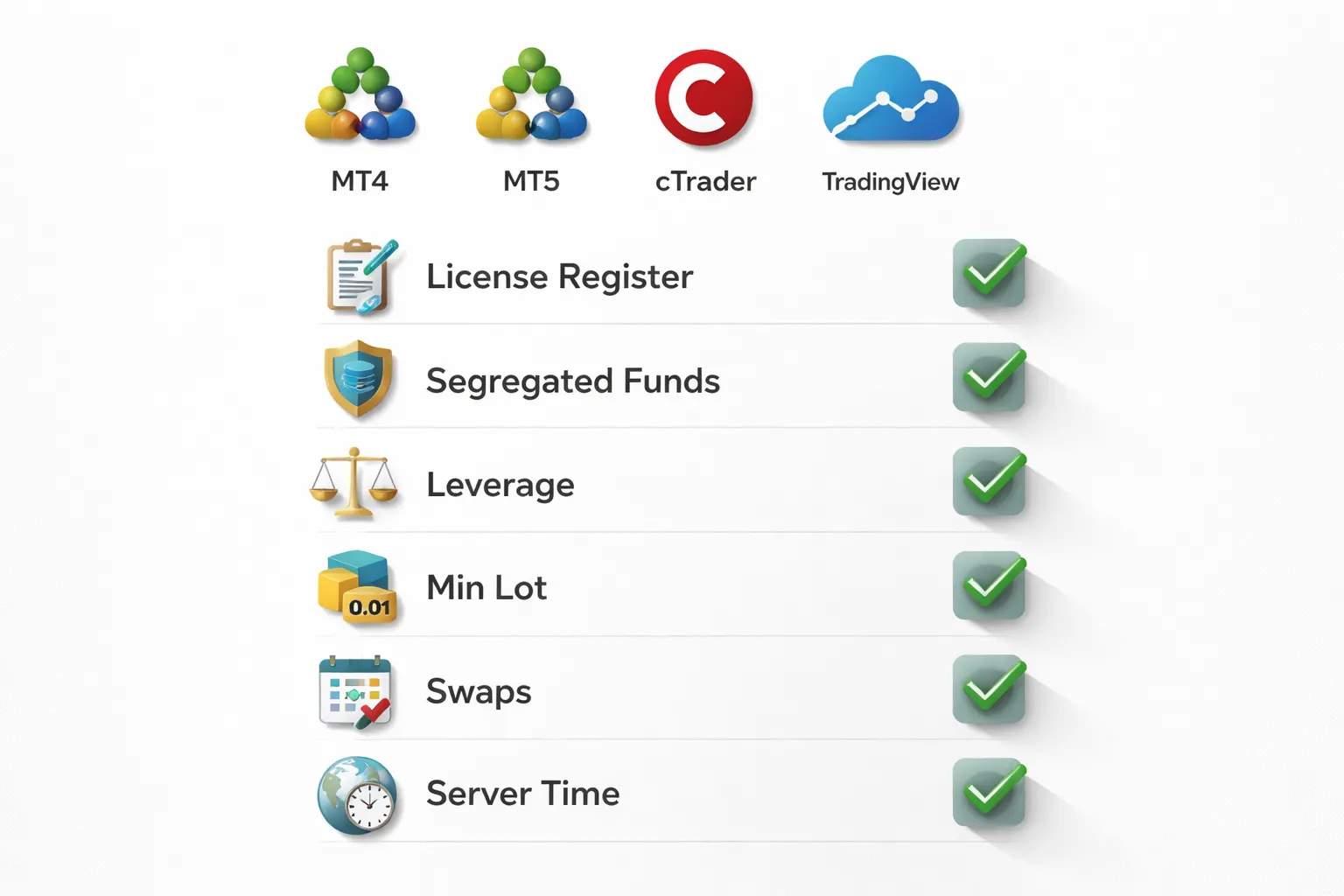
How to confirm your broker supports MT4, MT5, cTrader, or TradingView
Platform choice means nothing if your broker does not support it. Confirm support before you fund.
- Check the broker’s “Platforms” page. You need the exact platform name and version, like MT4 vs MT5. “MetaTrader” is not specific.
- Check the account type mapping. Many brokers limit platforms by account. Example, MT5 only on Raw or Pro, MT4 only on Standard.
- Verify the server name inside the platform. In MT4 and MT5, open the login window and look for your broker’s live server list. If you only see demo servers, you do not have a live setup.
- Confirm execution routing. Some brokers offer TradingView charts but route orders through a separate web portal. You want “TradingView trading” or “TradingView integration,” not charts only.
- Ask support one direct question. “Can I place and manage live forex trades from this platform on my account type, including SL and TP.” Save the answer.
| Platform | What “supported” must mean | Common catch |
|---|---|---|
| MT4 | Broker provides MT4 live server, you can trade your account from the terminal | MT4 offered but forex only, or limited symbols, or no RAW spread account |
| MT5 | Broker provides MT5 live server, you can trade CFDs and forex from the terminal | MT5 offered but hedging disabled, or market depth features not enabled |
| cTrader | Broker provides cTrader ID support, live trading, and full symbol list | cTrader available only in certain regions, or only on specific accounts |
| TradingView | Broker is a connected TradingView broker, you can place and manage orders inside TradingView | Charts available but trading requires a separate platform or bridge |
Regulatory checks that protect you
Regulation does not make you profitable. It can reduce the damage when things go wrong.
- Match the legal entity to your account. Brokers run multiple entities. Your protection depends on the entity that holds your account, not the brand name.
- Verify the license in the regulator register. Use the firm name and license number from the broker’s legal page. Do not rely on logos.
- Confirm client money segregation. You want “segregated client funds” stated in the legal docs for your entity.
- Check negative balance protection. This matters most if you use leverage or hold through gaps.
- Know the complaint path. Look for an ombudsman or dispute resolution scheme tied to your jurisdiction.
- Understand product limits. Some regulators restrict leverage, bonus offers, and certain CFDs. This changes your margin and sizing rules.
Instrument coverage and contract specs
Platforms look similar. Contract specs do not. Specs decide your real cost, risk, and whether your strategy fits.
- Minimum trade size. Check the smallest lot and lot step. Some accounts allow 0.01 lots, others force larger sizing on certain instruments.
- Leverage and margin model. Confirm per symbol leverage. Some brokers use dynamic margin, margin rises as your position size grows or around news.
- Swap and triple swap rules. Read the swap schedule per symbol. Your carry cost can flip from small to severe on exotic pairs.
- Stop level and freeze level. Some brokers restrict how close SL and TP can be to price. This breaks tight stop systems and scalping.
- Execution mode and fills. Market execution with slippage behaves differently than instant execution with re-quotes. Your backtests will not reflect re-quotes.
- Symbol naming. A broker may label EURUSD as EURUSD., EURUSDm, or EURUSD-RAW. Your indicators, EAs, and alerts can fail if they expect a different name.
Data quality, broker feeds, and why your chart can change
Your chart depends on the feed. Two brokers can show different highs, lows, and spreads at the same time. Your signals can shift.
- Different liquidity sources. Each broker aggregates prices differently. Small differences change candles, especially on lower timeframes.
- Server time affects candles. MT4 and MT5 candle boundaries depend on broker server time. Daily candles can differ across brokers. Many strategies break on that detail.
- Spread behavior matters. A “low average spread” does not help if spreads spike at rollover or during releases. Your stops trigger sooner.
- TradingView data vs broker execution. You can chart one feed and execute on another. That creates mismatched levels. Use your broker’s connected feed when you trade from TradingView.
- Test on the same feed you will trade. Forward test on a demo or small live account at your chosen broker. Validate fills, swaps, and stop rules.
If you run MT4 strategies, follow our MT4 walkthrough for beginners and confirm your broker’s symbol list and contract specs before you import any templates or EAs.
Platform-by-Platform Pros and Cons (Honest Summary)
MetaTrader (MT4, MT5): where it is unbeatable, where it feels dated
- Unbeatable for EA volume and broker coverage. You get the widest broker support. You also get the biggest library of EAs, indicators, and scripts.
- Unbeatable for simple automation workflows. You install an EA, set inputs, and run it. Many VPS providers and brokers support MetaTrader setups out of the box.
- Strong for quick execution and basic order control. Market, limit, stop, and trailing stop work the way most forex traders expect.
- Feels dated in UI and charting. Chart tools and layout management lag modern platforms. You will spend time fixing templates, profiles, and small workflow annoyances.
- Strategy testing can mislead if your inputs are weak. Bad tick data, wrong symbol settings, and broker-specific contract specs can distort results. You must validate on your broker feed.
- MT4 is legacy. Many brokers keep it for demand, but MT5 gets more active development and broader asset support. If you start fresh, default to MT5 unless you need MT4-only EAs.
For deeper platform tradeoffs, see our MetaTrader vs cTrader: which forex trading platform is better for you guide.
cTrader: where it shines, where it has fewer options
- Shines in clean UX and order handling. You get fast chart interaction, clear depth of market tools, and strong order types on supported brokers.
- Shines for active trading workflow. Watchlists, chart layouts, and trade management feel tighter than MetaTrader for many manual traders.
- Solid automation, smaller ecosystem. cAlgo and cBots work well, but you will find fewer ready-made bots and indicators than MetaTrader.
- Broker availability is narrower. Not every forex broker offers cTrader. Your platform choice can limit your broker choices.
- Fewer third-party utilities. You will see less variety in trade copiers, niche indicators, and community tooling compared with MT4 and MT5.
TradingView: where it dominates, where execution can be limited
- Dominates for charting and screening. You get strong multi-timeframe analysis, alerts, custom layouts, and a huge indicator library.
- Dominates for idea generation. Screeners, community scripts, and easy backtests speed up research. Pine Script lowers the barrier to building and testing logic.
- Execution can be limited by broker integration. You can only trade through connected brokers. If your broker is not supported, you must place orders elsewhere.
- Order feature set depends on the connector. Some integrations lack advanced order controls, full order management, or consistent partial fill behavior.
- Pricing and data can surprise you. Some exchanges and live data packages cost extra. Your chart feed can differ from your broker feed, which can shift levels and trigger points.
Best hybrid setups for advanced traders (analysis + execution stack)
- TradingView for analysis, MetaTrader for execution. You chart and set alerts in TradingView. You execute and manage risk in MT4 or MT5 on your broker feed. You use this when you want TradingView tools but need broad broker support and EA infrastructure.
- TradingView for analysis, cTrader for execution. You keep TradingView for structure and alerts. You use cTrader for manual execution, DOM tools, and clean order management. You choose this when your broker offers cTrader and you trade actively.
- MetaTrader for automation, TradingView for discretionary filters. You run EAs on a VPS. You use TradingView alerts and higher timeframe levels as a separate decision layer. You keep the EA logic strict and measured, then validate fills, swaps, and stop rules on the same broker feed.
- One feed rule. You backtest and forward test on the same feed you will trade. You document symbol settings, contract specs, and session times per broker.
How to Choose the Best Platform for You (Practical Checklist)
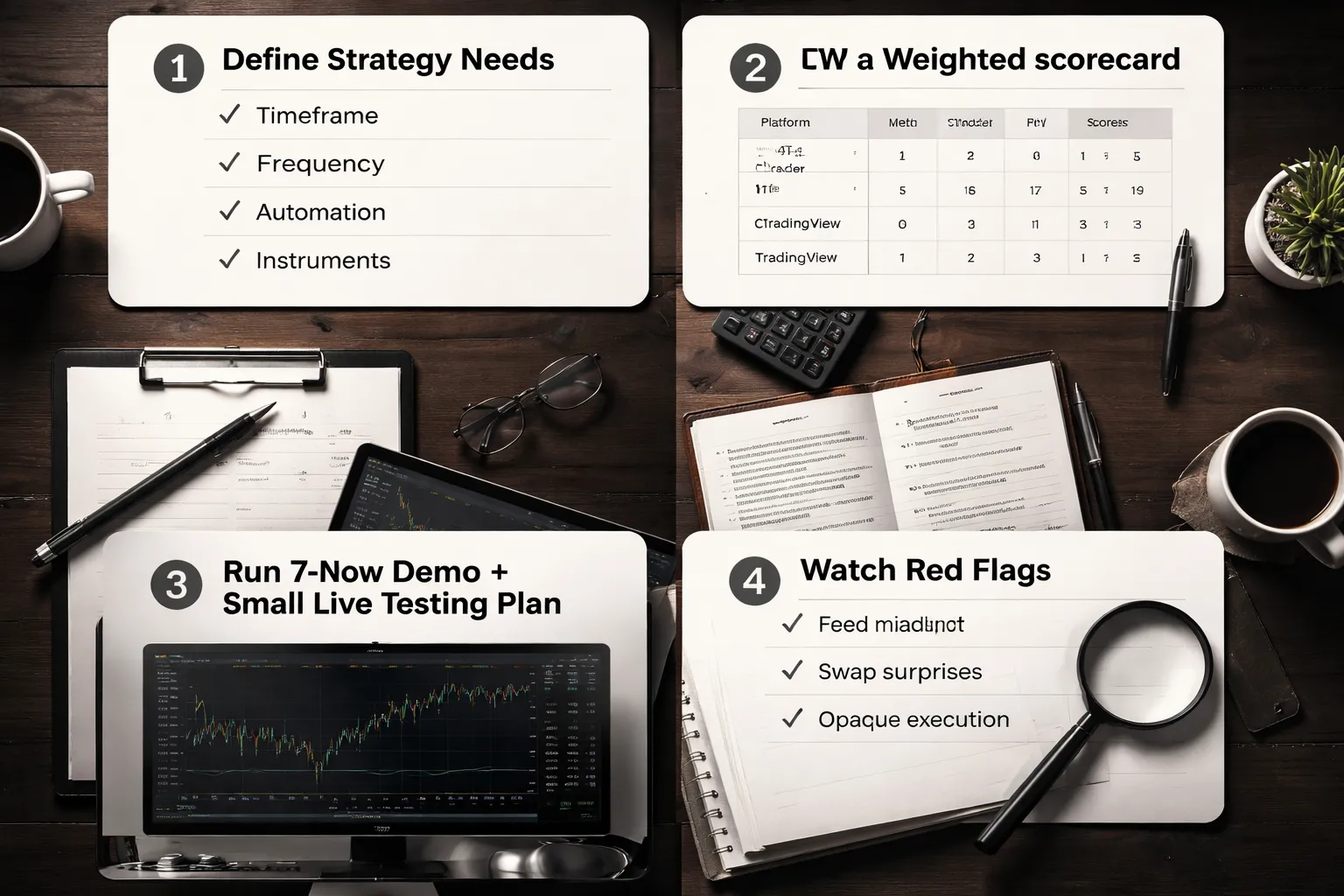
Define your strategy needs
Write your requirements before you compare features. Keep it specific. You want a platform that fits how you trade, not how it markets itself.
- Timeframe. Scalping and intraday need fast order entry, low latency, and clean tick handling. Swing and position need strong charting, alerts, and easy trade management.
- Frequency. High frequency increases platform risk. You need stable execution logs, minimal crashes, and predictable behavior during news.
- Automation level. If you run robots, prioritize strategy testing, VPS support, and reliable live execution. If you trade discretionary, prioritize charts, alerts, and order tools.
- Instruments. List what you trade, FX majors, gold, indices, crypto CFDs, shares. Confirm each instrument’s contract specs, trading hours, and swap rules with your broker.
- Order types you use. Market, limit, stop, stop limit, OCO, trailing stop. Check what the platform supports and what the broker actually executes.
- Risk workflow. You need one click position sizing, ATR based stops, or fixed cash risk. Test if the platform calculates lot size the way you expect.
- Data and feed constraints. You backtest and forward test on the same broker feed you will trade. You document symbol settings, contract specs, and session times per broker.
Scorecard template, weight what matters
Use a simple scorecard. Assign weights, then score each platform from 1 to 5. Multiply weight by score. Highest total wins.
| Category | Weight (0 to 10) | MT score (1 to 5) | cTrader score (1 to 5) | TradingView score (1 to 5) | Notes to verify |
|---|---|---|---|---|---|
| Execution control and order tools | 10 | Order types, partial fills, slippage visibility, reject handling | |||
| Automation and strategy testing | 10 | Backtest realism, tick model, commission and swaps, optimizer | |||
| Charting and analysis | 7 | Multi timeframe, templates, drawing tools, sync | |||
| Alerts and workflow | 7 | Price alerts, indicator alerts, webhook support, reliability | |||
| Costs you can measure | 9 | Spreads, commissions, swaps, data fees, platform fees | |||
| Stability under load | 8 | News spikes, reconnects, chart freezes, crash logs | |||
| Broker integration quality | 10 | Same feed for test and live, symbol mapping, sessions, swaps | |||
| Mobile usability | 5 | Order entry speed, chart readability, alert management | |||
| Export and audit trail | 6 | Trade logs, reports, screenshots, data export |
Set your minimums. Example, if you automate, you require 4 out of 5 for testing and execution. If a platform misses a minimum, stop scoring it.
If you need a platform specific setup guide, use a beginner MT5 walkthrough and follow it step by step on your broker feed.
7-day testing plan, demo plus small live
You can decide in one week if you test the right way. You need both demo and live. Demo checks workflow. Live checks fills, swaps, and execution rules.
- Day 1, install and match the broker feed. Add the exact symbols you trade. Record contract specs, minimum lot, tick size, margin, session times. Save platform templates.
- Day 2, charting and alerts. Build your watchlist. Set 10 alerts you would use in real trading. Track missed alerts and delays.
- Day 3, order handling on demo. Place market, limit, stop, and trailing stops. Test partial closes. Test break even moves. Confirm how the platform handles requotes and rejections.
- Day 4, cost sanity check. Log spreads at three times, London open, NY open, rollover. Confirm commission math. Confirm swap at rollover on a held position.
- Day 5, strategy test. Run a backtest on the broker feed or the closest available. Include commission and swaps. Export the report. Note data gaps and modeling limits.
- Day 6, small live trades. Trade the minimum size your plan allows. Take 5 to 10 entries. Log expected vs actual entry, stop placement, and exit price. Check slippage and stop behavior during volatility.
- Day 7, review and lock the decision. Compare your scorecard to the test logs. Pick the platform that met your minimums with the fewest workflow failures.
Red flags to avoid when comparing platforms and brokers
- You compare platforms but ignore the broker feed. Different symbols, sessions, and pricing make platform results meaningless.
- Backtest data does not match live pricing. Your edge can vanish from spread and swap differences alone.
- Stop rules differ from what you expect. Some brokers enforce minimum stop distances or change execution rules during news.
- Costs look low but swaps are extreme. If you hold overnight, swap can dominate your PnL. Verify on a live micro position.
- Execution info is opaque. If you cannot see rejects, slippage, and fill details, you cannot diagnose performance.
- Platform stability issues. Crashes, freezes, and frequent reconnects will break your process.
- Automation claims without real testing depth. If you cannot model realistic costs and tick behavior, treat results as marketing.
- Lock-in and friction. Hard exports, weak reporting, and limited integration increase switching costs later.
Frequently Asked Questions
Which platform is best for beginners?
TradingView is simplest for charting and alerts. MetaTrader has the biggest learning curve but the most tutorials and broker support. cTrader sits in the middle. Pick the platform your broker supports, then test it on demo with your exact order types.
Which platform has the best charting?
TradingView leads for charts, layouts, and indicator discovery. cTrader delivers strong native charts and cleaner order tools than MetaTrader. MetaTrader charting works, but feels dated unless you add custom templates and indicators.
Which platform is best for automation and bots?
MetaTrader wins for depth of ecosystem and broker adoption. You get Expert Advisors, strategy testing, and a large code marketplace. cTrader supports automation via cAlgo and C#. TradingView supports alerts and webhooks, you usually need a bridge to auto-execute.
Can TradingView place forex trades directly?
Sometimes. It depends on broker integration in your region. If your broker is not supported, you will chart in TradingView and execute in a separate platform. Confirm order types, partial fills, and stop handling before you commit.
Which platform is best for scalping?
cTrader often fits scalping due to its order entry and Level II style tools, if your broker routes it well. MetaTrader can work, but execution depends on broker setup and plugins. Focus on spreads, commissions, and real fill statistics, not marketing.
Do these platforms change my spreads or execution quality?
Your broker sets the pricing and routing. The platform affects order tools, stability, and reporting. You still need to measure effective spread, slippage, and fill speed on your broker with your trade size and session.
What should you test on a demo before going live?
Test the exact order types you will use, including stops, limits, and trailing stops. Track spread, commission, and slippage. Check reconnect behavior, server time, and swap display. Export logs and verify fills line up with your rules.
Is MetaTrader 4 still worth using?
Yes, if your broker support, tools, or existing EAs depend on it. MT5 has more asset support and a stronger tester. If you are starting fresh, lean toward MT5 unless your broker execution is better on MT4.
Can you use one account across multiple platforms?
Usually no. Most brokers assign accounts to a platform type, such as MT4, MT5, or cTrader. Some brokers offer separate accounts under one login. Ask support if you can transfer balance between platform accounts without closing positions.
How do you avoid platform lock-in?
Keep your strategy rules in a separate document. Store trade logs outside the platform. Export statements monthly. Prefer brokers that support more than one platform. If you code, write portable logic and isolate broker specific execution code.
Where can you learn MetaTrader fast?
Use a step by step guide like How to Use MetaTrader 5 (MT5) for Beginners. Focus on order entry, risk controls, templates, and basic testing. Skip advanced automation until you can verify fills and costs.
Conclusion
MetaTrader fits you if you want the widest broker choice, strong EA support, and a mature desktop workflow. cTrader fits you if you want cleaner depth of market tools, fast order handling, and a modern UI. TradingView fits you if your edge starts with charts, alerts, and community scripts, and you route execution through a supported broker.
- Pick MetaTrader if you rely on EAs, need broad broker coverage, or want simple VPS deployment.
- Pick cTrader if you scalp, use level 2 style tools, or want precise order controls and detachable layouts.
- Pick TradingView if you live in multi-timeframe charting, want fast idea testing, and trade from alerts.
Your last step is execution proof. Open the same instrument on two platforms with the same broker. Place small market and limit orders during liquid hours. Log spread, slippage, commissions, and fill speed for 20 trades. Keep the platform that gives you the lowest all-in cost and the fewest surprises.
If you still sit on the fence, read MetaTrader vs cTrader and match the platform to your order style and tooling needs.
-
MetaTrader 4 vs MetaTrader 5 for Forex: Which One Should You Use?
8 months ago -
TradingView for Forex: How to Use It (Charts, Alerts & Layouts)
8 months ago -
cTrader vs MetaTrader: Which Forex Platform Is Better?
8 months ago -
MetaTrader vs cTrader: Which Forex Trading Platform Is Better for You?
8 months ago -
How to Use MetaTrader 5 (MT5) for Beginners: Full Walkthrough
8 months ago
-
- cTrader: Strengths, Trade-Offs, and Best Use Cases
- Depth of Market (DOM) and Level II pricing for active traders
- Order management tools (advanced protection, quick trading, templates)
- cTrader Automate (cBots) and the C# ecosystem
- Backtesting and optimization: what to verify before going live
- Who benefits most from cTrader
-
- Which platform is best for beginners?
- Which platform has the best charting?
- Which platform is best for automation and bots?
- Can TradingView place forex trades directly?
- Which platform is best for scalping?
- Do these platforms change my spreads or execution quality?
- What should you test on a demo before going live?
- Is MetaTrader 4 still worth using?
- Can you use one account across multiple platforms?
- How do you avoid platform lock-in?
- Where can you learn MetaTrader fast?
-
-
- cTrader: Strengths, Trade-Offs, and Best Use Cases
- Depth of Market (DOM) and Level II pricing for active traders
- Order management tools (advanced protection, quick trading, templates)
- cTrader Automate (cBots) and the C# ecosystem
- Backtesting and optimization: what to verify before going live
- Who benefits most from cTrader
-
- Which platform is best for beginners?
- Which platform has the best charting?
- Which platform is best for automation and bots?
- Can TradingView place forex trades directly?
- Which platform is best for scalping?
- Do these platforms change my spreads or execution quality?
- What should you test on a demo before going live?
- Is MetaTrader 4 still worth using?
- Can you use one account across multiple platforms?
- How do you avoid platform lock-in?
- Where can you learn MetaTrader fast?
-
-
How to Place a Forex Trade Step by Step (Your First Trade Explained)
6 months ago -
Forex Trading vs Crypto Trading: Which Market Is Better for Beginners?
6 months ago -
Forex Lot Size Calculator: How to Use It to Size Trades Correctly
7 months ago -
How to Calculate Position Size in Forex (Position Sizing Formula + Examples)
7 months ago -
Forex Leverage Explained: How It Works, Pros, Cons & Examples
7 months ago
-
Stop Loss vs Take Profit: Differences, Examples & Best Practices
8 months ago -
Is Forex Trading Legal in the United States? Rules, Regulators & What to Know
8 months ago -
Forex Market Hours & Trading Sessions Explained (Best Times to Trade)
8 months ago -
Forex Leverage Explained: How It Works, Pros, Cons & Examples
7 months ago -
Forex Trading Psychology Tips: How to Stay Disciplined and Consistent
8 months ago