MetaTrader 4 vs MetaTrader 5 for Forex: Which One Should You Use?

MT4 and MT5 look similar, but they trade differently. Your choice affects order types, execution options, indicators, and broker support.
This guide compares MetaTrader 4 vs MetaTrader 5 for forex trading. You will learn the core differences that matter in daily use, including supported markets, order management, charting timeframes, built-in tools, strategy testing, and automation using MQL4 vs MQL5. You will also see where MT4 still wins, where MT5 runs ahead, and what to check with your broker before you switch.
If you also compare MetaTrader against other platforms, read our MetaTrader vs cTrader comparison.
Key Takeaways
Key Takeaways
- In het kort: Choose MT4 if you trade Forex only and rely on older EAs and indicators.
- In het kort: Choose MT5 if you want more markets, more timeframes, and a stronger built-in strategy tester.
- In het kort: Do not switch platforms until you confirm what your broker supports, platform, account type, symbols, spreads, and execution model.
- Markets: MT4 stays Forex-first. MT5 adds broader multi-asset support, if your broker offers it.
- Orders and execution: MT5 supports more order types and a more flexible order system. MT4 keeps it simpler for Forex workflows.
- Charting: MT5 gives you more timeframes and more built-in tools. MT4 covers core chart needs but feels dated.
- Automation: MT4 uses MQL4, MT5 uses MQL5. You cannot run most MT4 EAs on MT5 without rewriting or conversion. Factor this into your costs.
- Strategy testing: MT5 runs faster and tests deeper, with multi-threading and better optimization options. MT4 testing works but limits you sooner.
- Broker reality: Your platform choice often equals your broker setup. Some brokers keep their best Forex conditions on MT4, others push MT5.
- Practical rule: If your edge depends on specific MT4 tools, stay on MT4. If you build and test systems often, move to MT5.
- Next step: If you also compare platforms beyond MetaTrader, use our Forex trading platforms comparison.
MetaTrader 4 vs MetaTrader 5 for Forex: what they are and who they’re for
What MT4 is built to do well
MetaTrader 4 is a Forex-first trading platform. It focuses on a simple workflow: quotes, charts, order entry, and trade management.
- Forex-centric setup. Many brokers built their FX accounts around MT4 first, so you often get tight integration and familiar account types.
- Fast, lightweight desktop platform. MT4 runs well on older machines and low-resource VPS setups.
- Huge MT4 tool library. You get a large base of indicators and Expert Advisors, plus years of community support.
- Simple strategy automation. You can run EAs, alerts, and scripts without learning a complex interface.
What MT5 adds for modern trading
MetaTrader 5 expands the platform into multi-asset trading and upgrades the core architecture. You get more market depth features and stronger testing tools.
- Multi-asset support. MT5 commonly supports Forex plus CFDs, stocks, and futures, depending on your broker.
- More built-in timeframes and tools. MT5 ships with more default timeframes and a more modern charting stack.
- Better strategy testing. MT5 testing is built for faster runs and deeper analysis, useful if you iterate systems often.
- Modern automation language. MT5 uses MQL5, which supports more advanced program structures than MQL4 for many system builders.
Who each platform fits
- Beginner trader. MT4 usually feels simpler. MT5 works too, but you may face more menus and features you do not use early on.
- Discretionary trader. Choose the one your broker supports best. If you want more native timeframes and a more modern interface, lean MT5.
- Automated trader. If you build, test, and optimize often, MT5 gives you a stronger workflow. If your system depends on legacy MT4 EAs or indicators, stick with MT4.
- Scalper. Your broker matters more than the platform. Pick the platform where your broker offers the best execution model, spreads, commissions, and stable pricing. MT4 remains common for FX scalping setups; MT5 can match it when broker conditions are strong.
If you choose MT5 and want a clean setup path, use our MT5 beginner walkthrough.
Core differences that matter for forex traders
Supported markets and symbol availability
MT4 is built around spot forex and CFDs, based on what your broker connects to your account. Many brokers keep MT4 as their FX-first platform. You usually get the major and minor pairs, plus common metals and index CFDs.
MT5 supports the same forex pairs, but it also handles multi-asset setups better. Brokers often use MT5 to offer a wider symbol list, more CFDs, and exchange-traded products where regulations allow it. If you want one login for FX plus indices, energies, metals, and shares, MT5 often gives you more options. Your broker controls the final symbol list on both platforms.
- Choose MT4 if you only trade forex and your broker’s MT4 feed has the pairs and hours you need.
- Choose MT5 if you want broader market access from the same platform and account type.
Order types and trading modes
MT4 uses a hedging model by default. You can hold multiple buys and sells in the same pair at the same time. Many retail FX traders rely on this for grids, martingale logic, and manual hedges.
MT5 supports both hedging and netting. Hedging works like MT4. Netting merges positions into one per symbol, common in exchange-style trading. This matters because some brokers set MT5 accounts to netting, which can break strategies that depend on multiple tickets per pair.
Pending orders differ. MT4 gives you Buy Limit, Sell Limit, Buy Stop, Sell Stop. MT5 adds Buy Stop Limit and Sell Stop Limit. That extra control helps if you place breakout entries but want a capped fill price.
- If your strategy needs hedging, confirm your MT5 account type supports hedging before you fund it.
- If you use stop-limit entries, MT5 gives you native order support without EA workarounds.
Execution, latency, and stability factors
Your broker drives execution quality more than MT4 or MT5. Spreads, commissions, slippage, and re-quotes come from the broker’s pricing, liquidity, and execution model. Your VPS location and network route also matter.
What the platform changes is how your broker implements the trade bridge and server setup. Some brokers run cleaner infrastructure on MT5 because it is their newer stack. Others keep MT4 as the most tuned and stable environment for their FX flow. You cannot assume either way.
- Test both on the same broker with the same account type if possible.
- Track average spread, commission, slippage per trade, and disconnect frequency over at least a few active sessions.
- For scalping, prioritize server uptime and order handling consistency over platform labels.
| Factor | Mostly broker dependent | Platform dependent |
|---|---|---|
| Spreads and commissions | Yes | No |
| Slippage and fill quality | Yes | No |
| Re-quotes (if used) | Yes | No |
| VPS distance and network latency | Yes | No |
| Netting vs hedging availability | Broker sets account mode | MT5 supports both, MT4 hedging |
| Extra pending order types | No | MT5 adds stop-limit orders |
Built-in tools that impact day-to-day trading
MT5 ships with more built-in tools that affect workflow. You can trade without extra plugins and still get key context.
- Depth of Market (DOM). MT5 includes a stronger DOM view. It helps if your broker provides meaningful level data. On many CFD feeds, DOM shows limited or synthetic depth, so treat it as informational, not proof of liquidity.
- Economic calendar. MT5 has a built-in calendar. You can filter by currency and impact and line it up with your trading hours. MT4 often needs external calendars.
- News. Both platforms can show broker-fed news, but coverage varies by broker. Do not rely on it as your only news source.
If you want a broader platform comparison beyond MT4 vs MT5, see our forex trading platforms comparison.
Charting, timeframes, and analysis tools
Timeframes and chart types
For most forex traders, you will live on M1, M5, M15, M30, H1, H4, D1, and W1.
MT4 gives you 9 timeframes. MT5 expands this to 21. MT5 adds more intraday splits, including M2, M3, M4, M6, M10, M12, M20, plus H2, H3, H6, H8, H12.
Those extra timeframes help if you build rules around exact session blocks, or you want cleaner backtests without using offline charts.
Both platforms support the chart types most forex traders use, including candlesticks, bars, and line charts.
Indicators, drawing tools, and templates
Both MT4 and MT5 cover the basics. You get common indicators like Moving Averages, RSI, MACD, Bollinger Bands, ATR, and Stochastic. You can add custom indicators in both platforms.
MT5 ships with more built-in indicators and more built-in graphical objects than MT4. If you rely on the defaults, MT5 reduces how often you need downloads.
- Drawing tools: Both support trendlines, channels, Fibonacci tools, rectangles, text, and horizontal and vertical lines. MT5 adds more object types and more object settings.
- Templates: Use templates to standardize your charts across pairs. Save one clean template for execution and one for analysis. Apply them with one click.
- Profiles and workspaces: Use profiles to separate chart sets, for example London session, New York session, or swing watchlist. Keep your risk tools consistent across profiles.
Template portability matters if you use multiple PCs or VPS installs. MT4 and MT5 templates do not transfer cleanly between each other. Custom indicators and EAs also do not port 1 to 1 because MT4 uses MQL4 and MT5 uses MQL5.
Within the same platform, template files and profiles can move between installs, but you still need the same custom indicators installed. If an indicator is missing, the chart loads with gaps or defaults.
Alerts and notifications
Both platforms let you set price alerts and indicator-based alerts. You can push alerts to your phone if you link your desktop terminal to the MetaTrader mobile app.
- Desktop alerts: Use them for quick prompts, but do not use them as your only risk control.
- Mobile push: Set this up if you manage trades away from your desk. Test it during market hours to confirm delivery.
- Email alerts: Useful for logs and redundancy. Expect delays with some email providers. Treat email as backup, not real-time execution support.
For active trading, use alerts to cue a checklist, not to force entries. Keep alert rules simple, such as level breaks, ATR expansion, or session highs and lows.
Multi-monitor and workspace organization
Both MT4 and MT5 can handle multi-monitor setups, but you need to organize your windows with intent.
- Separate tasks by screen: Put execution charts on one monitor and analysis charts on another. Keep your order panel visible on the execution screen.
- Use consistent chart layouts: Keep the same zoom level and candle spacing across pairs. It cuts decision time.
- Limit indicators per chart: If you stack indicators, use one chart for signals and one chart for context. Do not overload a single view.
- Save profiles per workflow: Build one profile for scalping pairs, one for swing pairs, and one for news and event risk. Switch profiles instead of dragging windows.
If you want a broader view of platform charting and workflow, see our forex trading platforms comparison.
Automation and algorithmic trading (EAs): MQL4 vs MQL5
Programming language differences that affect EA performance and development time
MT4 uses MQL4. MT5 uses MQL5. They look similar, but they behave differently.
- MQL4 (MT4) feels simpler for many legacy Forex EAs. You can prototype fast, but you often hit limits when you scale logic, add many symbols, or need heavy calculations.
- MQL5 (MT5) gives you a stricter, more modern structure. You write more code upfront, but you get better tooling for complex systems, multi-asset logic, and larger projects.
- Order handling differs. MQL4 code often assumes ticket-based orders and MT4-style execution rules. MQL5 code typically uses position-based logic and a different trade API. This changes how you code entries, partial exits, and netting versus hedging behavior.
- Data access differs. MT5 makes it easier to work with multiple symbols and timeframes in one EA. MT4 can do it, but you usually need more workarounds.
Compatibility reality check: why most MT4 EAs do not run on MT5
You cannot load an EX4 EA on MT5. MT5 requires EX5 builds. Even if you have source code, a copy and paste port rarely works.
- Different language versions. MQL4 and MQL5 share syntax, but key functions and event handling differ.
- Different trading model. MT4 EAs often manage many orders per symbol. MT5 may run netting or hedging depending on broker account type, and your EA logic must match it.
- Different libraries. Many MT4 EAs rely on older include files, custom DLL patterns, or legacy order functions that do not map cleanly to MT5.
- Marketplace purchases lock you in. If you bought an MT4-only EA, you may need to buy the MT5 version or pay for a port.
If you plan to automate on MT5, start with MT5-native EAs or budget time to rebuild and retest.
Strategy Tester comparison: single-thread vs multi-thread, optimization depth
Backtesting and optimization drive your development time. MT5 has a clear edge here.
- MT4 Strategy Tester runs single-thread on most setups. Optimizations can take hours or days on large parameter sets.
- MT5 Strategy Tester runs multi-thread and can distribute work across CPU cores. It also supports wider optimization workflows, including more robust parameter sweeps and genetic optimization.
- Multi-currency testing works better in MT5. If your EA needs signals from several pairs, MT5 testing feels closer to how your bot runs live.
Backtesting quality for forex: modeling, tick data, spreads, slippage assumptions
Bad test inputs create false confidence. You need to control your data and your assumptions.
- Tick modeling. MT5 handles tick-based testing more cleanly and gives you more granular control over how the tester builds price movement. MT4 testing quality depends heavily on your history source and settings.
- Spread assumptions. Fixed spread tests can overstate results, especially for scalpers. Use variable spreads when your broker data allows it, and retest across wider spreads to stress the strategy.
- Slippage and execution. Tester fills can look cleaner than live fills. Add conservative slippage assumptions in your logic and validate on a demo that matches your broker execution.
- Data integrity. Gaps, wrong session times, and low-quality ticks will distort stops, trailing logic, and news spikes. Check for missing days and abnormal candles before you trust a report.
Risk controls for bots: max drawdown, kill-switches, session filters
Most EA blowups come from weak guardrails, not bad entries. Build risk controls into your code.
- Max drawdown stop. Track peak equity and current equity. Halt trading when drawdown hits your limit. Do not restart the bot until you review logs and conditions.
- Daily loss cap. Stop after a fixed currency loss or percentage loss per day. Reset at server day rollover, not your local time.
- Max exposure limits. Cap total lots, margin use, and number of open positions. Add symbol-level limits so one pair cannot dominate risk.
- Session filters. Trade only during the sessions your backtest supports. Many strategies fail in rollover, illiquid hours, or around weekly open.
- News and volatility blocks. Disable entries during scheduled high-impact events if your edge does not survive spikes. You can also block trading when spread widens past a threshold.
- Connectivity and error handling. Detect trade errors, requotes, and stale quotes. Pause and retry with limits. Log every failure with broker return codes.
- Kill-switch. Add a manual toggle via input parameter or global variable so you can stop new trades fast without removing the EA.
If you need platform setup steps for automation, use our How to Use MetaTrader 5 (MT5) for Beginners guide.
Broker support and real-world availability
Why some brokers still push MT4
MT4 still brings the most retail Forex flow. Your broker keeps it because clients ask for it and switching costs money.
- Legacy demand. Many traders run old MT4 EAs and indicators. Brokers keep MT4 to avoid losing those accounts.
- Plugin stack. Many broker tools built around MT4 still work well, bridge connectors, risk plugins, dealer panels, markups, and reporting add-ons.
- Old infrastructure. Some brokers built their whole order routing and back office around MT4. Moving to MT5 means new servers, new bridges, new QA, and new support work.
- Simple product set. If the broker mostly offers spot FX and a small CFD list, MT4 covers the minimum with fewer changes.
Why many brokers prioritize MT5
MT5 fits brokers that want more products, more reporting, and a longer platform runway.
- Product expansion. MT5 supports broader multi-asset catalogs in one system. That matters if your broker pushes indices, metals, energies, shares, or futures-style CFDs.
- Future roadmap. Brokers follow where vendor development and support focus goes. They avoid building new services on a platform they expect to maintain forever.
- Operational scale. Brokers can standardize more account types and instruments inside one platform, which cuts support load and reduces platform fragmentation.
Account types and constraints that change the experience
The platform name does not tell you your real trading costs. Your account model does.
- Commission vs spread. Raw or ECN-style accounts add a commission and show tighter spreads. Standard accounts bake costs into wider spreads. Compare total cost per round trip, not headline spread.
- Swap and triple swap. MT4 and MT5 show swaps, but brokers set the rates. Check long and short swap on your symbols. Watch triple swap day and how the broker calculates it.
- Execution mode and fill rules. Brokers can apply different fill policies per account and per symbol. This changes slippage behavior and rejection rates during news.
- Symbol catalog differences. Some brokers list more instruments on MT5 than MT4. Your strategy may fail if a symbol, contract size, or trading hours differ.
- Risk limits and minimums. Minimum lot size, max lot size, leverage caps, and stop level rules vary by account. These limits can break scalpers, grids, and copy setups.
Regulation and data transparency considerations
Regulation will not pick MT4 or MT5 for you. It will change what your broker must disclose and how your trading data looks.
- Pricing disclosures. Better-regulated brokers usually publish clearer fee schedules, swap tables, and account terms. If you cannot verify costs before you trade, treat the broker as high risk.
- Execution disclosures. Look for execution policy statements, best execution wording, and order handling notes. These documents tell you how the broker routes and fills orders.
- Trade confirmations and reporting. You need downloadable statements that show ticket time, price, commission, swap, and any markups. This helps you audit slippage and total costs.
- Data portability. Make sure you can export history in a usable format and keep it if you change servers or accounts.
If you want to compare platform availability across brokers, use our Forex trading platforms comparison to see where MetaTrader fits against cTrader and TradingView.
Costs, addons, and ecosystem (Market, indicators, VPS, integrations)
Costs, addons, and ecosystem
MetaTrader itself usually costs you nothing. Your broker licenses it. You pay through spreads, commissions, swaps, and any platform related fees your broker adds. Addons can add real cost. Budget for tools, hosting, and data.
MetaTrader Market, code libraries, and what is stronger on MT4 vs MT5
Both platforms plug into the MetaTrader Market for paid indicators, EAs, and utilities. You also get free code libraries and forums. The difference is where the depth sits today.
- MT4 strength: The largest legacy library. More older EAs and indicators. More third-party vendors still ship MT4-first builds.
- MT5 strength: Faster-growing Marketplace and newer tooling. Better support from many modern algo vendors who want multi-asset features and a more modern tester.
- What this means for your costs: MT4 gives you more cheap or free legacy tools, but quality varies. MT5 has more actively maintained products, but you may pay more for newer builds.
- Licensing reality: Many paid EAs lock to account number, broker, or hardware. Plan for re-activation if you change brokers or VPS.
VPS hosting for forex automation
If you run EAs, you need stable uptime and low latency to your broker. A VPS reduces disconnects and keeps trades running when your laptop sleeps.
- Minimum practical specs for 1 to 2 terminals: 2 vCPU, 2 to 4 GB RAM, 30 to 50 GB SSD.
- Heavier loads: More charts, multiple terminals, or tick-heavy EAs need 4 vCPU and 8 GB RAM.
- OS: Windows Server is the default for MT4 and MT5. Some hosts offer Wine, but support varies.
- Uptime target: Aim for 99.9% or higher. Check if the host publishes incident history, not just marketing claims.
- Latency: Pick a VPS region near your broker trade server. Under 10 to 20 ms is a common target for scalping. Higher latency can still work for swing systems.
- Operational basics: Use automatic restarts after updates, monitor CPU and RAM, and keep terminal logs small. A full disk can crash the terminal.
Common third-party integrations
MetaTrader works best when you connect it to your reporting and risk stack. Most integrations pull data from account history exports, investor passwords, or trade copier bridges. Your broker may block some methods.
- Trade journals: Export statements and sync trades for tagging, screenshots, and playbooks. Look for support for commissions, swaps, and multi-account imports.
- Analytics: Connect to performance dashboards that track expectancy, drawdown, exposure by pair, and time-of-day results.
- Risk dashboards: Add tools that enforce max daily loss, max open risk, and correlation limits. Some run as EAs, some sit outside the terminal.
- Execution tools: One-click panels, partial close scripts, and trade managers can reduce errors. Test them on demo first. Poorly coded tools can mis-size positions.
- Copy trading: Options include broker-native copy, signal subscriptions, or third-party copiers. Check delay, slippage controls, and whether it copies stops and limits correctly.
If you also trade on mobile, cross-check your broker app quality and limitations in our best Forex trading apps guide.
Security and account safety basics
- Use broker 2FA: MetaTrader terminals do not always control account-level 2FA. Your broker portal usually does. Turn it on.
- Strong passwords: Use a unique password for your broker login and email. Use a password manager. Do not reuse old credentials.
- Secure your VPS: Change default RDP ports only if you know what you are doing. At minimum, use strong admin credentials and firewall rules. Disable unused users.
- Device trust: Avoid logging in on shared machines. Keep OS and antivirus updated. Lock your phone and laptop.
- API and investor access: Treat investor passwords, publisher tokens, and journal connections as sensitive. Revoke access when you stop using a service.
- Backups: Export templates, profiles, and set files. Save your account history reports. A terminal crash should not wipe your setup.
Pros and cons for forex trading (quick decision support)
Advantages of MT4 in 2026
- Simplicity: You get a focused Forex workflow. Less platform noise. Faster setup.
- Familiar UI: Most brokers, tutorials, and community answers still assume MT4 layouts and terms.
- Huge EA and indicator library: You can find legacy Expert Advisors, custom indicators, and scripts for common strategies.
- Low hardware demand: MT4 runs well on older PCs and lightweight VPS plans.
- Stable for basic execution: Market orders, stop loss, take profit, and trailing stops work as expected for many retail Forex styles.
Limitations of MT4 that can impact serious traders
- Backtesting ceiling: Strategy Tester feels dated. You get fewer test controls and weaker optimization tools than MT5. This slows system development.
- Fewer built-in tools: You get fewer timeframes, fewer native indicators, and fewer platform-level analytics features.
- Growth risk: MT4 sits on older architecture. Broker support varies by region and regulation. Some brokers push MT5 as the default.
- 32-bit constraints on some installs: This can limit stability when you stack many charts, indicators, and EAs.
- Order and execution features lag: You may miss newer order handling and depth style views that some brokers expose more cleanly in MT5.
Advantages of MT5 for forex
- Stronger testing and optimization: You get a more capable Strategy Tester. This matters if you build, tune, and validate EAs often.
- More built-in tools: More timeframes, more indicators, and more objects help you standardize your chart work without extra downloads.
- Modern platform build: Better fit for multi-asset broker setups, faster handling of larger data sets, and fewer legacy constraints.
- Better expansion path: If you plan to add indices, commodities, or stocks later, MT5 support usually looks cleaner.
- Cleaner account management options on many brokers: Your broker can offer netting or hedging setups depending on account type.
Limitations of MT5 to watch
- Learning curve: The UI looks similar, but key areas differ. Testing, order handling, and settings require re-learning.
- EA migration work: MT4 uses MQL4, MT5 uses MQL5. Many EAs need a rewrite or a paid port. Do not assume copy and paste.
- Broker implementation differences: Symbols, contract specs, suffixes, and execution policies can change between brokers. Your EA may need symbol mapping and stricter order checks.
- Not all MT5 marketplaces equal: The library is large, but MT4 still has more legacy code and more old strategy variants.
| Trading need | Pick this | Reason |
|---|---|---|
| You trade manually and want a simple Forex terminal | MT4 | Familiar workflow, light setup, huge library of basic tools |
| You rely on backtests and optimization to develop systems | MT5 | Better tester and more platform tools for iteration |
| You already run MT4 EAs that you trust | MT4 | No migration risk, no rewrite cost |
| You want a platform that scales to more markets later | MT5 | Stronger multi-asset support and more modern builds |
| You want the fastest start with fewer settings to manage | MT4 | Less complexity, fewer moving parts |
| You can invest time to learn and rebuild parts of your stack | MT5 | Better long-term feature headroom |
If you choose MT5 and want a fast setup path, use this MT5 beginner walkthrough.
How to choose between MT4 and MT5 (practical decision framework)
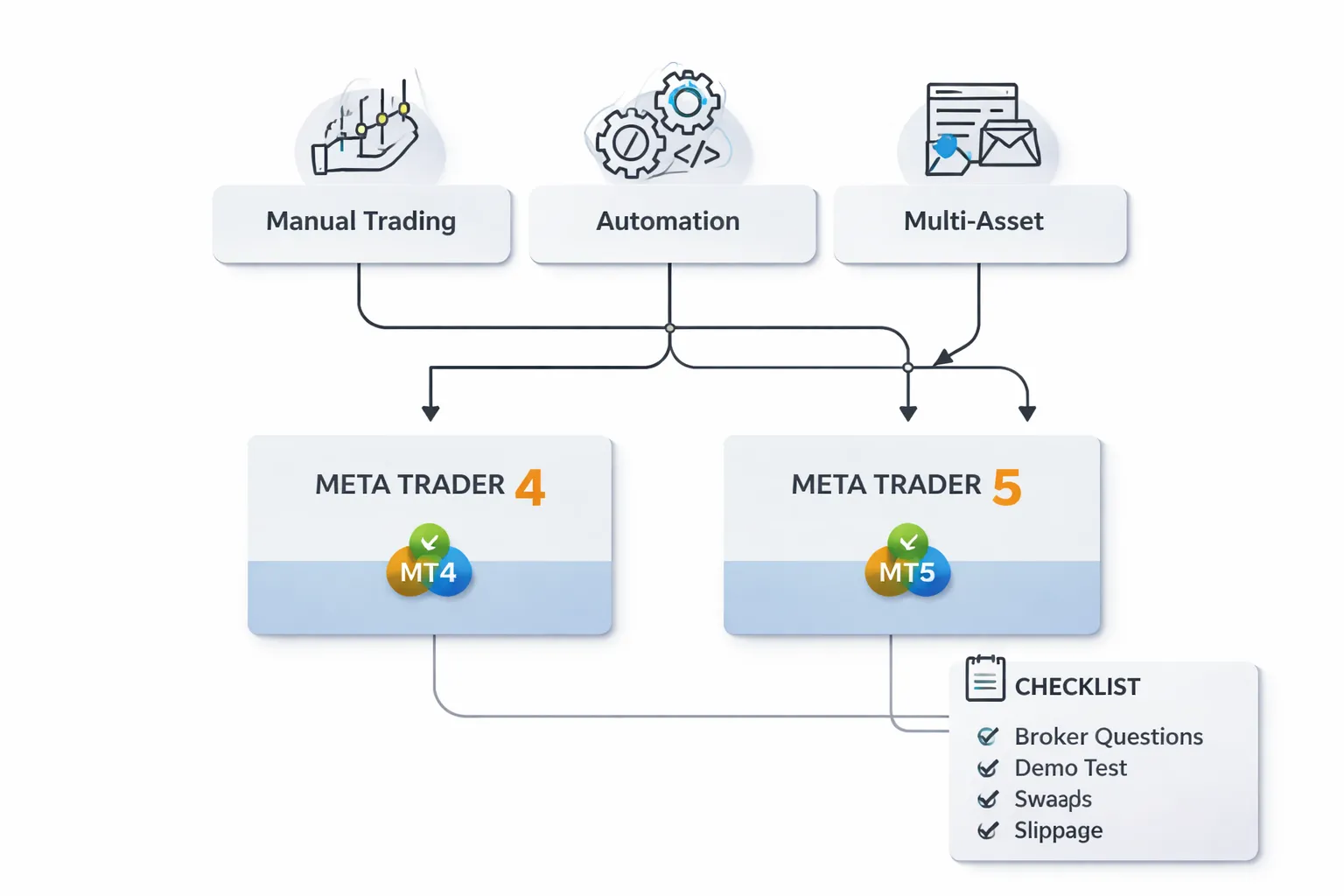
Decision tree by goal
- Your goal is manual forex trading. Start with MT4 if you want a simple setup and you mainly trade major and minor pairs. Pick MT5 if you want more order controls, more built-in timeframes, and a platform you can extend later.
- Your goal is automation and strategy testing. Pick MT5 if you plan to optimize often, run multi-currency tests, or you want a more modern tester. Use MT4 if you already rely on MT4-only EAs and you do not want to port code.
- Your goal is multi-asset access. Pick MT5 if you want FX plus stocks, futures, or more CFDs from one terminal. Stay on MT4 if your broker offers forex only on MT4 and you do not need other markets.
If you still feel stuck, decide based on broker support first, then your tools, then your time to migrate. Platform features do not matter if your broker does not offer them in your account type.
Questions to ask your broker before choosing
- Do you allow hedging on this account in MT5? Some brokers configure MT5 in a netting mode for certain products. You need hedging if you open long and short positions on the same symbol.
- Which symbols exist on each platform? Ask for a full instrument list for MT4 and MT5. Confirm suffixes and naming, like EURUSD vs EURUSD.r or EURUSDm. Your indicators and EAs often depend on exact symbol names.
- Are spreads and commissions identical across MT4 and MT5? Many brokers price them the same, some do not. Ask for the exact commission per lot and typical spreads per account type on both platforms.
- Do swaps differ between platforms? Ask for the swap long and swap short values for the pairs you trade most. Small differences compound if you hold overnight.
- What execution model do you use? Ask if the account runs market execution, instant execution, or hybrid rules. Then ask how they handle requotes and partial fills, and whether fill policies differ between MT4 and MT5.
- Which plugins do you support? Confirm VPS integration, copy trading, trade journaling, and risk tools. Ask if they have MT4-only plugins or an MT5 equivalent.
- What is your platform support policy? Ask which builds they support, how they handle forced updates, and whether they restrict older terminals.
Migration plan from MT4 to MT5
- Step 1, inventory your stack. List your indicators, EAs, scripts, templates, profiles, symbol lists, and custom hotkeys. Mark which ones you use daily.
- Step 2, move visuals first. Recreate your chart templates and profiles in MT5. Keep the layout simple at first. Match colors, sessions, and chart timeframes.
- Step 3, rebuild your watchlist. Add the exact symbols you trade. Confirm contract sizes, lot steps, margin rules, and trading hours per symbol.
- Step 4, validate each indicator. Install MT5 versions where possible. If you only have an MQ4 file, you need the source code to port it. EX4 files do not convert into editable MT5 code.
- Step 5, port EAs with a test plan. Get the MQ4 source. Translate it to MQL5, then fix order handling, position logic, and symbol handling. MQL4 and MQL5 differ in trade functions and position models.
- Step 6, retest from zero. Run backtests on the same symbols and date ranges, then forward test on demo. Use the same risk per trade and the same trading hours.
- Step 7, cut over in phases. Trade smallest size first. Keep MT4 running in parallel until your MT5 results match your expected behavior.
If you need an alternative charting layer while you migrate, use your broker feed for execution and run analysis in TradingView for forex.
Side-by-side testing checklist (demo comparison for spreads, swaps, and fills)
- Match the variables. Use the same broker, same account type, same base currency, same leverage, and the same deposit size on MT4 and MT5.
- Match the symbols. Trade the same instrument names and confirm contract specs in both terminals.
- Record spreads at set times. Log spreads at London open, NY open, and rollover. Capture at least 20 samples per symbol.
- Compare commissions. Place the same lot size trades. Verify the commission charge and how it posts in the history.
- Verify swaps. Hold one small position overnight on each platform. Compare swap long and swap short charges, including triple swap day.
- Test fills. Place market orders and limit orders during normal liquidity and during news. Record slippage in points and note any requotes or rejections.
- Check stops and limits behavior. Place the same SL and TP distances. Confirm minimum stop distance rules and whether the platform enforces them differently.
- Measure stability. Track disconnects, price freezes, and CPU load with the same chart count and indicators.
| What to compare | How to measure | What to record |
|---|---|---|
| Spreads | Manual samples at fixed sessions | Average, min, max per symbol |
| Swaps | Hold overnight and review history | Swap long, swap short, triple day impact |
| Commissions | Same lot size, same account type | Cost per round turn |
| Execution quality | Market and pending orders in live sessions | Slippage, rejects, requotes, partial fills |
Setup best practices for forex traders on either platform
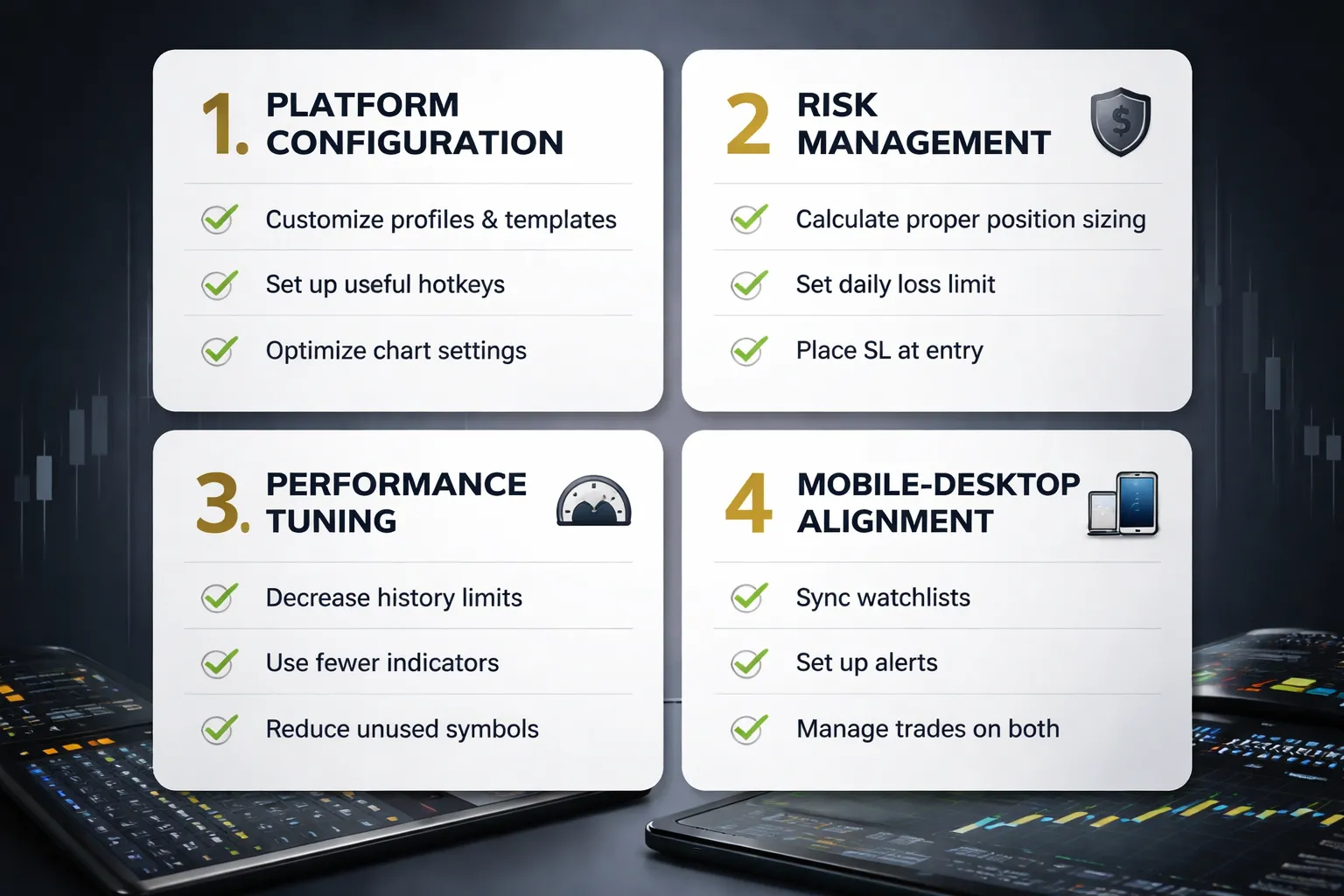
Platform configuration essentials
Start with one clean workspace. Keep it consistent across MT4 and MT5.
- Create profiles by task. One for live trading, one for analysis, one for testing. Keep symbols and windows fixed per profile.
- Build templates per strategy. Save a chart template with your indicators, colors, and scale. Apply it to every new chart.
- Standardize chart settings. Set your default timeframe, show bid and ask line, and enable one-click trading only if you use hard risk limits.
- Set hotkeys and speed actions. Learn the keys for new order, modify order, and cycle timeframes. Reduce mouse work during fast markets.
- Control notifications early. Turn on push notifications and email alerts only for trade events you act on. Avoid alert spam.
- Lock your EA permissions. If you use EAs, allow live trading only on the charts that need it. Disable DLL imports unless your tool requires it.
Risk management settings to implement on day one
Hard rules beat willpower. Put them into your process before your first trade.
- Use fixed risk per trade. Set a default risk level, then calculate lot size from stop distance. Do not “round up” because the setup looks good.
- Require a stop-loss at entry. Place SL and TP in the order ticket. If your strategy uses manual exits, still place an emergency SL.
- Set daily loss and weekly loss limits. Write the numbers down. Stop trading when you hit them. Treat limits as non-negotiable.
- Limit open exposure. Cap total risk across all open trades, and cap correlated exposure by currency. Track it in your notes or a simple sheet.
- Define max slippage and fill rules. For market orders, set a tolerance you accept. For news, prefer limit orders if your broker and strategy allow it.
- Journal every trade from day one. Record symbol, session, spread, stop size, lot size, entry reason, exit reason, and execution notes.
Performance tuning
Terminal slowdowns cause missed edits and bad fills. Reduce load before you scale up charts and tools.
- Limit bars in history and charts. Set “Max bars in history” and “Max bars in chart” to what your indicators need, not the maximum.
- Control History Center imports. Download only the symbols and timeframes you trade. Remove unused symbols from Market Watch.
- Reduce indicator count per chart. If you stack tools, consolidate. Use one indicator that outputs multiple values instead of five separate ones.
- Disable unused feeds and UI elements. Turn off news, depth of market, and extra panels if you do not use them. Close extra charts.
- Separate workspaces. Keep manual trading on one terminal and testing on another install, or use separate profiles with strict discipline.
- Keep logs under control. Review Experts and Journal logs when troubleshooting, then archive old files to keep the terminal responsive.
Mobile and desktop workflow alignment
Use desktop to plan. Use mobile to monitor and protect positions.
- Match your watchlists. Keep a short list of traded pairs and a second list for candidates. Avoid scanning dozens of symbols on mobile.
- Sync alert logic. Build price alerts around levels that trigger action, entry zone reached, stop level threatened, session change. Do not alert on noise.
- Use mobile for trade defense. Adjust SL to reduce risk, close partials, or exit when your plan says so. Avoid discretionary entries on small screens.
- Standardize order sizing rules. If you must place an order on mobile, use a pre-set table for lot size by stop distance and risk amount.
- Review execution details daily. Compare mobile edits and fills with desktop history. Watch for spread spikes, swaps, and slippage patterns.
- Keep a backup access path. Store broker server details, account IDs, and reset methods securely. Test login before high-impact sessions.
For mobile-specific setup and alert workflows, use this guide on best forex trading apps.
Frequently Asked Questions
Which is better for forex, MT4 or MT5?
MT4 fits most spot forex traders who rely on classic indicators and large EA libraries. MT5 fits you if you want more timeframes, more order types, faster strategy testing, and easier multi-asset trading. Your broker support and your EA needs decide.
Can you trade forex on MT5?
Yes. You can trade spot forex on MT5 if your broker offers forex accounts on MT5. Check symbol list, contract specs, spreads, swaps, and execution mode inside the platform before funding the account.
Do MT4 EAs work on MT5?
No. MT4 uses MQL4. MT5 uses MQL5. You must port the code or buy an MT5 version. Test results can change after conversion, due to order handling, data model differences, and tick history quality.
Is MT5 faster than MT4 for backtesting?
Usually, yes. MT5 supports multi-threaded testing and distributed agents. MT4 strategy tester runs single-threaded in most cases. Speed depends on your CPU, data quality, modeling settings, and whether you run one symbol or many.
What order types do MT4 and MT5 support?
MT4 supports market orders plus four pending types. MT5 adds more pending types and more control over fill policies, depending on broker settings. If you use stop-limit entries or strict fills, MT5 gives you more options.
Which platform has more indicators and tools?
MT5 includes more built-in indicators, more timeframes, and an economic calendar. MT4 has fewer native tools but a huge third-party library. If you build from scratch, MT5 gives you more out of the box.
Can you use both MT4 and MT5 with the same broker account?
Usually, no. Brokers often separate MT4 and MT5 accounts, even under one client area. You can run both platforms, but you typically need separate logins and balances. Confirm account migration rules before switching.
Which platform is better for mobile trading?
Both work, but mobile limits chart space and order management speed. Keep templates simple, use alerts, and review fills daily on desktop. For mobile-first workflows, see our best forex trading apps guide.
Is MT4 being discontinued?
MetaQuotes no longer develops MT4 features, but many brokers still support it. Availability depends on your broker, licensing, and region. If you want a longer runway and new platform updates, plan around MT5 support.
Should you switch from MT4 to MT5?
Switch if your broker offers better pricing on MT5, you need more order types, or you run heavy backtests. Stay on MT4 if your edge depends on existing MT4 EAs, indicators, or broker plugins you cannot replace.
What should you check before choosing MT4 or MT5 at a broker?
- Spreads and swaps: compare on the same symbols and sessions.
- Execution and slippage: review fill history and requotes.
- Symbols: confirm majors, minors, exotics, and suffixes.
- Platform limits: max orders, hedging rules, minimum stops.
- Data: tick history depth for testing and analytics.
Conclusion
MT4 still fits many forex traders. It works well for simple discretionary trading and older EAs built in MQL4.
MT5 fits you if you want more tools and cleaner testing. It gives you more timeframes, more order control, and a stronger strategy tester. It also sees wider broker support for newer account setups.
Do not pick based on features alone. Pick based on your broker’s real conditions on your symbols. Test the same hours, the same lot sizes, and the same order types.
- If you trade manually: choose the platform that gives you the best fills and lowest all-in costs at your broker.
- If you use EAs: choose the platform your EA needs, then validate backtests with live forward data.
- If you plan to scale: prioritize execution quality, swap policy, and platform limits over extra indicators.
Your final step. Open demo accounts for both, then run a one week side-by-side test on your top three pairs. Log spreads, swaps, and slippage. Keep the platform that wins on your data. If you need help setting up MT5 fast, use this MT5 beginner walkthrough.
-
Forex Trading Platforms Comparison: MetaTrader vs cTrader vs TradingView
8 months ago -
TradingView for Forex: How to Use It (Charts, Alerts & Layouts)
8 months ago -
cTrader vs MetaTrader: Which Forex Platform Is Better?
8 months ago -
MetaTrader vs cTrader: Which Forex Trading Platform Is Better for You?
8 months ago -
How to Use MetaTrader 5 (MT5) for Beginners: Full Walkthrough
8 months ago
-
- Programming language differences that affect EA performance and development time
- Compatibility reality check: why most MT4 EAs do not run on MT5
- Strategy Tester comparison: single-thread vs multi-thread, optimization depth
- Backtesting quality for forex: modeling, tick data, spreads, slippage assumptions
- Risk controls for bots: max drawdown, kill-switches, session filters
-
- Which is better for forex, MT4 or MT5?
- Can you trade forex on MT5?
- Do MT4 EAs work on MT5?
- Is MT5 faster than MT4 for backtesting?
- What order types do MT4 and MT5 support?
- Which platform has more indicators and tools?
- Can you use both MT4 and MT5 with the same broker account?
- Which platform is better for mobile trading?
- Is MT4 being discontinued?
- Should you switch from MT4 to MT5?
- What should you check before choosing MT4 or MT5 at a broker?
-
-
- Programming language differences that affect EA performance and development time
- Compatibility reality check: why most MT4 EAs do not run on MT5
- Strategy Tester comparison: single-thread vs multi-thread, optimization depth
- Backtesting quality for forex: modeling, tick data, spreads, slippage assumptions
- Risk controls for bots: max drawdown, kill-switches, session filters
-
- Which is better for forex, MT4 or MT5?
- Can you trade forex on MT5?
- Do MT4 EAs work on MT5?
- Is MT5 faster than MT4 for backtesting?
- What order types do MT4 and MT5 support?
- Which platform has more indicators and tools?
- Can you use both MT4 and MT5 with the same broker account?
- Which platform is better for mobile trading?
- Is MT4 being discontinued?
- Should you switch from MT4 to MT5?
- What should you check before choosing MT4 or MT5 at a broker?
-
-
How to Place a Forex Trade Step by Step (Your First Trade Explained)
6 months ago -
Forex Trading vs Crypto Trading: Which Market Is Better for Beginners?
6 months ago -
Forex Lot Size Calculator: How to Use It to Size Trades Correctly
7 months ago -
How to Calculate Position Size in Forex (Position Sizing Formula + Examples)
7 months ago -
Forex Leverage Explained: How It Works, Pros, Cons & Examples
7 months ago
-
Forex Trading Platforms Comparison: MetaTrader vs cTrader vs TradingView
8 months ago -
Stop Loss vs Take Profit: Differences, Examples & Best Practices
8 months ago -
Is Forex Trading Legal in the United States? Rules, Regulators & What to Know
8 months ago -
Forex Market Hours & Trading Sessions Explained (Best Times to Trade)
8 months ago -
Forex Leverage Explained: How It Works, Pros, Cons & Examples
7 months ago