How to Use MetaTrader 4 (MT4) for Beginners: Full Walkthrough
MetaTrader 4, MT4, is a trading platform for forex and CFDs. You use it to view charts, place orders, and manage risk in one screen. This walkthrough shows you how to set up MT4 and execute basic trades without guessing.
You will learn how to download and log in, connect to your broker server, and read the main windows. You will place market and pending orders, set stop loss and take profit, and modify or close positions. You will also learn how to change chart timeframes, add indicators, save templates, and set alerts.
MT4 does not remove trading risk. Leverage can magnify losses fast. Start on a demo account, keep position sizes small, and use protective stops. If you want to compare MT4 with other tools, see our forex platform comparison.
- In het kort: Install MT4, log in, and start on a demo account first.
- In het kort: Learn the core panels, Market Watch, Navigator, Terminal, and the order window.
- In het kort: Place market and pending orders, then set stop loss and take profit before you confirm.
- In het kort: Manage risk per trade. Keep position sizes small and use protective stops. Leverage can wipe your account fast.
- In het kort: Track and manage open trades in the Terminal. Modify stops, add targets, or close positions with one action.
- In het kort: Control charts with timeframes, zoom, and clean layouts. Save your setup as a template for reuse.
- In het kort: Add indicators with a purpose. Avoid stacking tools that give the same signal.
- In het kort: Set price alerts for key levels so you do not watch the screen all day.
- In het kort: If you need a modern charting workflow, read our TradingView for forex guide.
What MetaTrader 4 (MT4) Is and Who It’s For
MT4 in plain English, platform vs broker vs trading account
MetaTrader 4, MT4, is trading software. You use it to see prices, analyze charts, and place trades.
Your broker is the company that gives you market access. MT4 does not hold your money, and it does not set your spreads, fees, leverage, or execution rules. Your broker does.
Your trading account lives with the broker. You log into that account inside MT4 using server details, a login, and a password.
- MT4 platform: The app and its tools, charts, orders, indicators, alerts, and automation.
- Broker: Provides the price feed, execution, leverage, costs, and account terms.
- Trading account: Your balance, margin, open trades, and history.
What you can trade on MT4, and what depends on your broker
MT4 can show and trade any instruments your broker connects to it. MT4 itself does not decide what you can trade.
- Common on MT4: Forex pairs, gold and silver, major indices, oil, crypto CFDs.
- Sometimes on MT4: Single stock CFDs, ETFs, bonds, soft commodities.
- Depends on broker setup: Symbol list, trading hours, contract size, margin rate, swap, minimum lot, and stop level rules.
Check your broker’s “Symbols” list inside MT4. If you cannot find an instrument there, you cannot trade it on that broker’s MT4 server.
MT4 vs MT5, beginner differences that matter
MT4 focuses on forex and CFD trading with a simpler structure. MT5 adds more market types and more built-in features. For most beginners, these are the differences that change your day to day use.
| What matters | MT4 | MT5 |
|---|---|---|
| Order types | Market, limit, stop, trailing stop | Adds stop limit orders |
| Timeframes | 9 timeframes | 21 timeframes |
| Indicators and tools | Strong core set, huge library online | More built-in indicators and objects |
| Strategy testing | Single-threaded, older tester | Faster tester, multi-threaded, more options |
| Automation language | MQL4 | MQL5, not compatible with MQL4 |
If you want the full breakdown, read our MT4 vs MT5 guide.
Pros and cons of MT4 for new traders
- Pro: Simple workflow. Chart, order ticket, trade tab, done.
- Pro: Light on system resources. Runs well on older laptops and VPS setups.
- Pro: Massive ecosystem. Indicators and expert advisors are easy to find.
- Pro: Wide broker support. Many forex and CFD brokers still offer MT4.
- Con: Older design. Fewer built-in tools than newer platforms.
- Con: Fewer timeframes and native analytics. You may need add-ons.
- Con: Broker quality matters more than the platform. Poor execution and high costs will hurt results on any MT4 setup.
- Con: Easy to overcomplicate. Too many indicators and bots can push you into random trading.
Getting Started Safely: Accounts, Brokers, and Demo Setup
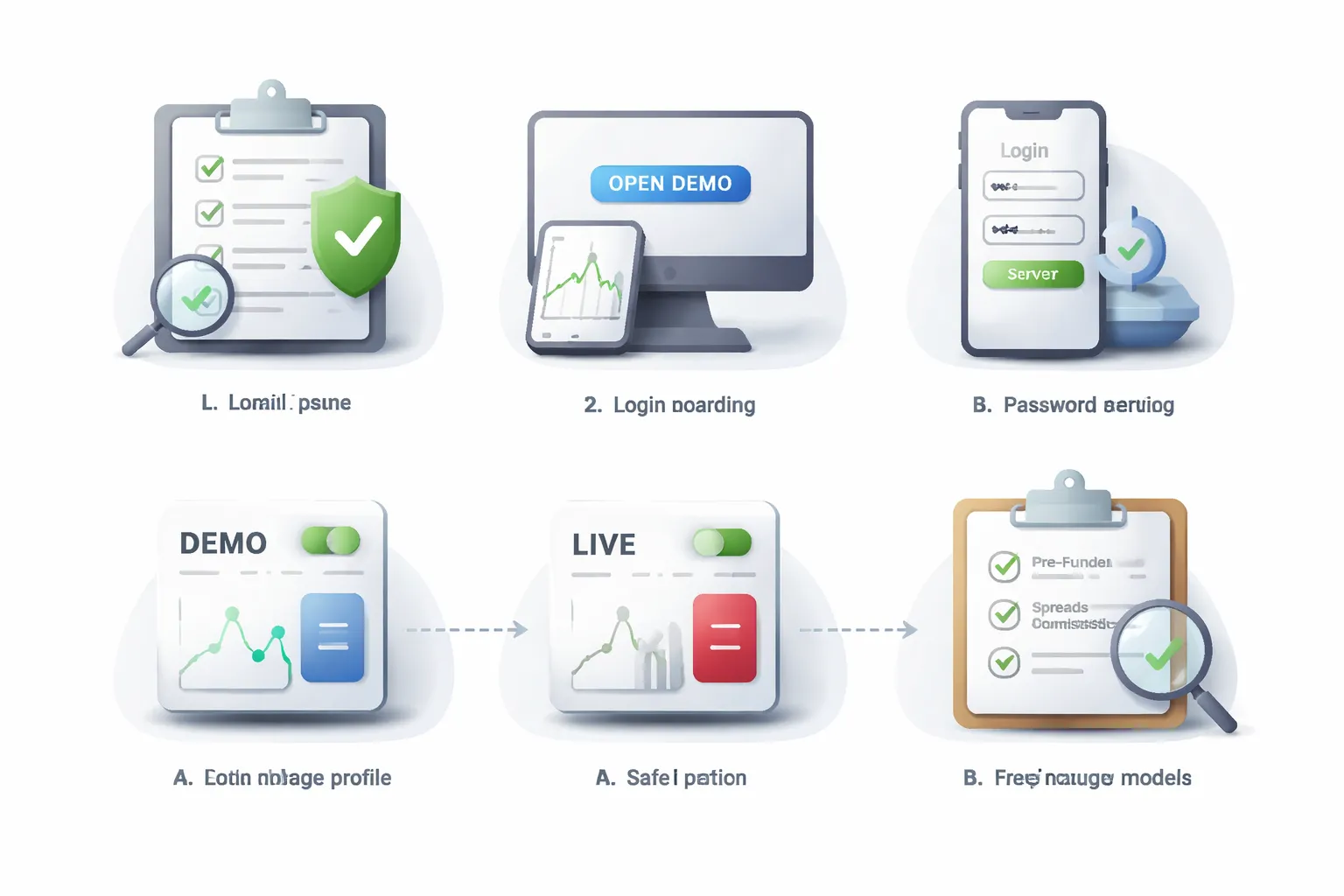
Choosing a Regulated Broker and Avoiding Common Beginner Traps
MT4 is only the terminal. Your broker controls pricing, execution, and fees. Pick the broker first.
- Start with regulation. Use a broker regulated in a top tier jurisdiction, check the regulator register, match the legal entity name, and confirm the website domain.
- Avoid bonus bait. Large deposit bonuses and rebate schemes often come with volume targets, higher spreads, or strict withdrawal rules.
- Skip extreme leverage. High leverage amplifies small mistakes. Keep it low while you learn.
- Do not trade “because MT4 has bots”. Most beginners overfit indicators and run random EAs. Learn manual order flow first.
- Watch for conflict of interest. Some brokers internalize your trades. This can be fine, but you need clean execution and transparent costs.
If you plan to compare platforms before you commit, read this cTrader vs MetaTrader comparison.
Opening a Demo Account, the Fastest Learning Path
A demo account lets you learn MT4 mechanics with zero financial damage. Treat it like a simulator for execution.
- Use realistic settings. Match the leverage, base currency, and starting balance you expect to use live.
- Trade small in “account terms”. If you plan to start live with $500, do not demo trade like you have $50,000.
- Focus on process. Placing orders, setting stop loss and take profit, calculating position size, and reading the trade tab.
- Expect demo to look better. Demo fills can be cleaner than live. Real trading adds spreads, slippage, and execution limits during news.
Understanding Login Types: Account Number, Password, and Server
MT4 login failures usually come from mixing the wrong server with the right credentials.
- Login or account number. This identifies your trading account.
- Password. Brokers may issue separate passwords for trading and investor access. Use the trading password to place orders.
- Server. This must match the exact broker server name for your account type, for example “BrokerName-Demo” or “BrokerName-Live”.
Save your credentials in a password manager. Keep the server name, it matters as much as the login.
How to Switch Between Demo and Live Without Confusion
Keep demo and live separated by design. Do not rely on memory.
- Use clear account names. Rename accounts in MT4 to include “DEMO” or “LIVE” if your broker label is vague.
- Check the server every time. Demo servers usually include “Demo” in the name. Live servers usually include “Live” or a region code.
- Use different profiles. Create one MT4 profile for demo and one for live. Keep different chart templates and colors.
- Confirm order size before sending. The biggest mistake is placing a live trade with demo sized lots.
Checklist Before Funding: Fees, Spreads, Commissions, and Execution Model
Funding turns platform practice into real risk. Check costs and trade conditions first.
| Cost or setting | What to verify |
| Spread | Typical spread during liquid hours and what happens during rollover and news. Compare averages, not minimums. |
| Commission | Commission per lot per side or round turn. Confirm the exact amount for your account type. |
| Swap or financing | Overnight rates for your main instruments. Check triple swap day and whether rates change often. |
| Execution model | Market execution vs instant execution. Look for rules on requotes, slippage, and order rejects. |
| Order limits | Minimum lot size, step size, maximum lot, and any distance rules for stops and limits. |
| Deposits and withdrawals | Funding fees, withdrawal fees, minimums, processing time, and currency conversion charges. |
| Inactivity and admin fees | Monthly charges after no trading activity. These can drain small accounts. |
| Data quality | Price feed stability, disconnections, and how often MT4 freezes during high volume periods. |
Fund only after you can place, modify, and close trades fast on demo, without misclicks or lot size errors.
Installing MT4 on Desktop and Mobile (Windows, Mac, iOS, Android)
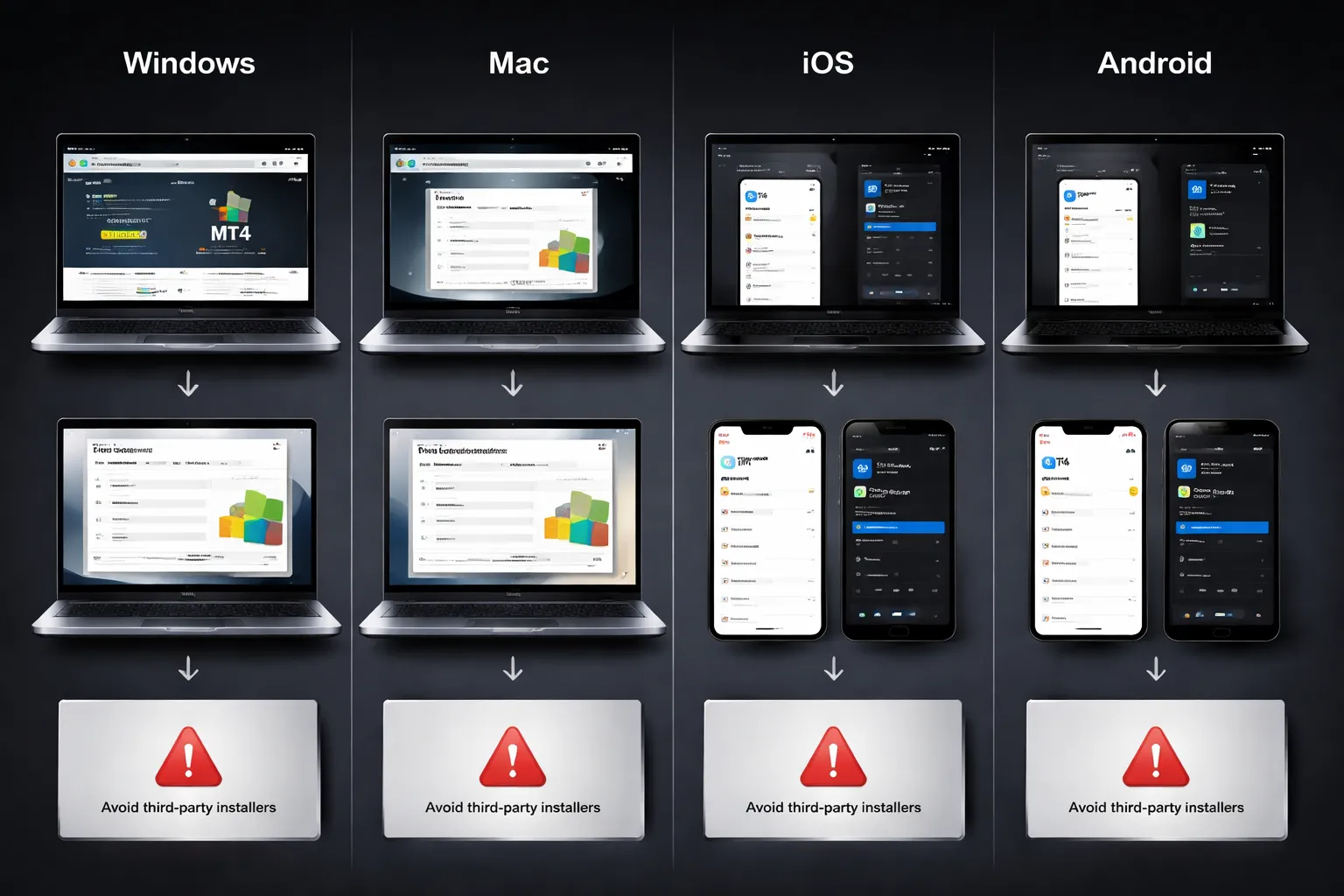
Installing MT4 on Windows (desktop)
- Download MT4 from your broker. Use the broker portal or the broker link inside your client area. Avoid “MT4 download” ads.
- Run the installer. Keep the default install path unless your IT policy requires a specific folder.
- First launch. MT4 opens with default charts and a demo feed if you did not log in yet.
- Log in to the right server.
- Go to File then Login to Trade Account.
- Enter your login and password from the broker.
- Select the correct server. “Live” and “Demo” often use different servers.
- Check connection status. Look at the bottom right.
- You want moving data and low “kb” traffic values.
- If it shows “No Connection” or “Invalid Account”, you picked the wrong server or used the investor password.
- Set key defaults before you trade.
- Go to Tools then Options.
- Trade tab. Enable “One Click Trading” only if you accept fast fills and no confirmation box.
- Charts tab. Set “Max bars in chart” higher if your PC can handle it, or MT4 will load less history.
- Server tab. Keep “Enable DDE server” off unless you use legacy integrations. It adds risk and noise.
Using MT4 on Mac (official options, workarounds, web)
- Best option, use your broker’s Mac package if offered. Many brokers provide an MT4 Mac build or a wrapped app. Use their official download page.
- Wine wrappers. Some Mac “MT4 installers” rely on Wine. They can break after macOS updates and can cause plugin issues. Use only if your broker supports it.
- Virtualization. Running Windows in Parallels or VMware gives the most stable MT4 desktop experience on Mac. You get full EA and indicator support. You also add CPU and RAM load.
- Web alternatives. If you cannot keep a stable desktop install, use your broker’s WebTrader if available. It covers basic charting and order placement. It often limits EAs and custom indicators.
Installing MT4 on iOS and Android (mobile)
- Install from the official store.
- iOS: App Store, search “MetaTrader 4”.
- Android: Google Play, search “MetaTrader 4”.
- Log in through your broker server.
- Open the app, go to Settings then New Account or Login to an existing account.
- Search your broker name, then pick the correct server. Demo and live show as separate entries.
- Syncing watchlists. MT4 mobile does not reliably sync desktop profiles, templates, or watchlists across devices. Build a short mobile watchlist manually.
- Keep it tight. Focus on the pairs you trade.
- Match symbol names to your broker, like “EURUSD” vs “EURUSDm” or “EURUSD.”.
- Managing trades on the go.
- Use mobile for monitoring, adjusting stops, and closing positions.
- Double check volume before you place any new trade. Mobile screens make lot size errors easy.
- Confirm the order type. Market and pending orders sit close in the UI.
- Push notifications. Enable app notifications if you rely on price alerts. Test them once on demo.
Keep MT4 updated and avoid third-party installers
- Desktop updates. MT4 updates itself on restart. Restart it when you notice missing symbols, freezing, or indicator glitches after a broker change.
- Mobile updates. Update through the App Store or Google Play. Avoid APK files and “modded” versions.
- Do not install MT4 from download aggregators. They bundle adware, fake terminals, or outdated builds. You also risk logging in on a tampered client.
- Use one platform stack. If you trade on MT4 but chart elsewhere, keep your workflow simple. See this platform comparison before you split execution and analysis across apps.
MT4 Interface Tour: What Each Window Does
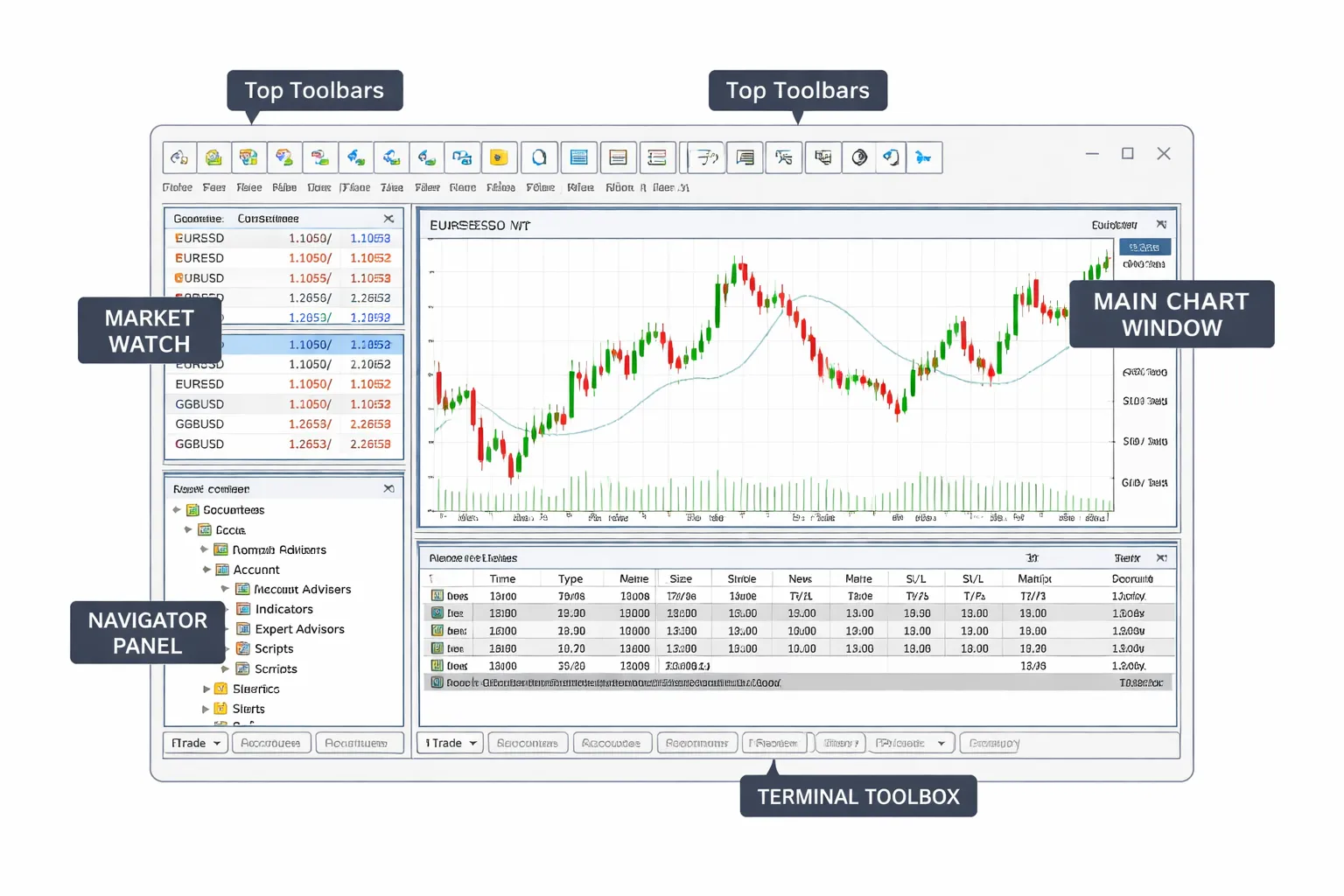
Market Watch: symbols, spreads, and one-click actions
Market Watch shows your tradable symbols and their live quotes. You use it to pick what to trade fast.
- Bid and Ask. Bid is where you sell. Ask is where you buy.
- Spread. Spread equals Ask minus Bid. Tighter spreads usually mean lower trading cost on entry and exit.
- Show more symbols. Right click inside Market Watch, then select Symbols. Enable the pairs and CFDs you need. Hide the rest.
- Open a chart. Drag a symbol onto the workspace, or right click the symbol and select Chart Window.
- One-click actions. Right click a symbol and select New Order to open the order window fast.
Navigator panel: accounts, indicators, scripts, and Expert Advisors
Navigator is your library. You use it to switch accounts and add tools to charts.
- Accounts. Expand Accounts to see logins saved on this device. Double click to connect.
- Indicators. Drag an indicator onto a chart to apply it. Double click to open settings. Keep your indicator list short at the start.
- Expert Advisors. EAs run automated rules. Only use EAs from sources you trust. Test on demo first.
- Scripts. Scripts run once, then stop. Traders use them for quick actions like closing a batch of orders or exporting data.
Chart window essentials: candles, crosshair, zoom, and scaling
The chart window is where you read price and place most trading decisions.
- Candles and chart types. Use the toolbar buttons to switch between bar, candle, and line. Most beginners stick with candles.
- Crosshair. Turn on crosshair to read time and price with precision. You can also measure distance in points between two levels by dragging.
- Zoom. Use the + and - magnifiers to change how much detail you see. Too much zoom hides context. Too little zoom hides structure.
- Scaling. Use the price scale on the right. You can drag it to adjust vertical scale. Disable auto scroll if you want to inspect old price without snapping back.
- Timeframes. Use M1, M5, M15, H1, H4, D1 to match your style. Lower timeframes move faster and punish hesitation.
Terminal toolbox: Trade, Exposure, Account History, Alerts, Mailbox, Journal
The Terminal is your control room. It tracks positions, performance, and platform messages.
- Trade. Shows open positions and pending orders, plus balance, equity, and free margin. Right click a position to modify stops and limits, or close it.
- Exposure. Summarizes your net exposure by symbol. Use it to spot accidental over-concentration.
- Account History. Shows closed trades and results for a selected period. Right click to set a custom date range and export a report.
- Alerts. Creates platform alerts tied to price levels. Use alerts to avoid staring at the screen.
- Mailbox. Stores messages from your broker terminal. Check it when you see connection or account notices.
- Journal. Logs platform events, order actions, and errors. Use it when an order fails or an EA behaves wrong.
Toolbars and shortcuts that save beginners time
MT4 rewards speed and consistency. Use the default toolbars and a few shortcuts to reduce clicks.
- New Order. Opens the order window fast. Use it instead of digging through menus.
- Timeframe buttons. One click switches timeframes. Keep the ones you use most.
- Crosshair. Toggle it often for exact levels.
- Templates. Save a clean chart setup as a template. Apply it to new charts to keep layouts consistent.
- Profiles. Use profiles to save groups of charts. Keep one profile for live trading and one for analysis.
- Keyboard shortcuts. Learn a small set and stick to them. Start with moving between charts, opening a new order, and toggling chart objects.
If you plan to move to a newer platform later, read this MT4 vs MT5 comparison before you rebuild your templates and indicators.
Setting Up Your Workspace for Faster Learning
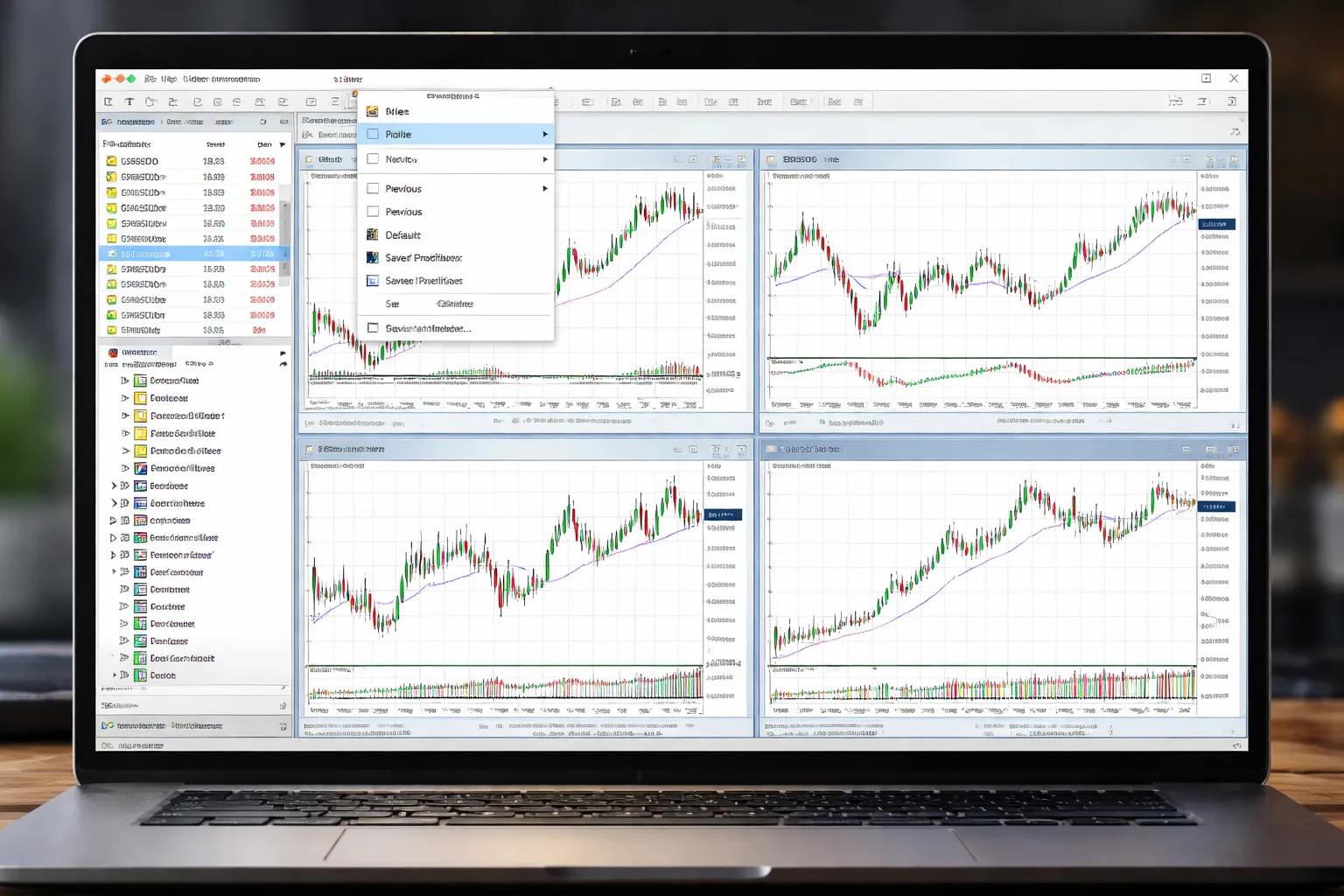
Create profiles for each market or strategy
Profiles save a full workspace, your open charts, symbols, and window layout. Use them to keep your learning organized and reduce mistakes.
- Build one profile per focus. Example, Major FX, Gold and Indices, Crypto, or London Session scalping.
- Name profiles by purpose. Use clear names like “FX-Setup”, “FX-Backtest”, “US-Session”.
- Keep one clean training profile. Limit indicators and objects. You learn faster when charts stay readable.
- Save and switch often. Go to File, Profiles, Save As. Switch profiles from the same menu.
Save chart templates for consistent layouts
Templates control the look of a chart, colors, indicators, and objects. Use templates so every new chart starts the same.
- Set up one “base” chart. Add your core indicators, remove clutter, set your preferred grid and scale.
- Save the template. Right-click the chart, choose Template, then Save Template.
- Apply fast to new charts. Right-click any chart, Template, then pick your saved layout.
- Create two or three templates max. Example, “Clean”, “Trend”, “Range”. Too many slows you down.
Choose chart types and colors for readability
Your eyes fatigue first. Fix that early. Keep contrast high and the screen calm.
- Pick one chart type and stick to it. Candlesticks work best for most beginners. Bars and lines hide detail.
- Use simple colors. Two candle colors. One background color. One grid style, or turn the grid off.
- Increase line thickness for key tools. Trendlines and levels should stay visible when you zoom out.
- Lock in these settings. Set them once, then save them into your template.
Add and manage multiple timeframes efficiently
MT4 gets messy when you open too many charts. Use a fixed set of timeframes and a repeatable layout.
- Use three timeframes per market. Example, H1 for context, M15 for setup, M5 for entry.
- Tile your windows. Use Window, then Tile to see all charts at once.
- Keep the same symbol across timeframes. Duplicate the chart, then change only the timeframe.
- Use Market Watch to stay fast. Show only symbols you trade. Right-click Market Watch, then Hide All, then add back your list.
Restore the default layout if you break the platform
You will drag panels, close windows, and lose charts. Fix it in seconds.
- Bring back missing panels. Go to View. Re-enable Market Watch, Navigator, and Terminal.
- Reset chart windows. Use Window, then Tile or Cascade.
- Return to a known good setup. Switch back to your saved profile. This is the fastest recovery.
- Reset a chart to clean. Right-click the chart, choose Template, then apply your “Clean” template.
Finding a Market and Opening a Chart
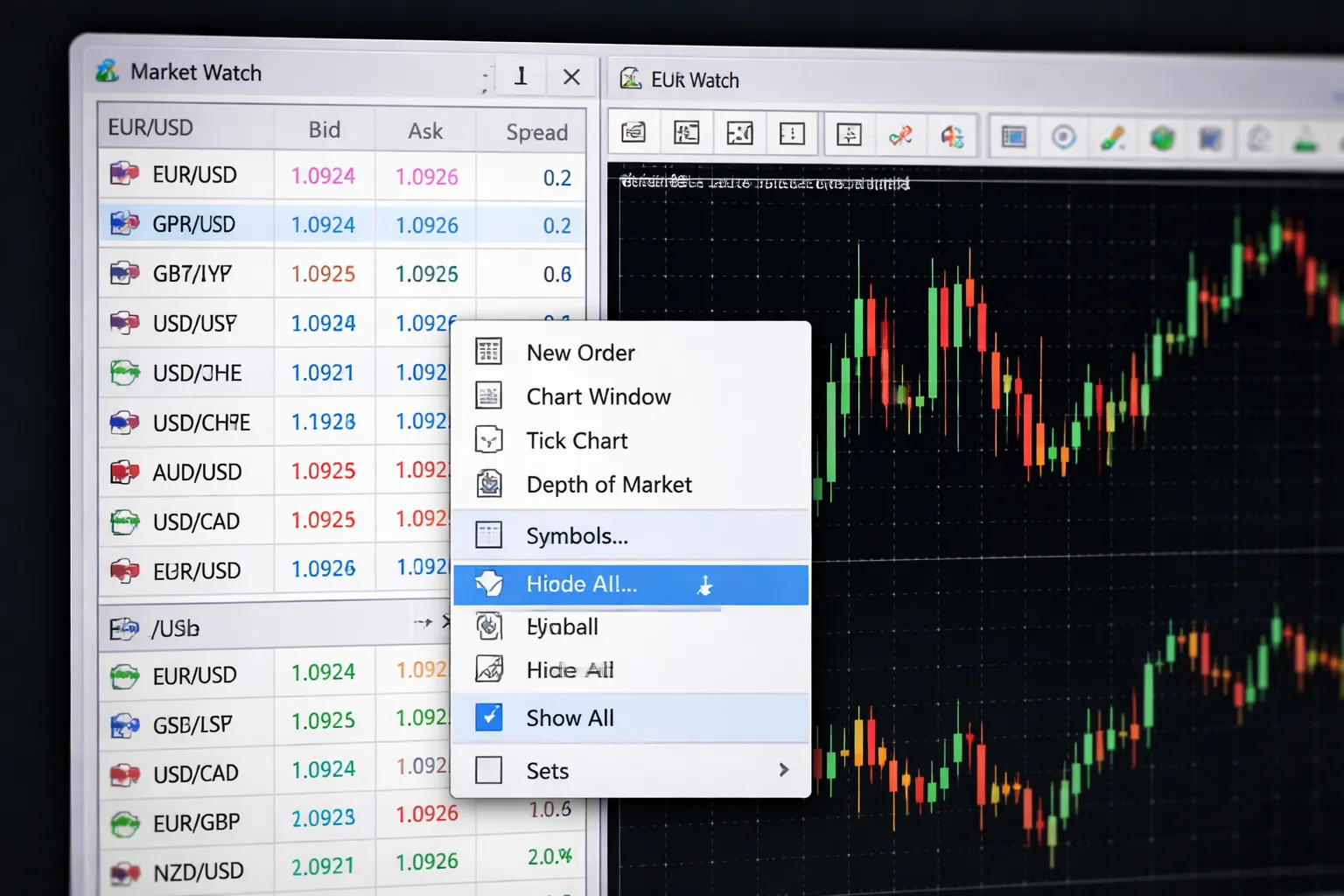
Show Symbols and Build a Clean Watchlist
Your markets live in Market Watch. If you do not see it, go to View, then Market Watch.
- Show all available symbols. Right-click inside Market Watch, click Show All.
- Hide symbols you will not trade. Right-click a symbol, click Hide. Or use Hide All first, then add back what you want.
- Add a symbol fast. Right-click, click Symbols, then expand the group and double-click the instrument to enable it.
- Create order in your list. Drag symbols up or down to group them by type, like majors, gold, indices.
- Save your list layout. MT4 stores it in your profile. If you swap profiles, your list can change.
Keep Market Watch short. Fewer symbols reduces mistakes and speeds up scanning.
Understand MT4 Symbol Names
MT4 symbol names depend on your broker. The same market can appear with different labels.
- Suffixes and prefixes. You may see EURUSDm, EURUSD., EURUSD-pro, or fx_EURUSD. The suffix usually marks account type, pricing, or liquidity feed.
- CFDs. Indices, metals, and oil often use broker codes, like US30, NAS100, GER40, XAUUSD, UKOIL, USOIL. Names vary by broker.
- Micro and cent accounts. Some brokers add a suffix like “m” or “cent”. Lot size and contract size can differ. Confirm in the symbol specs.
Check contract details before you trade. In Market Watch, right-click the symbol, then click Specification. Review contract size, digits, margin, and trading hours.
Open a Chart and Set the Timeframe
- Open a chart from Market Watch. Right-click the symbol, click Chart Window.
- Switch timeframes. Use the toolbar buttons, or press Ctrl+1 for M1, Ctrl+5 for M5, Ctrl+0 for H1, Ctrl+2 for D1.
- Add missing timeframes. If you do not see a timeframe button, go to View, then Toolbars, enable the standard toolbar. You can also right-click the toolbar and customize.
- Change chart type. Use Bar, Candlestick, or Line from the toolbar.
Do not rely on zoom to judge timeframe. Zoom changes how the chart looks. Timeframe changes the data each candle contains.
Read Bid, Ask, Spread, and Trading Sessions
Market Watch shows live prices. MT4 updates bid and ask in real time when connected.
- Bid. The price you sell at.
- Ask. The price you buy at.
- Spread. Ask minus bid. A wider spread raises your break-even cost.
To display the spread column, right-click inside Market Watch, click Spread.
Session timing matters. Spreads often widen at rollover and during low liquidity.
- Check server time. Look at the time in the Market Watch window header or the bottom of MT4.
- Confirm trading hours per symbol. Right-click the symbol, click Specification, then check Trade and Quote sessions.
- Expect higher costs around daily rollover. Many brokers run rollover near 5pm New York, but your server time can differ.
If you plan to compare platforms later, use this Forex trading platforms comparison to understand where MT4 fits.
Placing Your First Trade: Market Orders Step-by-Step
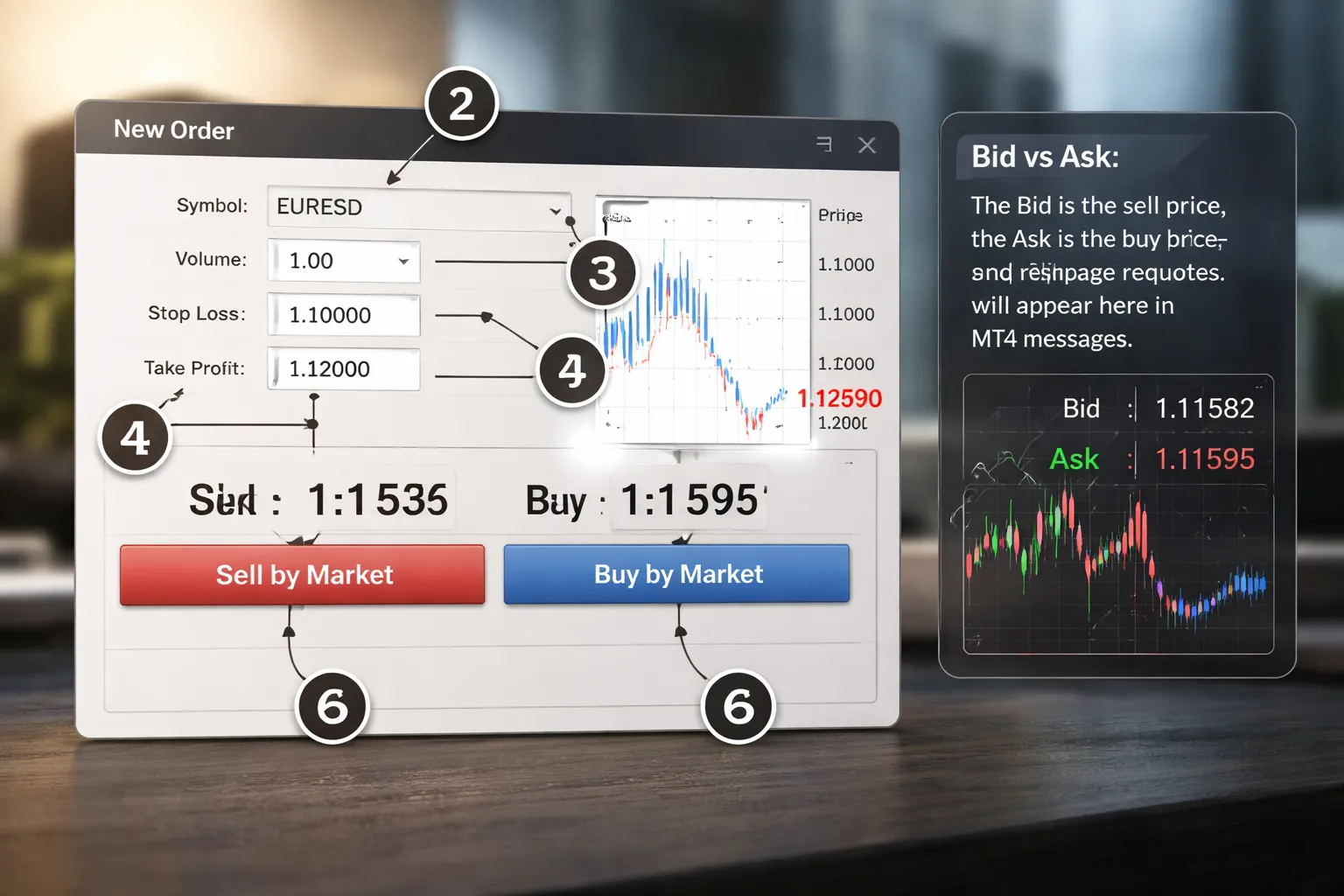
Using the Order Window vs One-Click Trading
You can place a market order in MT4 two ways, the Order window, or one-click trading on the chart.
- Order window: Press F9, or right-click the chart, then click Trading, then New Order. This gives you full fields for Stop Loss and Take Profit before you send the trade.
- One-click trading: Enable it via Tools, Options, Trade, then tick One Click Trading. You can also click the One Click Trading button on the toolbar. This sends orders faster, but you can skip risk fields by mistake.
For your first trade, use the Order window. It slows you down and forces a check.
Selecting Volume (Lot Size) the Right Way for Beginners
In the Order window, set Volume. This controls position size.
- 1.00 lot is usually 100,000 units of the base currency on FX pairs.
- 0.10 lot is usually 10,000 units.
- 0.01 lot is usually 1,000 units.
Start with the smallest size your broker allows, often 0.01. Confirm the minimum and step size in the symbol Specification. Right-click the symbol in Market Watch, click Specification, then check Contract size, Min lot, and Lot step.
Do not size by gut feel. Size by the stop loss distance and your risk per trade. If you do not know your stop yet, do not increase the lot.
Buy vs Sell: What It Means in FX and CFDs, and Where Beginners Slip Up
MT4 shows two prices, Bid and Ask.
- You Buy at the Ask. You profit if price rises.
- You Sell at the Bid. You profit if price falls.
Common slip-ups:
- Buying when you meant to sell because you looked at the wrong price or the chart feels “down.” You still buy at Ask.
- Forgetting the spread. A new trade often starts negative because Buy opens at Ask but closes at Bid, and Sell opens at Bid but closes at Ask.
- Mixing up close with reverse. Closing exits the position. Reversing opens the opposite direction and can double exposure if you do it wrong.
Adding Stop Loss and Take Profit Before You Click Place
In the Order window, set your protection first.
- Stop Loss: the price where MT4 closes the trade to cap loss.
- Take Profit: the price where MT4 closes the trade to lock profit.
Steps:
- Select the symbol at the top of the Order window.
- Set Volume.
- Enter Stop Loss and Take Profit prices. Use exact levels, not round guesses.
- Check the order type is Market Execution or Instant Execution, depending on your broker.
- Click Buy by Market or Sell by Market.
If MT4 blocks your SL or TP, you are likely too close to current price. Check the symbol Specification for Stops level. This is the minimum distance the broker allows between price and your SL or TP.
Understanding Slippage, Requotes, and Execution Messages
A market order fills at the best available price. That price can change between your click and execution.
- Slippage: you get filled at a different price than you expected. Fast markets and low liquidity increase it.
- Requote: common on Instant Execution. The broker rejects your requested price and offers a new one. You must accept or cancel.
- Off quotes: the server cannot provide a valid price at that moment, often during spikes or connection issues.
- Invalid price: the price changed beyond allowed tolerance, or the symbol is not tradable at that moment.
- Trade context busy: MT4 is processing another trade action. Wait, then try again.
To reduce errors, trade during active sessions, avoid major news if you cannot handle volatility, and keep lot size small until you see how your broker executes. If you plan to compare execution tools later, read this MetaTrader vs cTrader breakdown.
Using Pending Orders (Limits, Stops, and Stop-Limits Where Available)
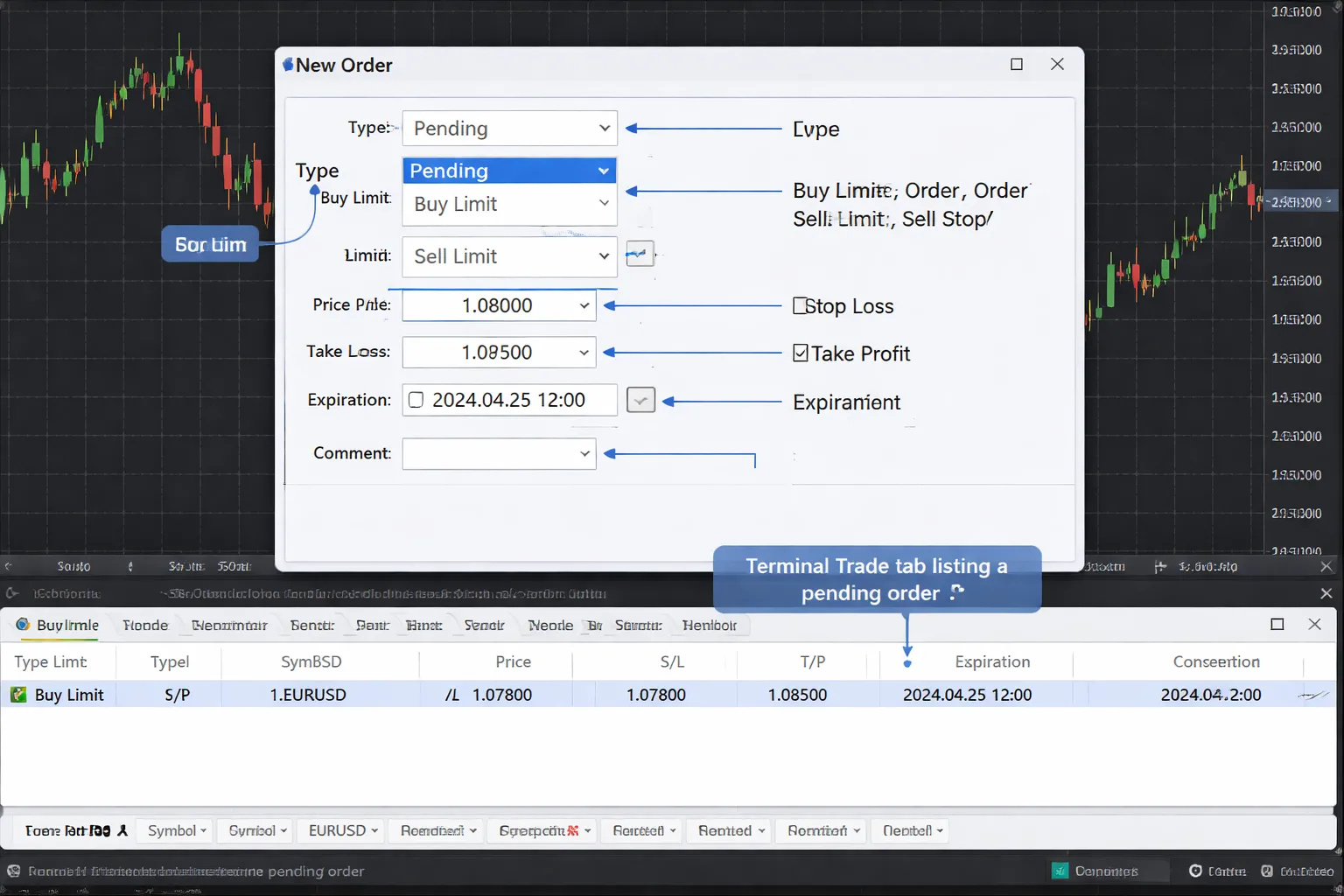
Pending Orders in MT4, What They Do
A pending order tells MT4 to open a trade later, at a price you choose. You use it when you do not want market execution, or when you want entry rules that match your plan.
Buy Limit vs Buy Stop vs Sell Limit vs Sell Stop
MT4 uses four core pending order types. Your broker may also show stop-limit in MT4, but it is not available on many MT4 servers.
| Order type | Where your entry sits | When you use it | Simple example |
|---|---|---|---|
| Buy Limit | Below current price | Buy after a pullback to a lower price | Price is 1.1000, you set Buy Limit 1.0950 |
| Buy Stop | Above current price | Buy on a breakout through a higher price | Price is 1.1000, you set Buy Stop 1.1050 |
| Sell Limit | Above current price | Sell after a rally to a higher price | Price is 1.1000, you set Sell Limit 1.1050 |
| Sell Stop | Below current price | Sell on a breakdown through a lower price | Price is 1.1000, you set Sell Stop 1.0950 |
- Limit means you want a better price than now, so price must come back to you.
- Stop means you want confirmation, so price must move further first.
Stop-Limit Orders, Only If Your Broker Supports Them
A stop-limit combines two prices.
- Stop price triggers the order when hit.
- Limit price sets the worst price you will accept after the trigger.
Use stop-limit when you want breakout entry logic but you do not want unlimited slippage. If your broker does not support it in MT4, you will not see it in the order type list.
How to Place a Pending Order in MT4
- Open the order window, press F9, or right-click the chart, then click Trading and New Order.
- Select your Symbol and Volume.
- In Type, choose Pending Order.
- Pick the pending order type, Buy Limit, Buy Stop, Sell Limit, or Sell Stop.
- Set the Price for entry.
- Set Stop Loss and Take Profit if you already know your levels.
- Set Expiration if you want the order to cancel after a time.
- Add an optional Comment for tracking.
- Click Place.
Setting Entry Price, Expiration, and Comments
- Entry price. MT4 will reject orders that break minimum distance rules. Brokers set a minimum gap from current price, often called stops level. If you place a pending order too close, you will see an invalid price error.
- Expiration. Use it for time-based setups. Example, cancel the order after the London session. If you leave expiration off, the pending order stays until it triggers or you cancel it.
- Comment. Keep it short and consistent. Example, EU M15 pullback, GU breakout, risk 0.5%. Comments help when you review history or export reports.
When to Use Pending Orders Instead of Market Execution
- You trade levels. You want entry at support or resistance without watching the screen.
- You avoid chasing. You want price to come to your limit price.
- You trade breakouts. You want an entry only after price clears a trigger level.
- You control timing. You want the order to expire if price does not reach your level by a deadline.
- You reduce clicks during volatility. You define the plan first, then let MT4 execute when conditions hit.
Pending orders still face gaps and slippage. A stop order can fill worse than your stop price in fast moves. A limit order can miss if price does not reach it.
How to Find and Manage Pending Orders in the Terminal
Open the Terminal window, press Ctrl+T. Use the Trade tab to view open positions and pending orders.
- Identify pending orders. They show as an order with no open position yet, with a type like Buy Limit or Sell Stop.
- Modify. Right-click the pending order, click Modify or Delete Order. Change entry price, stop loss, take profit, or expiration, then confirm.
- Delete. Right-click the order, click Delete Order. MT4 cancels it immediately.
- Chart control. Click the pending order line on the chart and drag it to a new level. MT4 will prompt you to confirm the change.
- Track results. After execution or cancellation, check the Account History tab for the record.
If you want platform features that handle advanced order types more consistently, review this MetaTrader vs cTrader breakdown.
Managing Open Trades: Modify, Partial Close, and Exit
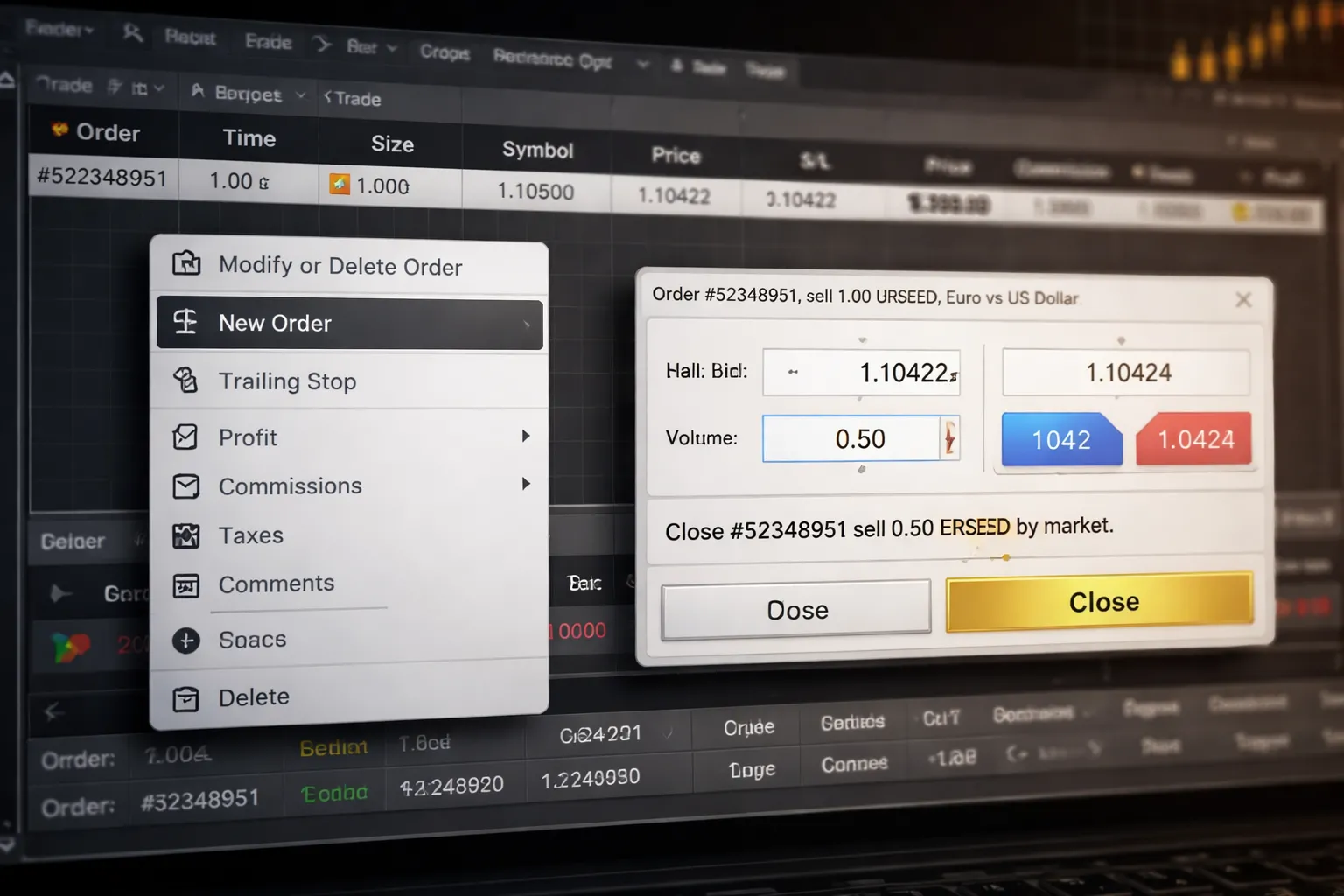
Editing Stop Loss and Take Profit Without Mistakes
You can change stop loss and take profit on an open trade from the Terminal window or the chart.
- Terminal method (desktop): Open Terminal, click the Trade tab, right-click your position, click Modify or Delete Order. Enter the new stop loss and take profit, then click Modify.
- Chart method (desktop): Enable One Click Trading if needed. Click the position line on the chart. Drag the SL or TP line to the new price. Confirm the change when MT4 prompts you.
Use these checks before you confirm:
- Correct side of price: For a buy, SL stays below price and TP stays above. For a sell, SL stays above price and TP stays below.
- Minimum distance: Your broker may enforce a stop level. If MT4 rejects the change, move the level farther away.
- Symbol and ticket: Verify you modify the right trade. Similar symbols and multiple positions cause mistakes.
- Decimal precision: 5-digit and 3-digit pricing can trick you. Confirm the last digit before you click Modify.
Trailing Stop: What It Is, When It Helps, Common Pitfalls
A trailing stop moves your stop loss in your favor as price moves. It never moves backward.
- How to set it (desktop): Terminal, Trade tab, right-click the open position, Trailing Stop, choose a preset or click Custom and set points.
- When it helps: Trend moves with pullbacks. You want to reduce risk without setting manual stop updates.
- Common pitfalls: MT4 trailing stops run on your terminal, not on the broker server. If your PC sleeps, shuts down, or loses connection, the trailing logic stops. Tight trailing values also close trades early during normal spread spikes.
Use a wider trailing distance than your average spread and typical pullback size. If you trade during news, expect sudden moves and slippage.
Partial Closes (If Supported): Locking in Profit While Staying in the Trade
MT4 can partial close if your broker supports it and your remaining size stays above the minimum lot.
- Desktop steps: Terminal, Trade tab, double-click the position. In the order window, set Volume to the amount you want to close. Click Close. MT4 closes that portion and leaves the rest open.
- Key rules: Respect lot step and minimum lot. Example, if min is 0.01 and you hold 0.02, you can close 0.01 and keep 0.01.
- After the partial: Recheck SL and TP on the remaining position. Some traders forget and leave old levels that no longer fit the smaller exposure.
Closing a Trade Correctly on Desktop vs Mobile
Close from the Trade tab. Avoid closing from memory.
- Desktop: Terminal, Trade tab, click the X at the end of the position row, or double-click the position and click Close. Confirm the symbol, size, and direction before you click.
- Mobile: Open the Trade section, tap the position, tap Close. Set the close volume if the app supports partial closes. Confirm before you submit.
After closing, check Account History to confirm price, time, commission, and swap. If the close price looks off, compare it to bid and ask at that moment.
Avoiding Accidental Overtrading With Duplicate Orders
MT4 makes it easy to send the same order twice. Prevent it with a simple routine.
- Turn off one-click if you misclick: Use the standard order window until you build consistency.
- Wait for confirmation: After you click Buy or Sell, watch the Trade tab for the new ticket. Do not click again during lag.
- Check your exposure: Look at total lots per symbol and margin used, not just the last trade.
- Name your charts: Keep one chart per symbol and timeframe. Extra charts cause repeated entries.
- Use alerts instead of repeated entries: Set price alerts on your levels. If you prefer richer alert workflows, use TradingView alerts.
Risk Management on MT4 (Beginner Rules That Prevent Blow-Ups)
How margin, free margin, and margin level work in MT4
MT4 blow ups start with margin. Learn the three numbers that matter.
- Balance, your cash after closed trades.
- Equity, balance plus open profit or loss.
- Margin, the broker-held deposit for your open positions.
- Free Margin, equity minus margin. This is your buffer.
- Margin Level, equity divided by margin, shown as a percent.
Open MT4, check Terminal, then Trade. Watch Equity, Free Margin, and Margin Level, not just floating P and L.
| Item | What it tells you | Beginner rule |
|---|---|---|
| Free Margin | How much room you have before trouble | Do not let it get tight. Cut size before it does. |
| Margin Level % | How close you are to a margin call | Stay far above your broker’s stop-out level. |
| Equity | Your real account value right now | Base risk limits on equity, not balance. |
Your broker sets the danger zones. Many use a margin call around 100% and stop-out around 50%, but you must confirm your exact levels. If margin level drops, MT4 can force-close trades. It usually closes the worst one first.
A simple position sizing method using stop-loss distance
Position size comes from your stop. Not from your confidence.
- Pick a fixed risk per trade, example 1% of equity.
- Set the stop-loss distance in pips based on your setup.
- Convert that risk into lot size before you place the order.
Formula
Lot size = (Account equity x Risk %) / (Stop pips x Pip value per 1.00 lot)
Example
- Equity: $1,000
- Risk: 1% = $10
- Stop: 25 pips
- Pip value: $10 per pip for 1.00 lot on many USD-quoted forex pairs
- Lot size = 10 / (25 x 10) = 0.04 lots
If your broker shows cents or your pair has a different pip value, your lot size changes. Use MT4’s Market Watch and your broker’s contract specs to confirm pip value. If you are unsure, size down.
Leverage explained with practical examples, and why it’s dangerous
Leverage lets you control more position value than your cash. It also speeds up losses.
| Leverage | Margin needed for $10,000 position | What changes |
|---|---|---|
| 1:10 | $1,000 | Less room for oversized trades |
| 1:50 | $200 | Easy to stack positions without noticing |
| 1:100 | $100 | Small moves hit equity hard if you over-lot |
| 1:500 | $20 | One mistake can push you into stop-out fast |
High leverage does not force you to take big risk. Your lot size does. The problem is that high leverage makes oversized trades possible with a small margin deposit. MT4 will accept the order. The market will not forgive it.
Beginner rule. Use leverage as a safety buffer, not as buying power. If your account requires high leverage to place your normal trades, your trades are too large.
Setting personal risk limits, per-trade, per-day, and per-week
Limits stop revenge trading and slow leaks.
- Per trade, risk 0.25% to 1% of equity. Start at 0.5% if you overtrade.
- Per day, stop after 2 losing trades, or after a 2% equity drawdown, whichever comes first.
- Per week, stop after a 5% equity drawdown. Reduce size the next week.
Write these numbers down. Keep them next to your screen. When you hit a limit, close MT4. Do not “make it back” in the same session.
If you plan to scale up, scale in steps. Raise risk only after a clean sample of trades with the same rules. If you want to compare platforms before scaling, read MT4 vs MT5 for forex.
Understanding swap, rollover, and why holding overnight can cost money
Swap is the overnight financing charge or credit on many leveraged products. MT4 shows it, but beginners ignore it.
- MT4 applies swap when you hold past the broker’s rollover time, often around 5pm New York time.
- Swap can be negative or positive. Negative is more common for retail traders.
- Some instruments have triple swap on a specific day to account for weekends. Your broker decides the day.
How to check it in MT4.
- Right-click the symbol in Market Watch, click Specification.
- Find Swap long and Swap short.
- In the Terminal window, check each open trade’s swap value.
Beginner rules.
- If you do not plan to hold overnight, close before rollover.
- If you do plan to hold, add swap to your trade plan. It changes your break-even.
- Do not hold large size through rollover on thin margin. Swap plus spread widening can trigger a margin event.
Technical Analysis Basics in MT4: Indicators and Drawing Tools
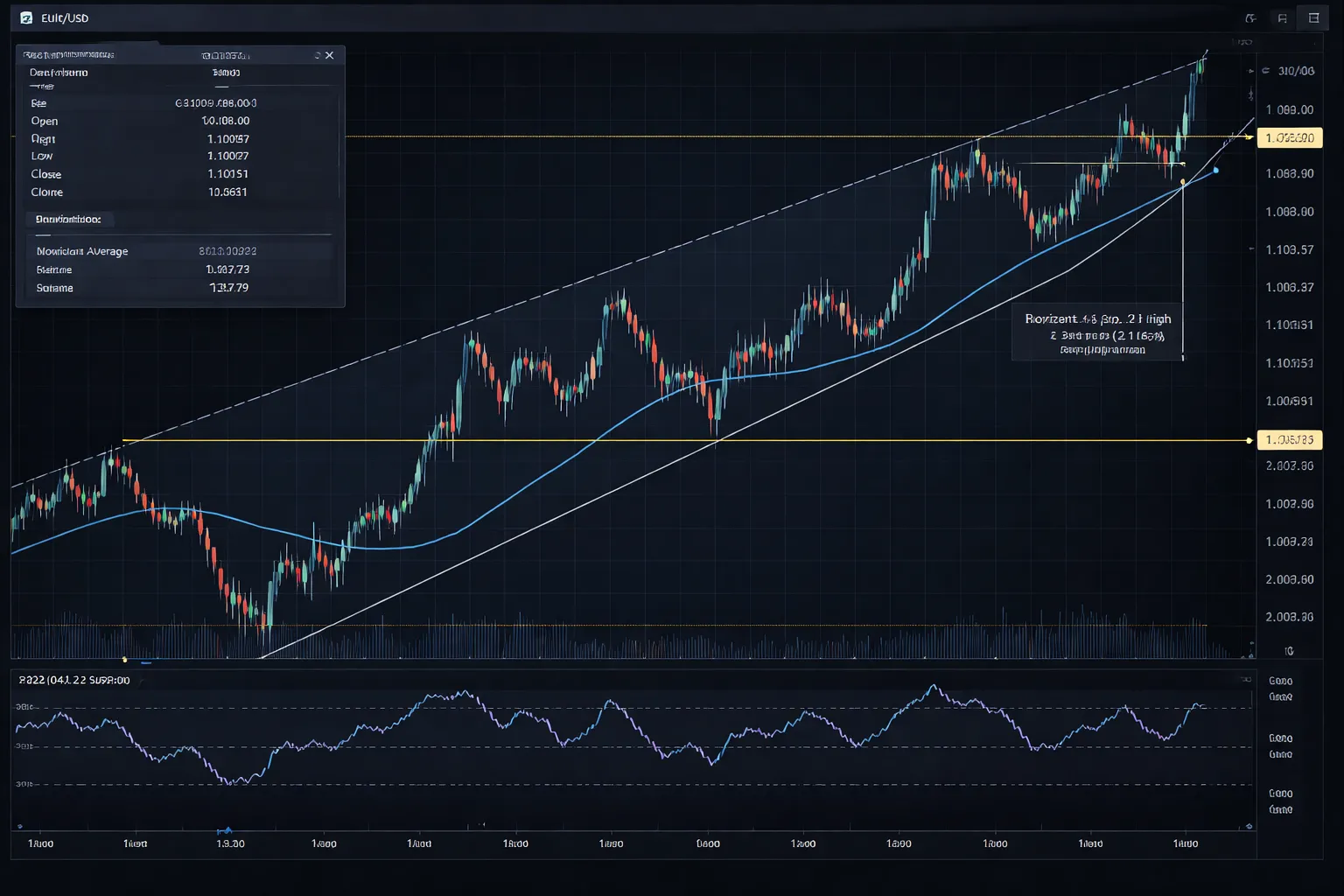
Adding Indicators in MT4 (MA, RSI, MACD)
You add indicators from the top menu or the Navigator.
- Menu path: Insert, Indicators, then pick the group.
- Navigator: View, Navigator, then drag an indicator onto your chart.
Moving Average (MA)
- Insert, Indicators, Trend, Moving Average.
- Key settings: Period, MA method, Apply to, Style.
- Beginner defaults: Period 20 or 50, Simple, Apply to Close.
RSI
- Insert, Indicators, Oscillators, Relative Strength Index.
- Key settings: Period, Levels, Style.
- Beginner defaults: Period 14, Levels 30 and 70.
MACD
- Insert, Indicators, Oscillators, MACD.
- Key settings: Fast EMA, Slow EMA, Signal SMA, Apply to.
- Beginner defaults: 12, 26, 9, Apply to Close.
To change settings later, right-click the chart, choose Indicator List, select the indicator, click Properties. You can also double-click an indicator name on the chart, then right-click it for Properties.
Avoiding Indicator Overload (A Minimal Beginner Setup)
Most beginner losses come from confusion, not from missing indicators. Keep one chart clean and repeatable.
- Price: Candles.
- Trend filter: One MA, usually 50.
- Momentum check: RSI 14 with 30 and 70 levels.
- Levels: Draw your own support and resistance.
Skip stacking similar tools. Do not run MA plus MACD plus multiple oscillators on the same chart. They often tell you the same thing with different timing.
Drawing Tools in MT4 (Trendlines, Support and Resistance, Channels)
You find drawing tools on the top toolbar or under Insert, Lines.
- Trendline: Insert, Lines, Trendline. Click to set point one, click to set point two.
- Horizontal level: Insert, Lines, Horizontal Line. Use it for support and resistance.
- Channel: Insert, Channels, Equidistant Channel. Click two points for the base trendline, then drag the parallel line to fit swings.
Edit any object fast.
- Double-click the object to select it, then drag handles.
- Right-click the object, choose Properties to change color, thickness, and ray settings.
- Press Delete to remove it.
Keep levels specific. Mark the obvious swing highs and lows first. Do not draw lines through the middle of random candles.
Zooming and Measuring Moves (Crosshair and Data Window)
You need two tools for fast, accurate reads: Crosshair and Data Window.
- Crosshair: click the crosshair icon, or press Ctrl and F. Move your mouse to see price and time. Drag from one point to another to see the price change in points and the bar count.
- Data Window: press Ctrl and D. Hover any candle to see OHLC values, volume, and indicator values at that bar.
Use this workflow.
- Mark a swing low and swing high with the crosshair.
- Read the point distance. Compare it to your typical stop size.
- Check RSI or MACD values for that exact candle in the Data Window. Do not guess from the curve.
Multi-Timeframe Checks Without Getting Lost
Multi-timeframe works when you use fixed roles for each timeframe. Do not keep switching every minute.
- Higher timeframe: find the main direction and key levels. Use H4 or D1.
- Trading timeframe: plan entries and manage the trade. Use H1 or M15.
- Lower timeframe: optional for fine entry only. Use M5.
Use the timeframe buttons on the top toolbar. Keep the same indicator settings across timeframes. If you need more screen space, open a second chart of the same symbol and lock each chart to its role.
If you later consider MT5 features and extra timeframes, read MT4 vs MT5 for Forex.
Alerts, Notifications, and Journaling Your Trades
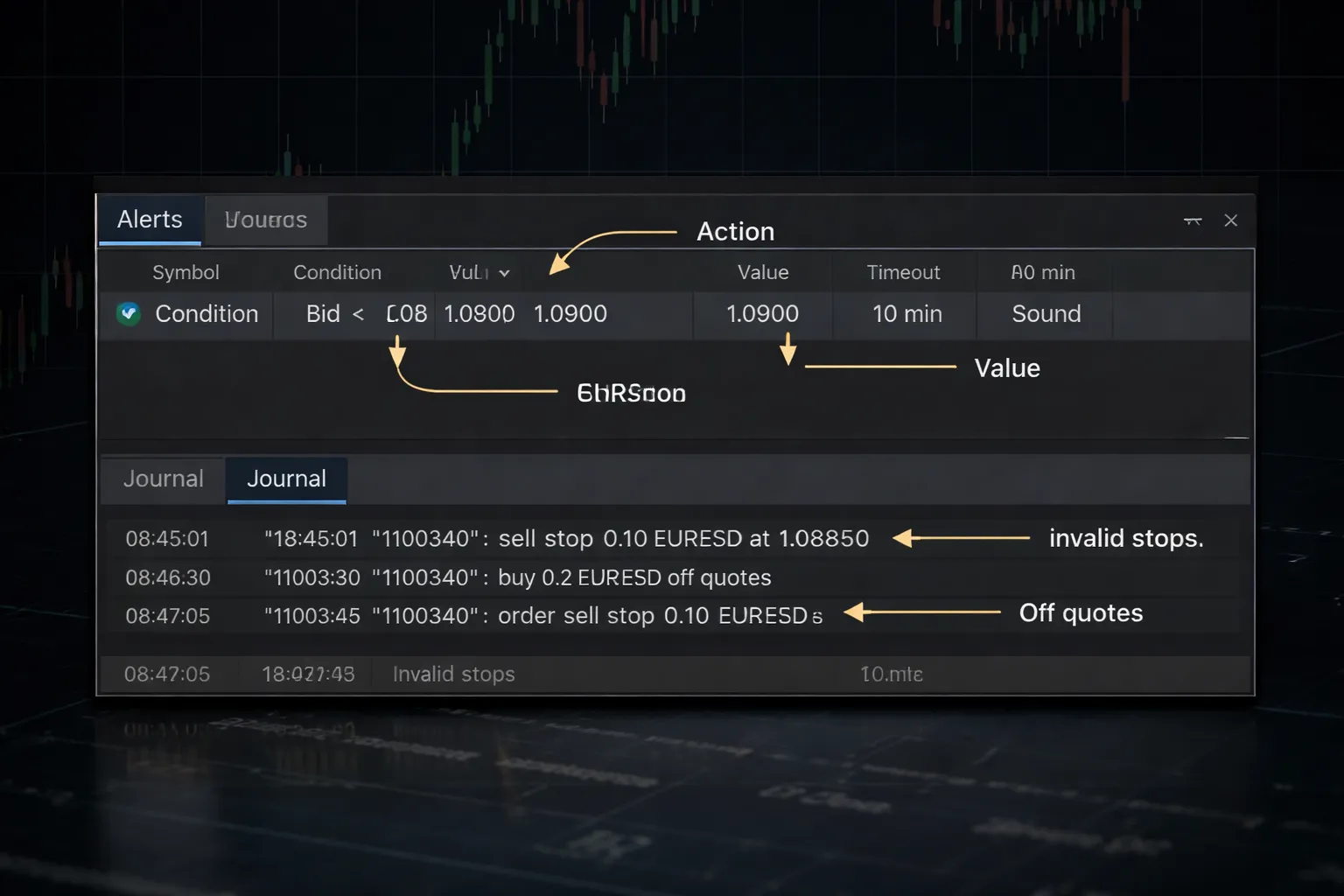
Creating Price Alerts and Choosing Alert Conditions
Use alerts to mark key levels and planned actions. Keep them simple and specific.
- Open the Terminal window, then click the Alerts tab.
- Right-click inside the Alerts tab, then select Create.
- Set Symbol to the pair you trade.
- Set Condition to what you need. Common choices are Bid >=, Bid <=, Ask >=, Ask <=.
- Set Value to your level.
- Set Timeout to an end time for the alert, or leave it wide if your plan has no deadline.
- Set Max. iterations to control repeats. Use 1 for one-time alerts.
Choose Bid or Ask based on what triggers your decision. Use Ask for buy triggers and stops on buys. Use Bid for sell triggers and stops on sells. If you trade tight levels, widen your trigger by the average spread so the alert matches what you will actually get filled on.
Push Notifications to Mobile, Setup and Testing
Push notifications help when you step away from the screen. MT4 needs your MetaQuotes ID.
- On your phone, install MetaTrader 4, then open Settings.
- Find your MetaQuotes ID. Copy it.
- On desktop MT4, go to Tools, then Options, then Notifications.
- Tick Enable Push Notifications.
- Paste your MetaQuotes ID.
- Click Test. Confirm the message arrives on your phone.
If the test fails, check these first. Your phone allows notifications for the app. Your MT4 desktop stays connected. Your broker server shows a stable connection in the bottom right status bar.
Exporting Account History and Generating Basic Reports
Pull clean history data before you judge your results.
- Open Terminal, then the Account History tab.
- Right-click inside the list, then set a range. Use Custom Period for exact dates.
- Right-click again and choose Save as Report for an HTML report.
- Choose Save as Detailed Report for extra line items and metrics.
- Use Save as if your broker build provides a CSV style export. If it does not, copy the table and paste into a spreadsheet.
Track at least these report fields. Net profit. Gross profit and loss. Profit factor. Max drawdown. Win rate. Average win and average loss. Expected payoff. Number of trades.
Building a Simple Trading Journal From MT4 History Data
MT4 does not force a journal, so you need a template. Use your history as the base and add a few fields you control.
Start with one row per closed trade. Add these columns in a spreadsheet:
- Ticket, Symbol, Direction, Lot size
- Open time, Close time, Hold time
- Entry price, Exit price, Stop loss, Take profit
- Result in pips and account currency
- Commission, Swap, Spread cost estimate
- Setup tag (one word), Timeframe, Session
- Planned R, Realized R (profit or loss divided by initial risk)
- Screenshot link (before entry, after exit)
- Mistake code (none, late entry, early exit, moved stop, over risk)
Keep your tags fixed. Do not invent new labels every week. You need consistent buckets to see patterns. If you want a platform with deeper alerting and journaling workflows, compare options in this forex trading platforms comparison.
Using the Journal Tab to Troubleshoot Execution Issues
The Journal tab logs platform events. Use it when orders fail, freeze, or behave differently than expected.
- Open Terminal, then click Journal.
- Scroll to the time of the problem.
- Look for order messages, connection messages, and error codes.
Common items you will see and what they usually mean:
| Journal message | Likely cause | What to do |
|---|---|---|
| Invalid stops | Stop loss or take profit too close to price, broker stop level, or wrong side of market | Check broker minimum stop distance, re-enter SL and TP at valid levels |
| Off quotes | Price moved, low liquidity, fast market | Retry with updated price, reduce size, avoid news spikes |
| Requote | Instant execution price changed | Accept new price, or switch to market execution if your broker supports it |
| Trade context busy | Another trade operation still processing, EA or script sending multiple requests | Wait, stop duplicate scripts, reduce automation conflicts |
| No connection | Terminal disconnected from broker server | Check internet, login, server selection, VPS stability |
| Market closed | Weekend, holiday, or symbol session closed | Check symbol trading hours, wait for reopen |
| Not enough money | Free margin too low for position size | Cut lot size, reduce open risk, close other positions |
When you contact support, export proof. In MT4, open File, then Open Data Folder, then check the Logs folder. Save the log file for the day of the issue and attach it with your ticket number and exact time.
Customization and Add-ons: Scripts, Expert Advisors (EAs), and VPS
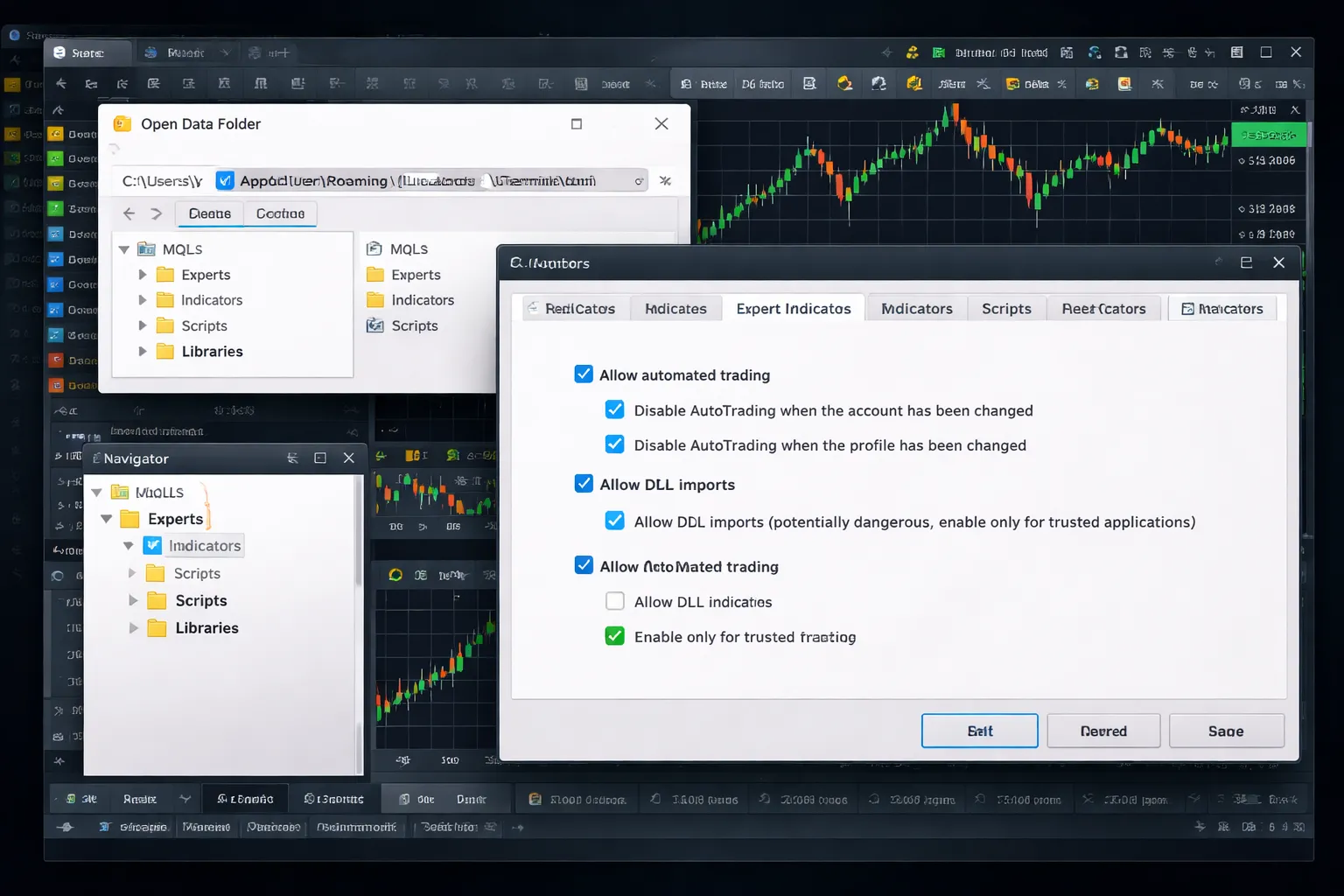
Scripts, Custom Indicators, and Expert Advisors (EAs)
MT4 add-ons fall into four groups. Indicators show data on the chart. Scripts run one task once. EAs can trade and manage orders. Libraries support code.
EAs do not print money. Treat any “guaranteed” bot as a scam. Ignore marketing screenshots. Ask for verifiable proof, real account statements, and risk rules. If the seller refuses to explain logic, inputs, and failure modes, do not install it.
- Indicators: Analysis tools. They do not place trades.
- Scripts: One-click actions, close all, set stops, export data.
- EAs: Automated trading. They can open, modify, and close orders.
- Libraries: Support files. You usually do not touch these.
Install Add-ons Safely and Control Permissions
Install add-ons from known sources. Keep your files clean and easy to audit. Do not run random EX4 files from forums and chat groups.
- In MT4, click File, then Open Data Folder.
- Open MQL4.
- Copy files to the right folders.
- Restart MT4, or right-click Navigator then click Refresh.
| File type | Where it goes | Notes |
|---|---|---|
| .mq4 | MQL4/Indicators, MQL4/Experts, MQL4/Scripts | Source code. You can open and review it in MetaEditor. |
| .ex4 | MQL4/Indicators, MQL4/Experts, MQL4/Scripts | Compiled code. You cannot fully audit it. Treat as higher risk. |
| .dll | MQL4/Libraries | High risk. It can run system-level calls. Avoid unless you trust the vendor. |
| .set | Anywhere, often in MQL4/Presets | EA input presets. Safe by itself. |
Control EA permissions before you attach anything to a chart. Go to Tools, then Options, then Expert Advisors.
- Keep AutoTrading off until you finish setup.
- Disable Allow DLL imports unless you fully trust the EA.
- Disable Allow WebRequest unless you need it and you whitelist exact URLs.
- Use Allow live trading only on accounts you intend to automate.
- Check the top toolbar. The AutoTrading button must be green for EAs to trade.
Run new EAs on a demo account first. Watch the Experts and Journal tabs for errors and unexpected actions.
Strategy Tester Basics, What You Can and Can’t Trust
Strategy Tester helps you check logic, settings, and basic behavior. It does not guarantee future results.
- Open it with View, then Strategy Tester.
- Select the Expert Advisor, Symbol, and Period.
- Set the test date range and deposit settings.
- Start with one pair and one timeframe. Keep it simple.
Trust backtests for basic checks.
- Does the EA open the right order types.
- Do stops and limits place where you expect.
- Do risk settings cap lot size.
- Does it crash or spam errors.
Do not trust backtests for final profitability.
- Many MT4 tests use simplified ticks. This can hide slippage and spread spikes.
- Real fills depend on your broker, liquidity, and execution rules.
- Optimizing settings can overfit to the past. It can fail fast in live markets.
- Some EAs behave differently in tester vs live, especially with news, gaps, and partial fills.
Use forward testing. Run the EA on a demo for days or weeks. Then test small on a live account if you still want to automate.
When a VPS Makes Sense for MT4
A VPS keeps MT4 running 24 hours a day. It helps if you use EAs, trade around the clock, or need stable uptime.
- Use a VPS if you run automated trading on short timeframes.
- Use a VPS if your home internet drops or your computer sleeps.
- Skip a VPS if you trade manually and check charts a few times per day.
Beginner rules for a VPS.
- Pick a server location close to your broker’s trading server to reduce latency.
- Use a dedicated MT4 install. Do not run extra apps on the VPS.
- Lock it down. Use a strong password and keep Windows updated.
- Back up your templates, profiles, and the MQL4 folder before changes.
If you also use other charting tools, compare platforms before you commit to an automation setup. See this forex platforms comparison.
Performance and Stability Tips
MT4 slows down when it processes too many ticks, charts, and logs. Keep your setup lean.
- Close unused charts. Each chart uses memory and CPU.
- Limit indicators. Heavy custom indicators can freeze MT4.
- Reduce max bars. Go to Tools, then Options, then Charts, then lower Max bars in history and Max bars in chart.
- Archive or clear old log files in the Logs and MQL4/Logs folders.
- Do not run multiple EAs on one chart unless you know they are compatible.
- Use one MT4 per broker if you trade multiple brokers. Separate data folders reduce conflicts.
- Watch the Experts and Journal tabs. Fix repeated errors fast. They can lag the platform.
If MT4 crashes, remove the last installed add-on first. Then start MT4 and load a clean profile. Add tools back one at a time to find the cause.
Beginner Mistakes and Troubleshooting (Fixes That Save Hours)
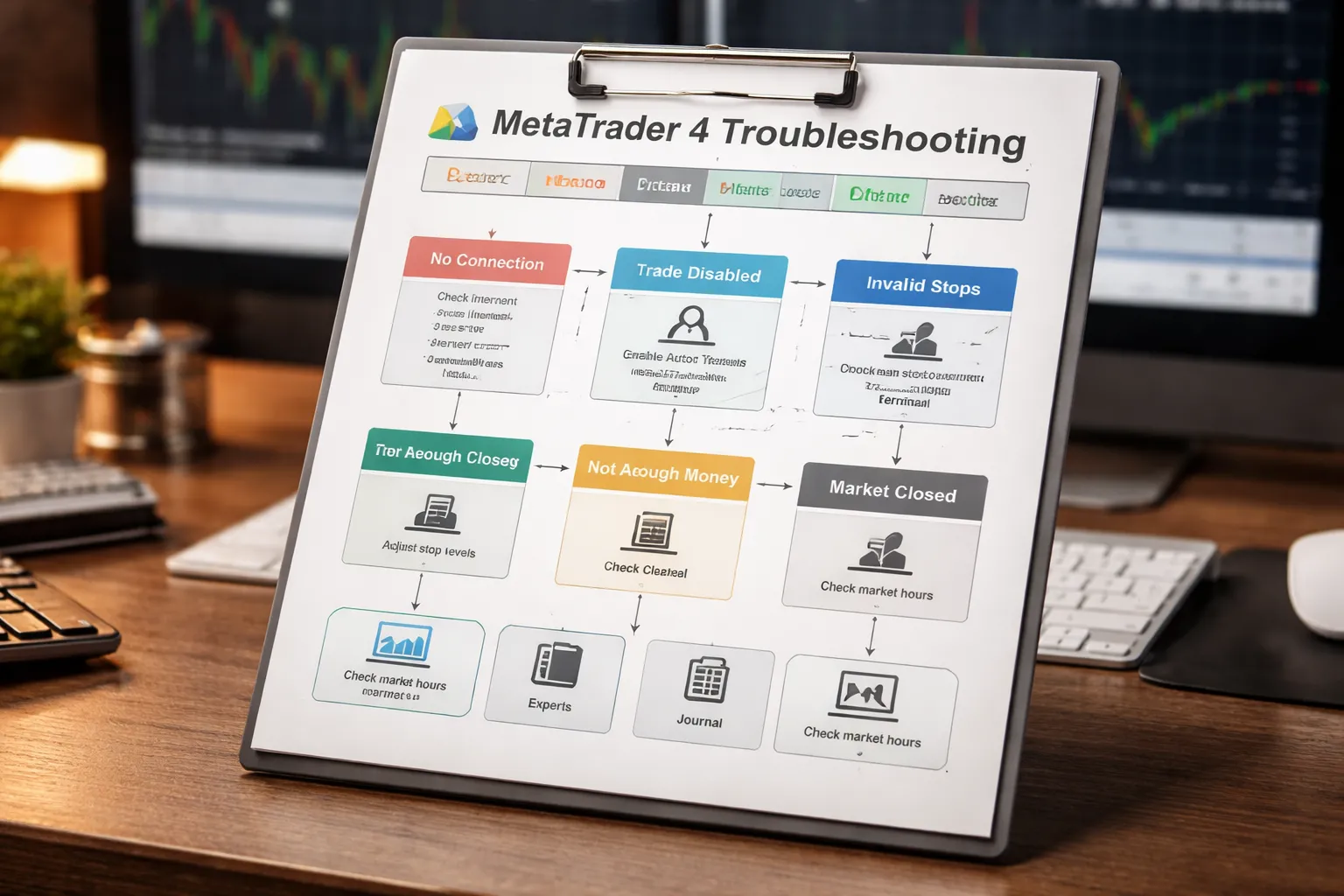
“Trade disabled” and “No connection”, common causes and fixes
- AutoTrading off: Click the AutoTrading button. It must show a green play icon. Check Tools, Options, Expert Advisors, then tick “Allow algorithmic trading” if you use EAs.
- Account set to read-only: Check the top of MT4 and the terminal status line. If you see “Investor”, you logged in with an investor password. Re-login with the master password.
- Wrong server: Go to File, Login to Trade Account. Select the correct broker server, then log in again. “No connection” often means you picked the wrong server.
- Internet or firewall blocks MT4: Open any website in your browser to confirm internet works. Then allow terminal.exe in your firewall and antivirus.
- Broker maintenance: Check broker hours and notices. If you can log in but quotes stop, wait or switch to another server if your broker offers it.
- Data center issue: Right-click the bottom-right connection bars, then click Rescan servers.
Wrong lot size, wrong symbol, wrong account, quick verification checklist
- Account: Check the account number and broker name at the top of the Terminal window. Confirm balance and currency match what you expect.
- Account type: Confirm demo vs live. Many traders place a perfect “demo” trade by mistake.
- Symbol: Read the symbol in the chart tab and in the order window. Brokers often add suffixes like EURUSD.m or EURUSD-ECN.
- Lot size: In the order window, confirm Volume. If you use scripts or EAs, check their lot setting and whether they use risk percent sizing.
- Direction: “Sell by Market” and “Buy by Market” show the current bid and ask. Confirm you click the side you intend.
- One-click trading: If you use one-click, keep volume visible on the chart toolbar. Wrong volume is the fastest way to blow risk limits.
Orders rejected, fast fixes for the common errors
| Message | What it means | Fix |
|---|---|---|
| Invalid stops | Your SL or TP sits too close to price for that symbol. | Widen SL and TP. Check broker stop level in Market Watch, right-click symbol, Specification. |
| Not enough money | Margin requirement exceeds free margin. | Reduce lot size. Close other trades. Check leverage on the account. Avoid opening several positions at once on high-margin pairs. |
| Market closed | Trading hours closed for that symbol. | Wait for session open. Check Market Watch, Specification, then confirm server time and symbol hours. |
| Off quotes | Price changed or feed lagged during execution. | Retry. Use a smaller deviation. Check connection bars. Reduce chart load and heavy indicators if the platform freezes. |
| Requote | Broker offered a new price on instant execution. | Accept the new price, or switch to market execution if your broker offers it. Avoid trading during spikes and rollovers. |
| Trade context busy | MT4 processes another trade action. | Wait a few seconds. Stop duplicate scripts. Run one EA per chart unless you know they coordinate orders. |
Charts not moving, weekends, bad data, hidden symbols
- Weekend or market holiday: Forex usually stops from Friday close to Sunday open. Your chart will not print new candles.
- Disconnected: Look at the bottom-right bars. If they stay red or flat, fix login, server, or firewall issues.
- Wrong symbol feed: Some brokers split symbols by account type. If your account shows EURUSD but the chart shows EURUSDmicro, your data can differ.
- Symbol hidden: Open Market Watch, right-click, select Show All. Then open the chart again.
- Stuck timeframe or missing history: Press Home key to force MT4 to load more bars. Then go to Tools, History Center and download history if needed.
- Indicator overload: Remove heavy indicators. Reduce the number of charts. MT4 can lag hard on older devices.
- Profile corruption: Switch to a default profile. Add charts and tools back one at a time.
Security essentials, protect your account and device
- Use a strong master password: Long, unique, stored in a password manager. Do not reuse your email password.
- Never share your master password: Use the investor password for view-only access.
- Lock down remote access: Avoid public PCs. If you use VPS or Remote Desktop, secure it with strong credentials and IP rules when possible.
- Install EAs and indicators with care: Use trusted sources. Run new tools on demo first. Watch the Experts and Journal tabs for repeated errors and strange behavior.
- Separate accounts and brokers: Use separate MT4 installations or data folders. It reduces accidental logins and file conflicts.
- Keep your device clean: Update OS and antivirus. Do not trade from a device you share with others.
- Use a second charting tool for confirmation: If MT4 freezes during fast moves, keep a backup chart feed for price checks, such as TradingView charts and alerts.
A Simple Practice Plan to Learn MT4 in 7 Days
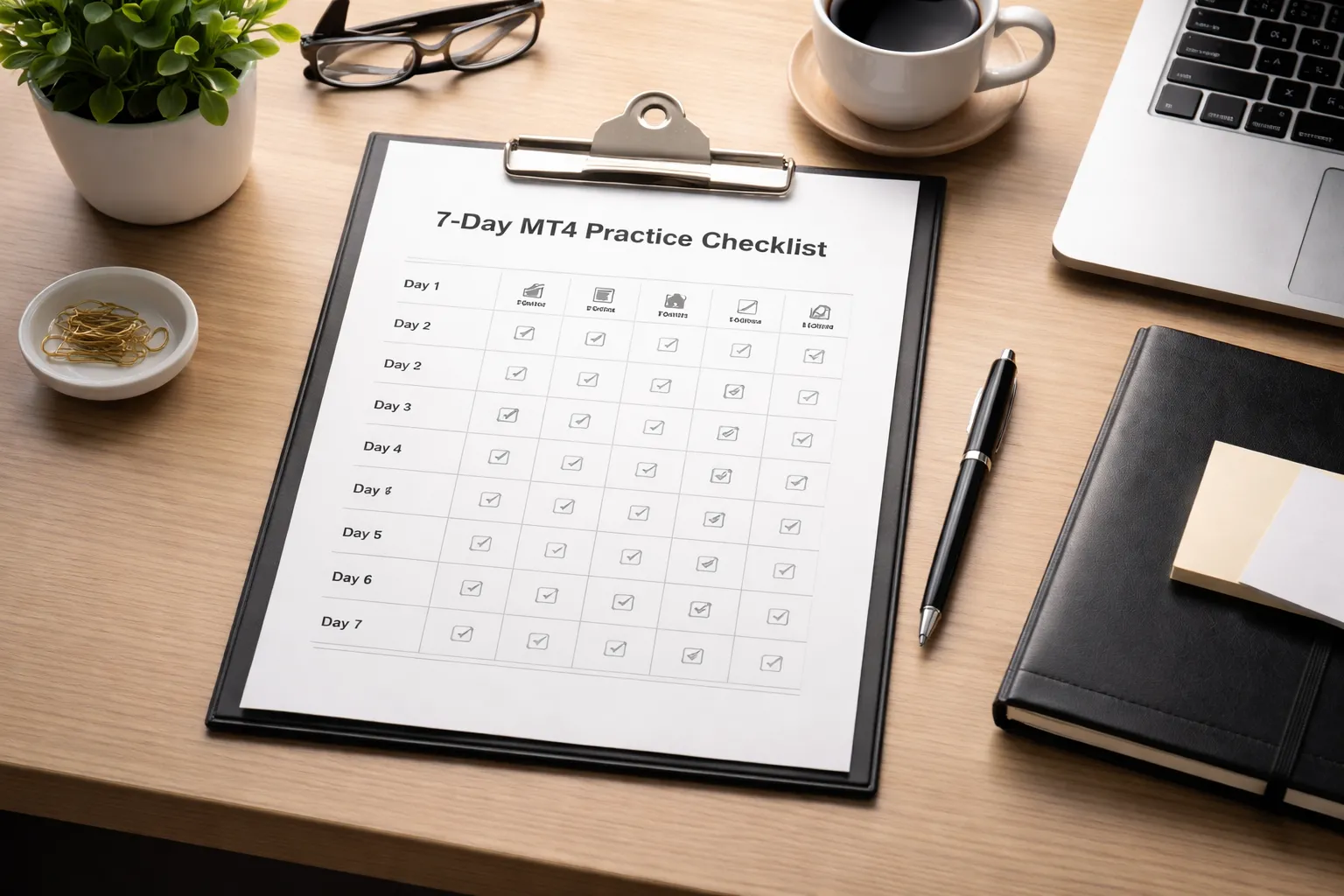
Day-by-day practice plan
- Day 1, setup and interface: Install MT4. Log in to a demo account. Add 3 symbols to Market Watch. Open 2 charts. Switch timeframes. Learn where to find Trade, Account History, Terminal, and Data Window. Save a clean chart template.
- Day 2, charts and price reading: Change chart types. Add grid, crosshair, and zoom settings you like. Add 3 indicators, then remove them. Set chart colors for clear candles. Mark support and resistance with horizontal lines. Save a second template for your “analysis” layout.
- Day 3, orders in slow motion: Place 1 buy and 1 sell with a tiny demo lot size. Add stop loss and take profit before you click Buy or Sell. Modify SL and TP on an open trade. Close a trade using the chart and using the Trade tab.
- Day 4, pending orders and risk: Place Buy Limit, Sell Limit, Buy Stop, Sell Stop. Set expiry on one pending order. Cancel pending orders. Practice position sizing with fixed risk per trade, such as 0.5% or 1% of demo balance.
- Day 5, trade management: Move SL to break even using a clear rule, such as after price moves 1R in your favor. Trail a stop manually. Partially close a position if your broker allows it on MT4. Practice avoiding revenge clicks, one mistake here can wipe a week of progress.
- Day 6, workflow and speed: Set up profiles for different markets. Create a watchlist routine, scan, analyze, plan, execute. Set price alerts. Practice placing an order in under 20 seconds without skipping SL or lot size checks.
- Day 7, review and stress test: Export your account history. Review every trade. Identify avoidable errors, wrong lot size, missing SL, late entry, early exit. Rebuild your templates and profiles so you can repeat the same workflow next week.
Demo trading rules that simulate real conditions
- Use realistic capital: Set your demo balance close to what you plan to fund live.
- Use the same leverage you will use live: Do not practice with high leverage you will not use later.
- Risk per trade: Cap risk at 0.5% to 1% per trade. Use the same rule every time.
- Hard stop loss on every trade: Place SL in the order ticket. Do not add it after entry.
- One plan, one setup list: Write entry trigger, SL location, TP logic, and invalidation. Trade only those rules.
- Limit daily damage: Stop for the day at 2 losses or at 2R drawdown, whichever comes first.
- Limit total trades: Take a maximum of 3 trades per day. You train selectivity.
- No “what if” edits: Do not move SL farther. Do not add to losers.
- Track slippage and spreads: Note spread at entry, slippage in points, and execution type.
How to evaluate progress, metrics that matter
Focus on execution quality first. Profit can hide bad habits.
When to move from demo to live, and when not to
- Move to live when: You can place market and pending orders without mistakes. You always set SL and size correctly. You have at least 30 demo trades with stable risk and no rule breaking. Your max drawdown stays within your planned limit.
- Start small: Use the smallest live lot size your broker offers. Keep risk at 0.25% to 0.5% per trade for the first month.
- Do not move to live when: You still forget stop losses. You change lot sizes based on mood. You chase entries. You cannot explain why you entered and where you will exit before you click.
- Platform choice check: If you plan to compare tools before committing, read MT4 vs MT5 and decide what fits your workflow.
Frequently Asked Questions
Is MT4 free to use?
MT4 is free to download on desktop and mobile. Your broker provides the server connection and quotes. You still pay trading costs like spread, commission, and swaps. Some brokers charge for extras like VPS, premium indicators, or data add-ons.
Can you use MT4 without a broker?
You can install MT4 and open demo accounts, but you need a broker server to trade or receive live pricing. For offline practice, use historical data and Strategy Tester, if your broker provides quality data.
What is the difference between a demo and a live account in MT4?
A demo uses virtual money and simulated execution. A live account uses real funds, real fills, and real slippage. Prices can differ slightly. Execution speed and spread behavior matter more on live, especially around news and session opens.
Why do charts look different from TradingView?
MT4 candles come from your broker feed. TradingView often uses different sources or consolidated data. Time zone settings can change daily candles. Spread display can change highs and lows. Compare only on the same broker, symbol, and session time.
How do you add indicators in MT4?
On desktop, click Insert, Indicators, then choose a tool. For custom indicators, copy the .ex4 file into MQL4, Indicators, then restart MT4. Keep indicator count low, too many can slow charts and cause missed clicks.
How do you set a stop loss and take profit?
In the Order window, enter Stop Loss and Take Profit before you click Buy or Sell. After entry, right-click the trade in Terminal, then Modify or Delete Order. Do not trade without a stop on live.
What are pending orders in MT4?
Pending orders trigger later at a set price. Use Buy Limit and Sell Limit to enter on pullbacks. Use Buy Stop and Sell Stop to enter on breakouts. Always set an expiry time if you do not want stale orders filling days later.
Why does MT4 say “Off quotes” or “Trade context busy”?
Off quotes means the price changed or the connection dropped. Trade context busy means MT4 still processes a prior request. Check connection status, reduce rapid clicking, close duplicate order windows, and restart MT4 if it persists.
What is slippage, and can you control it in MT4?
Slippage is a fill price difference during fast moves. In MT4, you can set a maximum deviation in points on some brokers. You cannot remove slippage. Avoid trading during major news if you cannot accept variable fills.
How do you change lot size correctly?
Lot size controls position size. Use your stop distance and risk percent to calculate it. Start with micro or nano lots if available. Keep risk at 0.25% to 0.5% per trade while you learn execution and order handling.
Does MT4 work on Mac?
MT4 has no native Mac desktop build from most brokers. You can use a broker web terminal, run Windows via Parallels, or use Wine, if supported. Mobile MT4 works on iOS and Android.
Can you trade stocks or crypto on MT4?
MT4 supports CFDs if your broker offers them. Availability depends on regulation and broker setup. Many brokers offer forex and indices, fewer offer real stocks. Crypto CFD availability varies and may include wider spreads and overnight fees.
Should you use MT4 or another platform?
Use MT4 if you want simple execution, wide broker support, and basic automation. If you need advanced order types and cleaner depth tools, compare MT4 with cTrader using this MetaTrader vs cTrader guide.
Conclusion
MT4 works best when you keep it simple. Pick one broker. Set your base currency. Check spreads and swaps on your main pair before you fund the account.
- Use one chart layout. Save it as a template.
- Set default trade size. Set a hard stop loss on every order.
- Limit indicators. Track one or two signals you understand.
- Journal each trade. Record entry, stop, target, and result.
Final tip. Trade on demo until you can place and manage orders fast, without changing settings mid trade. When you go live, start small and keep the same workflow.
If you want a newer MetaTrader with more built-in tools, follow this MT5 walkthrough.
-
Forex Trading Platforms Comparison: MetaTrader vs cTrader vs TradingView
7 months ago -
MetaTrader 4 vs MetaTrader 5 for Forex: Which One Should You Use?
7 months ago -
TradingView for Forex: How to Use It (Charts, Alerts & Layouts)
7 months ago -
cTrader vs MetaTrader: Which Forex Platform Is Better?
7 months ago -
MetaTrader vs cTrader: Which Forex Trading Platform Is Better for You?
7 months ago
-
- Choosing a Regulated Broker and Avoiding Common Beginner Traps
- Opening a Demo Account, the Fastest Learning Path
- Understanding Login Types: Account Number, Password, and Server
- How to Switch Between Demo and Live Without Confusion
- Checklist Before Funding: Fees, Spreads, Commissions, and Execution Model
-
- Market Watch: symbols, spreads, and one-click actions
- Navigator panel: accounts, indicators, scripts, and Expert Advisors
- Chart window essentials: candles, crosshair, zoom, and scaling
- Terminal toolbox: Trade, Exposure, Account History, Alerts, Mailbox, Journal
- Toolbars and shortcuts that save beginners time
-
- Pending Orders in MT4, What They Do
- Buy Limit vs Buy Stop vs Sell Limit vs Sell Stop
- Stop-Limit Orders, Only If Your Broker Supports Them
- How to Place a Pending Order in MT4
- Setting Entry Price, Expiration, and Comments
- When to Use Pending Orders Instead of Market Execution
- How to Find and Manage Pending Orders in the Terminal
-
- How margin, free margin, and margin level work in MT4
- A simple position sizing method using stop-loss distance
- Leverage explained with practical examples, and why it’s dangerous
- Setting personal risk limits, per-trade, per-day, and per-week
- Understanding swap, rollover, and why holding overnight can cost money
-
- Is MT4 free to use?
- Can you use MT4 without a broker?
- What is the difference between a demo and a live account in MT4?
- Why do charts look different from TradingView?
- How do you add indicators in MT4?
- How do you set a stop loss and take profit?
- What are pending orders in MT4?
- Why does MT4 say “Off quotes” or “Trade context busy”?
- What is slippage, and can you control it in MT4?
- How do you change lot size correctly?
- Does MT4 work on Mac?
- Can you trade stocks or crypto on MT4?
- Should you use MT4 or another platform?
-
-
- Choosing a Regulated Broker and Avoiding Common Beginner Traps
- Opening a Demo Account, the Fastest Learning Path
- Understanding Login Types: Account Number, Password, and Server
- How to Switch Between Demo and Live Without Confusion
- Checklist Before Funding: Fees, Spreads, Commissions, and Execution Model
-
- Market Watch: symbols, spreads, and one-click actions
- Navigator panel: accounts, indicators, scripts, and Expert Advisors
- Chart window essentials: candles, crosshair, zoom, and scaling
- Terminal toolbox: Trade, Exposure, Account History, Alerts, Mailbox, Journal
- Toolbars and shortcuts that save beginners time
-
- Pending Orders in MT4, What They Do
- Buy Limit vs Buy Stop vs Sell Limit vs Sell Stop
- Stop-Limit Orders, Only If Your Broker Supports Them
- How to Place a Pending Order in MT4
- Setting Entry Price, Expiration, and Comments
- When to Use Pending Orders Instead of Market Execution
- How to Find and Manage Pending Orders in the Terminal
-
- How margin, free margin, and margin level work in MT4
- A simple position sizing method using stop-loss distance
- Leverage explained with practical examples, and why it’s dangerous
- Setting personal risk limits, per-trade, per-day, and per-week
- Understanding swap, rollover, and why holding overnight can cost money
-
- Is MT4 free to use?
- Can you use MT4 without a broker?
- What is the difference between a demo and a live account in MT4?
- Why do charts look different from TradingView?
- How do you add indicators in MT4?
- How do you set a stop loss and take profit?
- What are pending orders in MT4?
- Why does MT4 say “Off quotes” or “Trade context busy”?
- What is slippage, and can you control it in MT4?
- How do you change lot size correctly?
- Does MT4 work on Mac?
- Can you trade stocks or crypto on MT4?
- Should you use MT4 or another platform?
-
-
How to Place a Forex Trade Step by Step (Your First Trade Explained)
5 months ago -
Forex Trading vs Crypto Trading: Which Market Is Better for Beginners?
5 months ago -
Forex Lot Size Calculator: How to Use It to Size Trades Correctly
7 months ago -
How to Calculate Position Size in Forex (Position Sizing Formula + Examples)
7 months ago -
Forex Leverage Explained: How It Works, Pros, Cons & Examples
7 months ago
-
Forex Trading Platforms Comparison: MetaTrader vs cTrader vs TradingView
7 months ago -
Stop Loss vs Take Profit: Differences, Examples & Best Practices
7 months ago -
Is Forex Trading Legal in the United States? Rules, Regulators & What to Know
7 months ago -
Forex Market Hours & Trading Sessions Explained (Best Times to Trade)
7 months ago -
Forex Leverage Explained: How It Works, Pros, Cons & Examples
7 months ago