How to Use MetaTrader 5 (MT5) for Beginners: Full Walkthrough

MetaTrader 5, MT5, is a trading platform for forex, CFDs, stocks, and futures, depending on your broker. It runs on desktop, web, and mobile. You use it to view charts, place orders, manage risk, and track your account.
This walkthrough shows you how to set up MT5, log in, choose symbols, and read the Market Watch. You will learn how to open and close trades, set lot size, and add stop loss and take profit. You will also learn how to use pending orders, change chart types and timeframes, add indicators, and save templates. You will finish with basic account checks, order history, and common mistakes to avoid.
If you still compare platforms, read MetaTrader 4 vs MetaTrader 5.
- In het kort: Set up MT5 once, then trade with a repeatable checklist.
- Log in to the right server, then confirm your account type, leverage, and base currency.
- Use Market Watch to find symbols, add instruments, and check live bid and ask prices.
- Read the chart first, then pick your timeframe, chart type, and template.
- Open trades from New Order or one-click trading. Always set lot size before you click Buy or Sell.
- Add risk controls on every trade. Set stop loss and take profit in points or price, then confirm before you place the order.
- Use pending orders when you need a specific entry. Know the difference between limit and stop orders.
- Track open positions in the Trade tab. Modify orders fast when your plan changes.
- Review results in History. Check entry price, spread, swaps, commission, and net P and L.
- Avoid common errors. Wrong lot size, missing stop loss, trading the wrong symbol, and placing orders on the wrong account.
- If you still compare platforms, read MetaTrader 4 vs MetaTrader 5.
What MetaTrader 5 (MT5) Is—and What Beginners Use It For
What MT5 is
MetaTrader 5, MT5, is a trading platform. You use it to view prices, analyze charts, place orders, and manage open trades. Your broker connects MT5 to the market feed and your trading account.
Beginners use MT5 for three things. Charting and indicators. Simple order types like market, limit, and stop. Basic risk controls like stop loss and take profit.
MT5 vs MT4 in plain English
- Markets: MT4 focuses on forex and CFDs. MT5 supports forex and CFDs, and can also support exchange traded products like stocks and futures if your broker offers them.
- Timeframes: MT4 has 9. MT5 has 21. You get more ways to zoom in or out without changing your chart style.
- Order handling: MT5 adds more order types and settings at the platform level. This matters when you want tighter control over entries and execution rules.
- Strategy tools: MT5 includes a stronger built in tester for automated strategies. It matters if you plan to backtest or use bots later.
- Accounts and hedging: MT5 can run hedging or netting depending on the account type. Hedging lets you hold buy and sell positions on the same symbol at the same time. Netting merges them into one position.
If you already learned MT4, the workflow feels similar. Charts, Market Watch, order ticket, trade list. If you need a refresher, read the MT4 beginner walkthrough.
What you can trade on MT5
MT5 supports whatever your broker lists inside the platform. The same MT5 install can show different markets on different brokers.
- Forex: major, minor, and exotic currency pairs.
- Indices: CFDs on stock indices like US500 or GER40, naming varies by broker.
- Commodities: gold, silver, oil, and agriculture CFDs, broker dependent.
- Stocks: either real shares or stock CFDs, depends on the account type and broker.
- Crypto CFDs: some brokers offer them, some do not. Rules and trading hours vary.
Key terms you must know before you click Buy
- Pip and point: a pip is a standard price move in forex, often 0.0001 for most pairs and 0.01 for JPY pairs. A point is the smallest quoted tick on your broker feed, often 1 digit smaller than a pip on 5 digit pricing.
- Spread: the difference between bid and ask. You pay it when you enter. Wider spreads raise your breakeven level.
- Lot size: your position size. 1.00 lot usually equals 100,000 units in forex, but broker contract specs can differ on CFDs. Lot size controls pip value and risk.
- Margin: the amount of account equity your broker locks to hold a leveraged position. If equity drops too far, you can hit margin call or stop out.
- Leverage: the multiplier that sets required margin. Higher leverage lowers margin required, but it does not lower risk. Your P and L still moves with full position size.
- Swap: overnight financing. It can be a cost or a credit. Brokers set swap rates and apply them at rollover, often once per day, sometimes triple on a set weekday.
What MT5 does not do
- It is not a broker: MT5 does not hold your funds. Your broker does. Execution, spreads, margin rules, and symbols come from the broker.
- It does not guarantee profits: MT5 gives you tools. Your results depend on your strategy, risk control, and execution quality.
- It does not guarantee data quality: chart history, tick data, and pricing can differ by broker. Backtests and signals can change if the feed changes.
How to Download, Install, and Set Up MT5
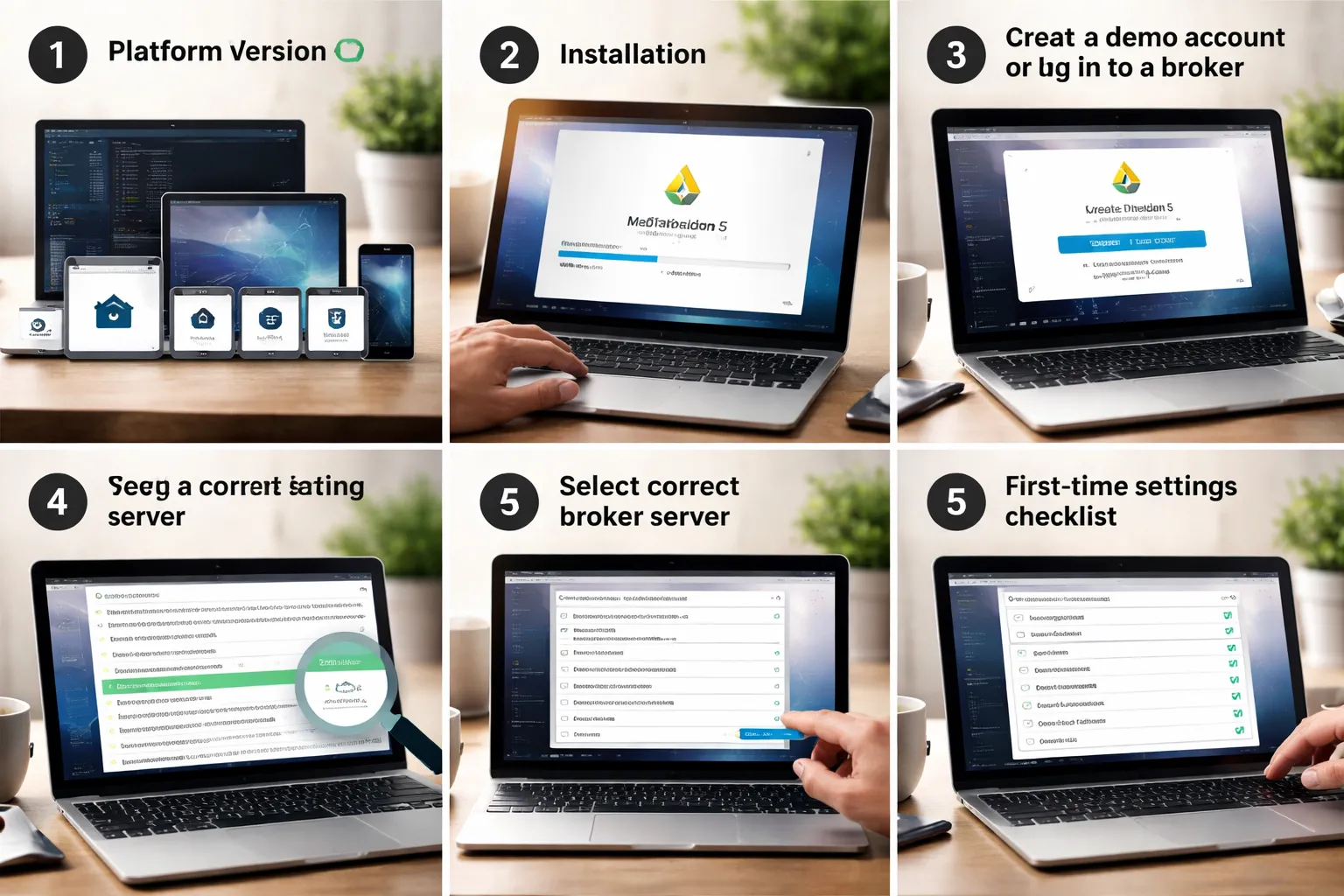
Choosing the Right MT5 Version
Pick the version that matches how you trade. Your broker may offer its own branded MT5. Use the broker version if you want the correct servers and symbols with less setup.
- Windows desktop. Best option for full features, fastest workflow, and algorithmic trading support.
- macOS desktop. Good for manual trading. Some brokers ship a Mac installer. If yours does not, use the official MetaQuotes installer and then add your broker server.
- WebTrader. Runs in a browser. Good for quick access on locked-down computers. Fewer tools and settings than desktop.
- iOS and Android. Best for monitoring, alerts, and basic execution. Less screen space, fewer layout controls.
System Requirements and Common Install Issues
MT5 runs on most modern devices. Problems usually come from permissions, old OS versions, or security software.
- Windows install fails or will not launch. Right-click the installer and select Run as administrator. Update Windows. Reboot. If it still fails, reinstall to a simple path like C:\MT5\.
- Stuck on “Update” or endless loading. Close MT5. Delete the LiveUpdate folder inside the terminal data folder, then reopen. If you cannot find it, use File, Open Data Folder.
- “No connection” after install. Your firewall or antivirus may block terminal.exe. Allow it. If you use a corporate network, try a different connection or a VPN.
- macOS cannot open the app. Go to System Settings, Privacy and Security, then allow the app. Install from a trusted source only.
- WebTrader will not load. Disable strict ad blockers for the broker domain. Try a different browser. Clear site data.
- Mobile app crashes. Update the app. Free storage. Reinstall. Avoid running heavy battery optimizers that kill background processes.
Download and Install MT5
- From your broker. Download MT5 from your broker portal. Install. This usually auto-adds the right server list.
- From MetaQuotes. Download the official MT5 terminal. Install. You will add your broker server during login.
- On mobile. Install “MetaTrader 5” from the App Store or Google Play. Confirm the publisher, MetaQuotes.
Create a Demo Account vs Log Into a Broker Account
MT5 supports both. A demo uses virtual funds. A live account uses your broker balance.
- Create a demo inside MT5. Open MT5, go to File, Open an Account. Search your broker name. Select a demo server. Fill in the form. Save your login, password, and server name.
- Use a broker demo from the portal. Many brokers create the demo for you. You then receive credentials by email or inside the client area.
- Log into a live account. Your broker gives you an MT5 login, trading password, and server. Use File, Login to Trade Account.
Keep two passwords separate. Brokers often issue an investor password for read-only access and a trading password for execution.
Connect to the Correct Broker Server
Most login failures come from choosing the wrong server. Server names look similar and often split by account type or region.
- Find the exact server. Check your broker email or portal. Copy the server name as written.
- Add a missing server. In the login window, start typing the broker name. If it does not appear, click to add a new broker, then search again. Some brokers require their branded terminal to show all servers.
- Confirm you use MT5 credentials. MT4 and MT5 logins do not work across platforms.
Troubleshooting Login Errors
- Invalid account. You selected the wrong server, typed the wrong login, or you try to use MT4 credentials. Recheck the server first.
- Authorization failed. You entered the wrong password, or your broker reset it. Request a new trading password from the broker portal.
- Account disabled. Your broker restricted the account due to verification, inactivity, or compliance. Contact support.
- No connection. Your network blocks MT5. Switch networks. Allow MT5 through firewall. Check the connection icon in the bottom right.
- Connected but no prices. You logged into a server with no market data for that account type. Switch to the correct live or demo server.
First-Time Setup Checklist
- Language. Go to View, Languages. Restart MT5 after changing.
- Time zone context. MT5 charts use broker server time. Do not assume it matches your local time. Note the server time in Market Watch and align your trading session rules to it.
- Chart defaults. Open a clean chart. Set candle style, colors, grid, ask line, and scale. Then right-click the chart, Templates, Save Template. Use it as your default on new charts.
- Symbols and Market Watch. Right-click Market Watch, select Symbols. Show only what you trade. This reduces clutter and lowers the chance of trading the wrong instrument.
- One-click trading. Enable Tools, Options, Trade, One Click Trading. Read the disclaimer. This removes order confirmation prompts.
- Order settings. Set your default lot size and deviation settings based on your broker execution. Always place a stop loss and define risk per trade before you click Buy or Sell.
- Data folder access. Note File, Open Data Folder. You will use it for templates, profiles, logs, and backups.
If you plan to compare charts with a second platform, keep time zone differences in mind. For charting-only workflows, you may prefer TradingView for forex charting and use MT5 for execution.
MT5 Interface Tour: The Only Panels You Need at First
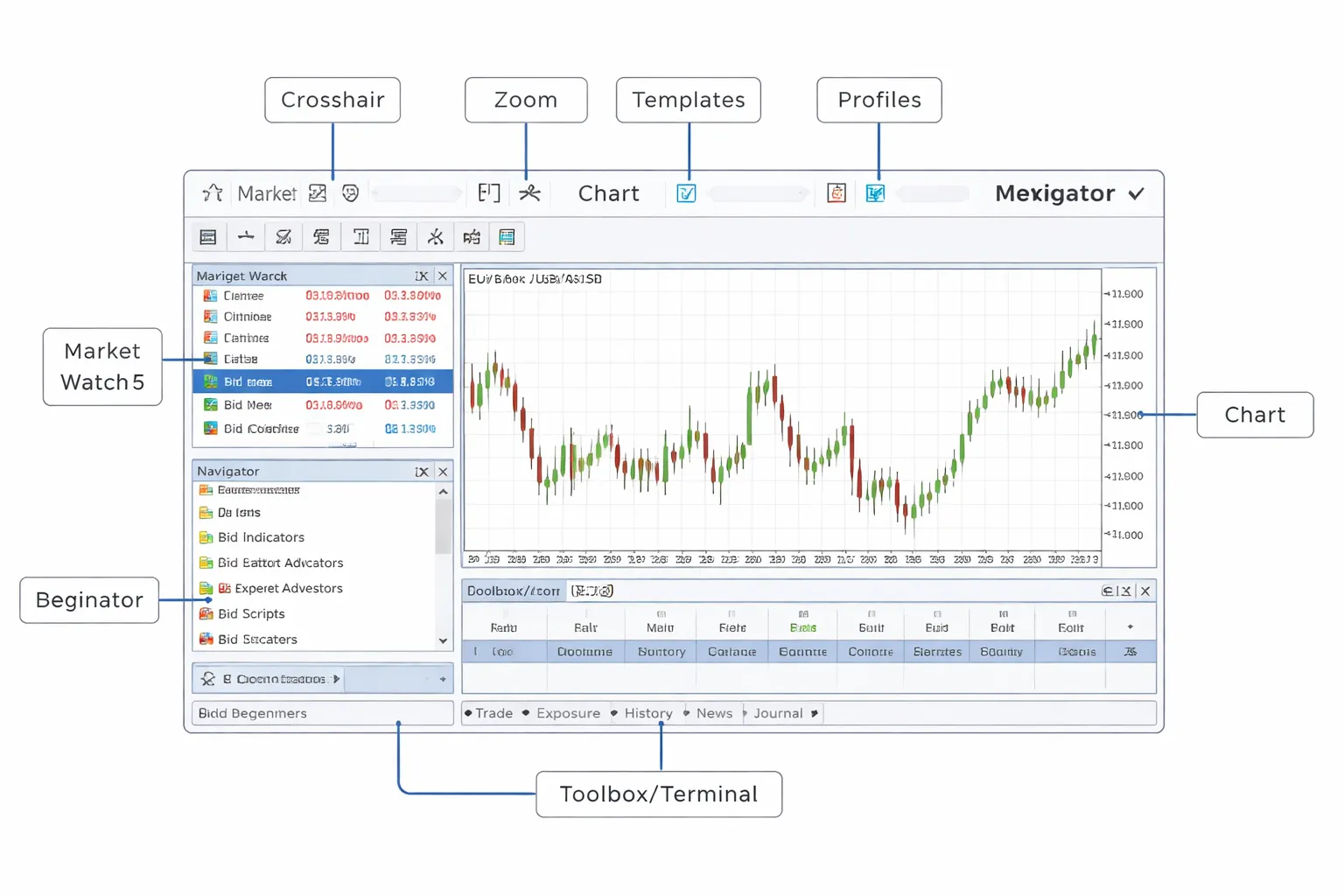
Market Watch, your symbol list
Market Watch controls what you can trade and what you can open on a chart. Keep it clean. Too many symbols slow you down.
- Show or hide Market Watch: View, Market Watch, or press Ctrl+M.
- Add symbols: Right-click inside Market Watch, select Symbols. Expand a group, select a symbol, click Show. Click Hide for symbols you do not need.
- Show spread: Right-click inside Market Watch, select Spread. MT5 shows the live spread in points. Spreads widen in low liquidity and around news.
- Quick chart: Drag a symbol from Market Watch onto the chart area.
- Save a symbol set: Right-click, select Sets, then Save As. Create sets like “Majors”, “Gold and Oil”, or “Indices”. Load them from Sets anytime.
Navigator, your accounts and tools
Navigator is where you manage logins and add tools to charts. You will use four folders.
- Accounts: Your broker logins. Double-click an account to connect. Use this to switch between demo and live.
- Indicators: Tools like Moving Average, RSI, ATR. Drag an indicator onto a chart or double-click it. Remove it by right-clicking the chart, Indicators List.
- Scripts: One-time actions. A script runs once when you drop it on a chart. Example: close all positions, export data, or place a preset order, depending on the script.
- Expert Advisors (EAs): Automation. An EA can monitor rules and place trades. If you are a beginner, keep EAs off until you understand risk, slippage, and broker rules.
If you do test automation later, compare platforms first. See MetaTrader vs cTrader.
Toolbox or Terminal, your control center
Toolbox is where you track positions, risk, and platform messages. Show it with Ctrl+T.
- Trade tab: Open positions, pending orders, and account totals. Watch Balance, Equity, Margin, Free Margin, and Margin Level. Equity moves with floating profit and loss.
- Exposure: Net exposure by symbol and currency. Use it to spot hidden concentration, like multiple trades tied to USD strength.
- History: Closed trades and cash movements. Right-click to filter dates, then save a report for journaling and tax records.
- Alerts: Price alerts. Right-click, Create. Use alerts to avoid staring at the screen.
- Mailbox: Broker messages. Check it for trading hours changes, contract updates, and margin notices.
Chart window essentials
You will spend most of your time on the chart. Learn these actions first.
- Crosshair: Press Ctrl+F. Use it to read exact price and time. It also shows the bar distance between two points.
- Zoom: Use the plus and minus keys, or Ctrl+mouse wheel. Zoom to the level where candles stay readable.
- Chart types: Switch between Candlesticks, Bar, and Line from the toolbar. Use candlesticks for most trading.
- Templates: Right-click chart, Template, Save Template. Templates save colors, indicators, and chart settings. Load them to keep charts consistent.
- Profiles: Profiles save your whole workspace, including open charts. Use one profile per market or strategy. Access them from File, Profiles.
Recommended beginner layout, and how to reset it
Start with one chart and three panels. This keeps decisions simple and reduces mistakes.
- Left: Market Watch on top, Navigator below it.
- Center: One chart, one symbol, one timeframe.
- Bottom: Toolbox on the Trade tab.
- Remove noise: Close extra charts with Ctrl+F4. Hide panels you do not use yet.
- If you mess it up: Reopen panels from View. Reset charts by opening a fresh chart from Market Watch. Reload your saved Template. Switch back to a clean Profile you saved earlier.
How to Place Your First Trade in MT5 (Step-by-Step)
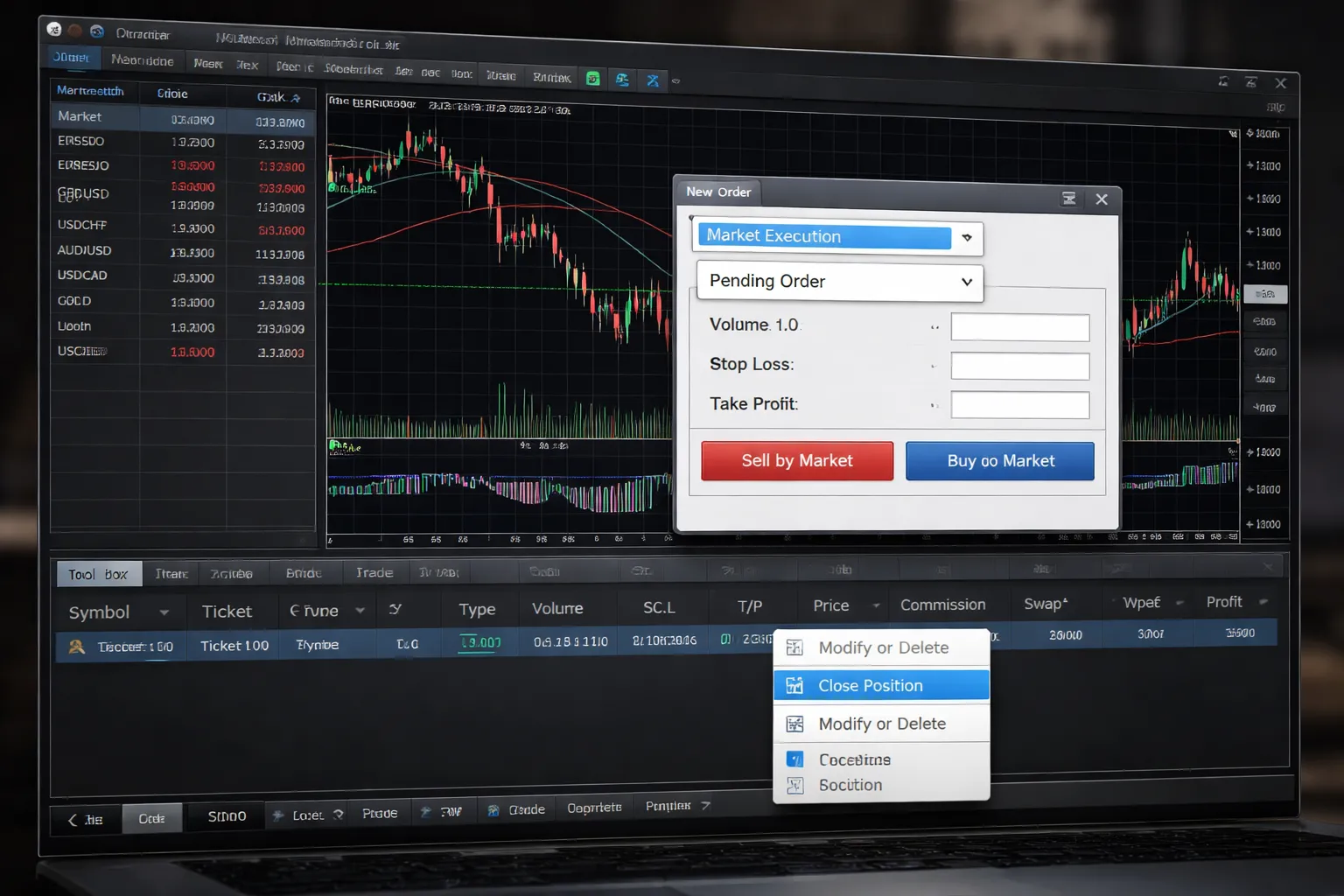
1) Open a chart and confirm the symbol, bid, ask, and spread
In Market Watch, find the instrument you want to trade.
- Right-click the symbol, click Chart Window.
- Set your timeframe from the toolbar, for example M5, M15, H1.
Read the prices before you trade.
- Ask is the buy price. You enter a Buy at Ask.
- Bid is the sell price. You enter a Sell at Bid.
- Spread is Ask minus Bid. It is your immediate cost.
Check spread every time, especially on volatile pairs, around news, and on market open.
2) Open the order ticket
Open the trade window.
- Press F9, or
- Right-click the chart, click Trading, then New Order.
Confirm the Symbol at the top of the ticket matches your chart.
3) Market order vs pending order, what to use first
In the ticket, set Type.
- Market Execution, you enter now at the current Bid or Ask. Use this when you accept the current price.
- Pending Order, you set an entry price and wait. Use this when you only want a trade if price reaches a level.
For your first trades, use pending orders when you trade a level. You avoid chasing price. You reduce mistakes from fast clicks.
Pending order types you will see.
- Buy Limit, buy below current price.
- Sell Limit, sell above current price.
- Buy Stop, buy above current price.
- Sell Stop, sell below current price.
4) Set stop-loss and take-profit the right way
Always plan your exit before you enter. Set Stop Loss and Take Profit on the ticket, or add them right after entry.
Think in price levels, not points.
- Price-based thinking: you decide, “My stop goes below 1.0850.” You type that price.
- Points-based thinking: you decide, “My stop is 250 points.” You still must confirm it matches a real chart level.
Use the chart to pick levels. Then type exact prices in the ticket.
- For a Buy, your stop-loss price must be below entry. Your take-profit must be above entry.
- For a Sell, your stop-loss price must be above entry. Your take-profit must be below entry.
MT5 may reject stops that sit too close to price. If you get an “invalid stops” style error, move the SL or TP further away.
5) Choose lot size safely (micro sizing, pip value, margin check)
In the ticket, set Volume. This is your position size in lots.
- 1.00 lot is typically 100,000 units.
- 0.10 lot is typically 10,000 units.
- 0.01 lot is typically 1,000 units. This is micro sizing. Start here.
Know the pip value before you click Buy or Sell. Bigger lot size means bigger P and L per pip.
Do a margin check.
- Look at the bottom Toolbox, Trade tab after you open a position, or check your account info before entry.
- Watch Free Margin and Margin Level. If Free Margin drops too low, you risk a stop-out.
If you feel unsure, reduce size. Size fixes many beginner errors.
6) Place the trade
Final checklist on the ticket.
- Symbol
- Buy or Sell
- Market or Pending
- Volume
- Stop Loss and Take Profit prices
Click Buy or Sell. Your position appears in Toolbox on the Trade tab.
7) Modify or close a trade (what matters for you)
Go to Toolbox, Trade tab. Right-click your position.
- Modify or Delete, change SL or TP. You can also drag SL or TP lines on the chart if your broker allows it.
- Close Position, exit the full trade at market.
- Partial close, set a smaller volume to close part of the position. Use this to lock in some profit and keep the rest running.
Other options exist, but most beginners should skip them at first.
- Close By, closes a buy and sell on the same symbol against each other. It applies only if you have opposite positions open and your account mode supports it.
- Reverse, closes your current position and opens the opposite side. This increases mistakes under pressure. Use manual close, then reassess.
Log each change. Entry price, size, SL, TP, and reason. It helps you spot repeated errors fast.
MetaTrader 4 vs MetaTrader 5 matters if you switch platforms and wonder why order handling and tools look different.
MT5 Order Types Explained for Beginners (With Use Cases)
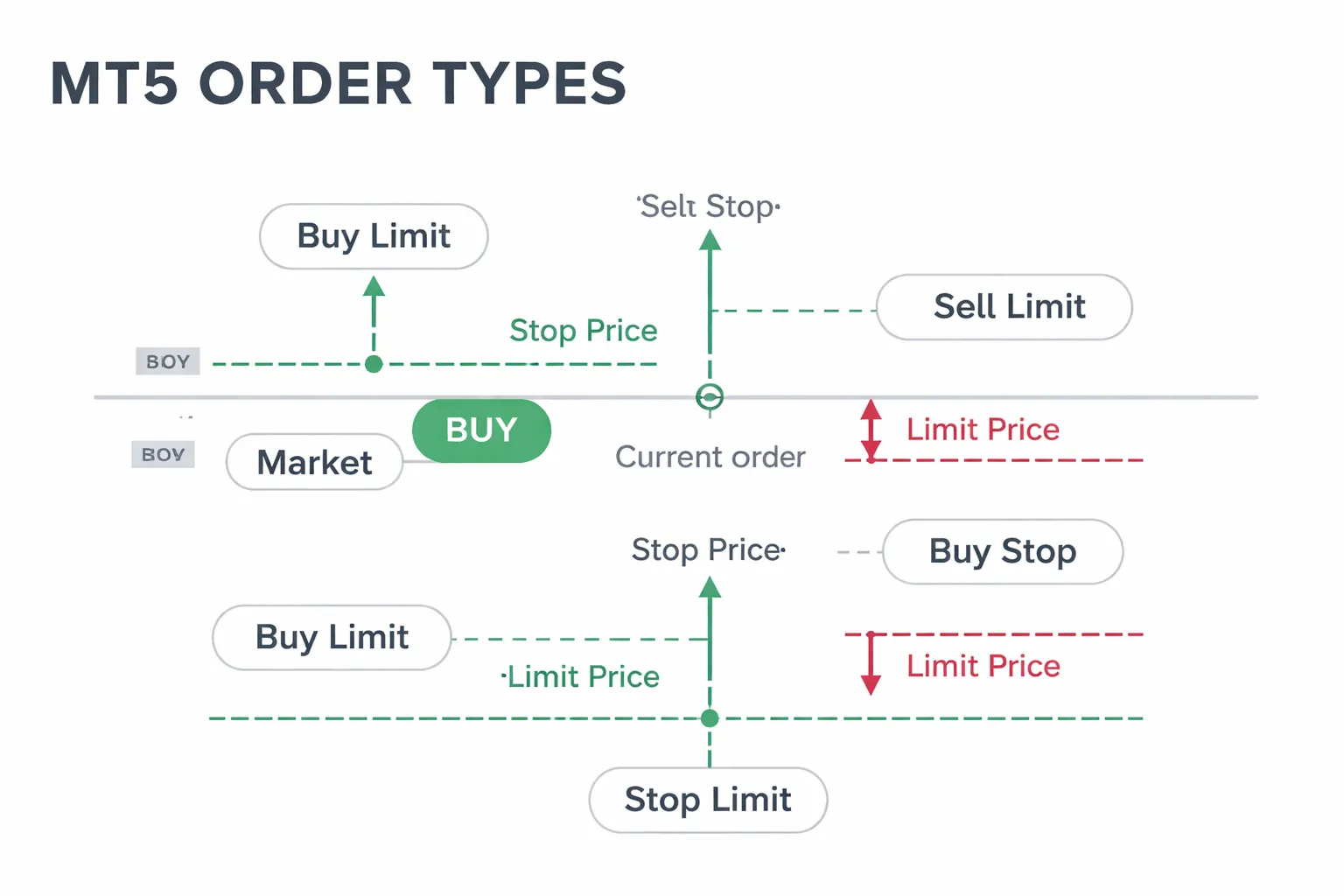
Market Execution vs Instant Execution
MT5 supports different execution modes. Your broker sets what you can use. The mode changes how fast you get filled and what price you get.
- Market execution, you send an order. MT5 fills at the best available price. You can get slippage. You do not get requotes.
- Instant execution, you request a price. The broker can accept or reject it. You can see requotes if price moved.
Slippage means your fill price differs from your click price. It happens during news, low liquidity, or fast moves. You reduce it by avoiding major releases, trading liquid sessions, and using smaller position size.
Requotes happen when your requested price is no longer available under instant execution. You either accept a new price or the order fails. If you see frequent requotes, switch to market execution if your broker offers it, or widen your acceptable deviation.
Pending Orders: Buy Limit, Sell Limit, Buy Stop, Sell Stop
Pending orders sit in the market until price reaches your level or the order expires. You use them to avoid chasing price and to plan entries.
- Buy Limit, you buy below current price. Use it to buy pullbacks.
- Example: EURUSD trades at 1.0900. You place a Buy Limit at 1.0870 to enter on a dip into support.
- Use case: Range trading, retracement entries after an impulse move.
- Sell Limit, you sell above current price. Use it to sell rallies.
- Example: EURUSD trades at 1.0900. You place a Sell Limit at 1.0930 to short into resistance.
- Use case: Mean reversion, retests of broken structure from below.
- Buy Stop, you buy above current price. Use it to catch breakouts.
- Example: EURUSD trades at 1.0900. You place a Buy Stop at 1.0920 to enter if price breaks higher.
- Use case: Momentum continuation, breakout from consolidation.
- Sell Stop, you sell below current price. Use it to catch breakdowns.
- Example: EURUSD trades at 1.0900. You place a Sell Stop at 1.0880 to enter if price breaks lower.
- Use case: Trend continuation to the downside, support breaks.
Place pending orders where your trade idea becomes true. Do not place them where random noise triggers them. Give the level room, then define your stop based on structure, not on a fixed pip number.
Stop Limit Orders in MT5
MT5 adds Buy Stop Limit and Sell Stop Limit. These use two prices.
- Stop price, triggers the order when reached.
- Limit price, sets the worst price you will accept.
Use a stop limit when you want a breakout entry but you refuse to pay a large spike price.
- Buy Stop Limit example: Price is 1.0900. You set Stop at 1.0920 and Limit at 1.0915. If price hits 1.0920, MT5 places a Buy Limit at 1.0915. You enter only if price comes back to 1.0915 or better.
- Risk: If price runs without pulling back, you miss the trade. That is the trade-off.
Use stop limits around news only if you accept missed fills. For guaranteed participation, use a stop order and manage slippage with smaller risk.
GTC vs Day Expiry, Set Expiration Correctly
Expiration controls how long a pending order stays active.
- Good-Till-Cancelled (GTC), the order stays until you delete it or it triggers.
- Day, the order cancels at the broker’s end of day time.
- Specified, you set an exact date and time.
Use GTC only if you will review the chart daily. Old levels break. Your planned entry can turn into a bad entry.
Use Day or Specified when the setup depends on a short window, like a London breakout or a session range. Match the expiration to your trading plan and your broker server time. If you trade sessions, confirm server time in Market Watch to avoid expiry at the wrong hour.
Hedging vs Netting Accounts, How Order Behavior Changes
MT5 supports two account systems. Your broker decides what you get. This changes how positions show and how trades combine.
- Hedging, you can hold multiple positions on the same symbol in both directions. MT5 shows separate tickets. You can close one trade without touching the others.
- Netting, MT5 merges all trades per symbol into one net position. If you buy then sell the same symbol, MT5 reduces or flips the net position. You do not keep separate long and short positions on the same symbol.
Use hedging if you scale in and manage partial exits by ticket. Use netting if you want simple position tracking and you trade one directional bias per symbol. If you switch platforms or account types, order handling can change fast. See this MT4 walkthrough if you want to compare how trade tickets and order workflows differ.
| Order type | Where it sits vs current price | Best for | Main risk |
|---|---|---|---|
| Market | Executes now | Fast entry, quick exit | Slippage in fast markets |
| Buy Limit | Below | Buying pullbacks | Missed trade if no retrace |
| Sell Limit | Above | Selling rallies | Filled before reversal confirms |
| Buy Stop | Above | Upside breakouts | False breakouts, slippage |
| Sell Stop | Below | Downside breakouts | Whipsaws, slippage |
| Stop Limit | Triggers past stop, fills at limit | Breakouts with price control | No fill if price does not pull back |
Charting and Technical Analysis Basics in MT5
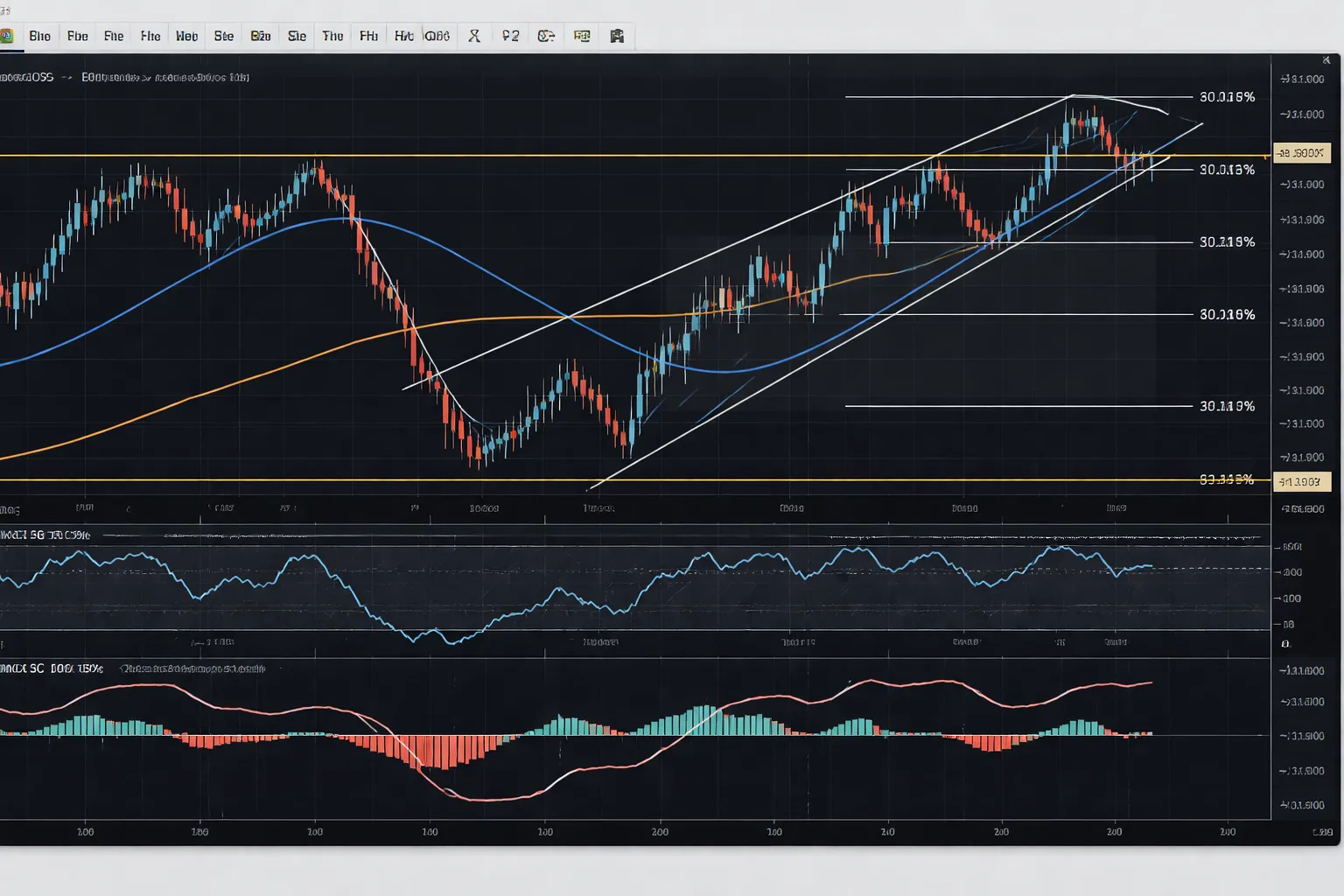
Changing Timeframes and Multi Timeframe Confirmation
Change timeframes from the top toolbar, or press the default shortcut keys if your platform shows them. Start with one “execution” timeframe and one “context” timeframe. Keep it simple.
- Execution timeframe: where you place and manage trades, often M5 to H1.
- Context timeframe: where you mark trend and key levels, often H4 to D1.
- Rule: mark levels on the higher timeframe, fine tune entries on the lower timeframe.
- Avoid clutter: use the same two timeframes for one strategy. Do not add more unless you can explain what each adds.
If the higher timeframe trend and your lower timeframe setup conflict, reduce size or skip the trade. You will save money by trading less.
Adding Indicators, MA, RSI, MACD (Without Overload)
Add indicators via Insert, Indicators, then pick the tool. Keep a tight indicator list. Your chart should stay readable at a glance.
- Moving Average (MA): use it for trend filter and dynamic areas. One or two MAs is enough.
- RSI: use it to spot momentum shifts and divergences. Do not treat 70 and 30 as automatic reversal signals.
- MACD: use it for momentum and trend confirmation. Focus on histogram direction and signal line crosses in context.
Indicator overload happens when you stack tools that measure the same thing. MA, MACD, and RSI all react to price and momentum. If you use all three, assign each a job. Remove anything that does not change your decision.
| Indicator | Best Use | Common Beginner Mistake |
|---|---|---|
| MA | Trend filter, slope, pullbacks | Taking every touch as a buy or sell signal |
| RSI | Momentum shift, divergence, range bias | Selling at 70 and buying at 30 in strong trends |
| MACD | Trend momentum confirmation | Trading every cross without level and structure |
Drawing Tools That Matter
Use drawings to define structure. Draw less. Update often. Old lines that no longer matter create false confidence.
- Horizontal levels: mark clear swing highs and lows. Use fewer levels, focus on levels price has respected multiple times.
- Trendlines: connect two clean swing points, then watch the third touch. Ignore forced lines.
- Channels: pair a trendline with a parallel line to frame pullbacks and targets.
- Fibonacci: draw from swing low to swing high in an up move, and high to low in a down move. Use it to map likely pullback zones, not to predict exact turns.
Lock your drawings to the right chart and timeframe. If you trade multiple symbols, keep drawings consistent per symbol.
Saving Templates and Profiles
Templates save your chart settings. Profiles save your whole workspace.
- Template: right click the chart, choose Template, then Save Template. Apply it to new charts to keep the same colors, indicators, and objects.
- Profile: use Profiles to save your full layout, your open charts, and your symbol set. Create one profile per strategy, or per asset class.
- Workflow: build one clean chart, save as a template, apply to all charts, then save the profile.
This keeps your analysis consistent. It also cuts mistakes caused by switching settings between charts.
Reading Candlesticks Fast (And Common Misreads)
Read candles for three things, direction, rejection, and volatility. You do not need to name every pattern.
- Body size: shows commitment. Large bodies often mean strong follow through.
- Wicks: show rejection. Long upper wicks near resistance suggest selling pressure. Long lower wicks near support suggest buying pressure.
- Close location: matters more than the wick. A candle that closes near its high shows control by buyers. Near its low shows control by sellers.
- Misread: treating one pin bar as enough. You still need level, trend, and follow through.
- Misread: ignoring the timeframe. A strong signal on M5 can mean noise on H4.
- Misread: forgetting the prior candles. One candle means little without the sequence.
- Misread: assuming “big candle equals reversal”. Big candles often continue in the same direction.
Risk Management Settings Every Beginner Should Configure
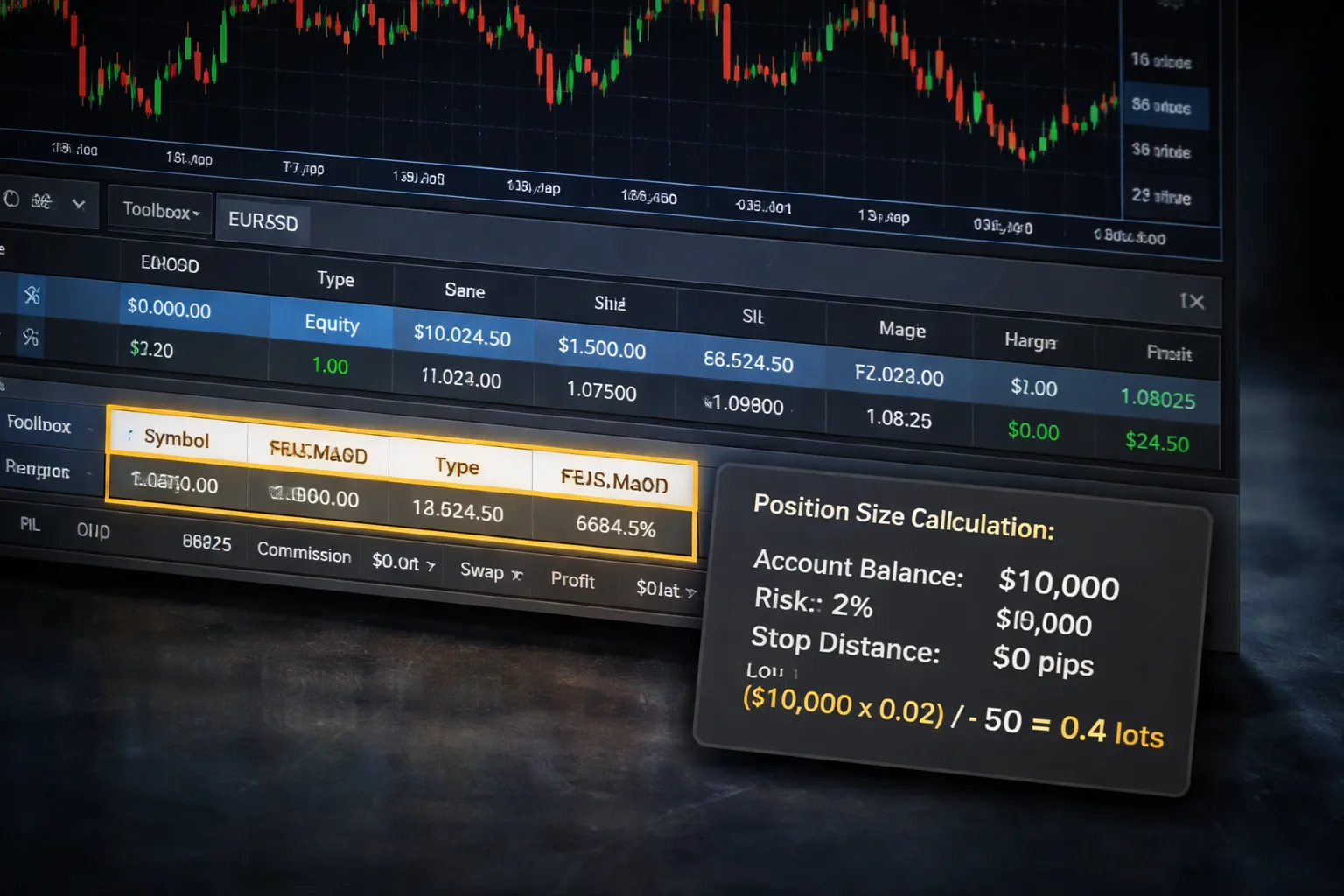
How to calculate position size from risk per trade
You control risk with position size, not hope.
Start with a fixed risk per trade. Use a percent of your account. Many beginners use 0.25% to 1%.
Step 1: Set your risk amount
Risk amount = Account balance × Risk %
Step 2: Use your stop loss distance
Stop distance = Entry price minus Stop loss price, in pips or points.
Step 3: Convert to lot size
Lot size = Risk amount ÷ (Stop distance in pips × Pip value per 1.00 lot)
Example
- Account balance: $2,000
- Risk: 1% = $20
- Stop loss: 25 pips
- Pip value: $10 per pip for 1.00 lot on many USD-quoted forex pairs
- Lot size = 20 ÷ (25 × 10) = 0.08 lots
If your pip value differs, your broker, symbol, and account currency cause it. Confirm in MT5 before you trade size.
| Input | Example |
|---|---|
| Balance | $2,000 |
| Risk % | 1% |
| Risk amount | $20 |
| Stop distance | 25 pips |
| Pip value at 1.00 lot | $10 per pip |
| Position size | 0.08 lots |
Where to see free margin, margin level, and stop-out risk in MT5
Watch margin before you place the trade, not after the damage.
Desktop MT5
- Open Toolbox, then Trade.
- Look at Balance, Equity, Margin, Free Margin, Margin Level.
What each number means
- Balance, closed profit and loss only.
- Equity, balance plus open profit and loss.
- Margin, funds locked for open positions.
- Free Margin, equity minus margin. This is your buffer.
- Margin Level, equity ÷ margin × 100%. Lower is worse.
Stop-out risk
- Your broker sets margin call and stop-out levels. Check the account specs on your broker site.
- If Margin Level keeps falling, you are moving toward forced position closure.
- If you see Margin Level drop fast after entry, your size is too large for your stop.
Order window check
- Open New Order and set volume.
- MT5 shows required margin for that volume. Reduce volume until Free Margin stays high after entry.
Using alerts so you do not watch screens all day
Alerts reduce impulse trades. You wait for your level.
Price alerts in MT5
- Open Alerts in the Toolbox.
- Right-click, select Create.
- Choose Symbol and Condition, set the price level.
- Set an Expiration so old alerts do not pile up.
Indicator alerts
- Many built-in indicators support alerts through their settings, or through separate alert indicators.
- Keep the rule simple. One trigger, one action. Example, RSI crosses 30, then you check the chart, you do not auto-trade.
Notification routing
- Use pop-ups for desktop trading sessions.
- Use push notifications to your phone if your broker setup supports it in MT5 settings.
Set maximum daily loss and cool-off rules
MT5 will not protect you from revenge trading. Your process must.
Daily loss cap
- Pick a daily limit in money or percent. Example, 2R or 2%.
- Track it from Equity, not Balance, because open losses count.
- When you hit the cap, you stop trading for the day. No exceptions.
Cool-off rules
- After 2 consecutive losses, stop for 60 minutes.
- After 3 consecutive losses, stop for the day.
- After a large win, stop for 15 minutes. Big wins can trigger sloppy trades.
Execution checklist
- Position size calculated from fixed risk.
- Stop loss placed at entry, no manual delay.
- Margin Level checked after setting volume.
- Trade logged right after close.
Common leverage traps and how to reduce risk without reducing learning
Leverage magnifies sizing mistakes. Beginners make many sizing mistakes.
- Trap: using max leverage because you can. High leverage lowers margin required, so you feel safe, but price movement still hits your equity the same way.
- Trap: scaling up after a win. One good trade does not change your edge.
- Trap: holding losers because margin looks fine. Free Margin can hide risk until volatility spikes.
- Trap: trading many correlated pairs. EURUSD and GBPUSD often move together. You double your exposure without noticing.
Reduce risk while you still learn
- Use smaller fixed risk, like 0.25% to 0.50% per trade.
- Limit open trades, like 1 to 3 positions total.
- Trade one or two symbols. Build pattern recognition faster.
- Keep stops realistic. If your stop is too tight, you take repeated small losses and overtrade.
- Focus on execution metrics, not profit. Track rule breaks, slippage, and missed stops.
- If you want alternatives, read this MetaTrader vs cTrader vs TradingView comparison.
Using MT5 Tools Beyond Basic Trading
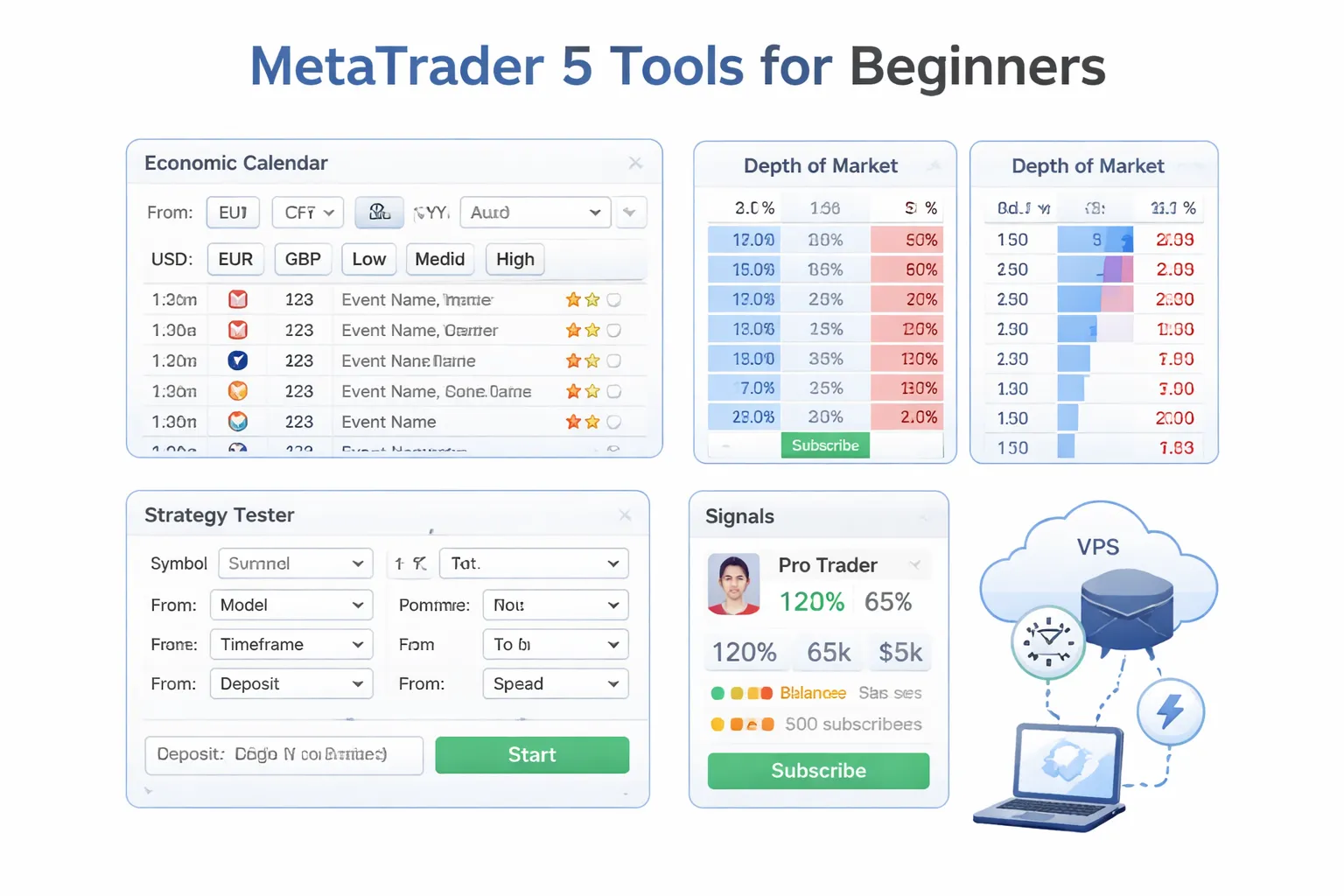
Economic Calendar in MT5
Use the Economic Calendar to avoid trading blind into news spikes. In MT5, open it from Tools or via the Calendar tab, depending on your layout.
- Filter by country and currency tied to your symbols. Example, filter USD events if you trade EURUSD or XAUUSD.
- Filter by importance. Start with high impact only. Add medium impact later if you scalp or trade tight stops.
- Track time until release. MT5 shows upcoming events in platform time. Confirm your broker server time vs your local time.
- Check previous, forecast, and actual. The gap between forecast and actual often drives the first move. Revisions can matter as much as the headline.
Planning rules you can apply:
- Stop opening new trades 15 to 60 minutes before major releases on your pair. Use the longer window if spreads widen on your broker.
- Avoid moving stops tighter right before news. You increase stop-outs from spread jumps.
- Mark the event time on your chart with a vertical line. Review how price behaved around similar releases in your journal.
Depth of Market (DOM)
DOM shows the current order book for an instrument. You see bid and ask levels with available volume. In MT5, open it from the symbol menu as Depth of Market.
- Best bid and best ask. This is the inside market where the next fill usually happens.
- Liquidity by price level. More volume can reduce slippage. Thin levels can cause fast price jumps.
- Spread changes. A sudden spread expansion often signals lower liquidity or upcoming volatility.
When DOM helps:
- Short-term trading where entry precision matters.
- News-sensitive sessions when spreads and liquidity shift fast.
- Trading instruments with centralized data access through your broker, like many CFDs or exchange-traded products.
Limits you must know:
- DOM data depends on your broker. In many spot FX setups, you do not see the full market, you see your broker’s liquidity.
- Do not treat DOM as a guarantee. Liquidity can vanish during spikes.
Strategy Tester Basics
The Strategy Tester lets you backtest and optimize Expert Advisors (EAs). You can test an EA on historical data, then review trades, drawdown, and execution stats.
- Use single symbol tests first. Keep variables limited.
- Pick a realistic timeframe and a long enough period. A few weeks of data means little.
- Review max drawdown, profit factor, win rate, and trade count. Low trade count makes results unstable.
Beginner mistakes to avoid:
- Assuming backtest results will repeat live. Spreads, slippage, and liquidity change.
- Over-optimizing. If you tweak settings until the curve looks perfect, you usually fit noise.
- Ignoring costs. Always account for spread and commissions. Small edges disappear fast after fees.
- Switching to live after one strong backtest. Walk-forward testing and demo validation reduce false confidence.
Signals and Copy Trading
MT5 Signals lets you copy trades from signal providers. Treat it like delegating execution, not delegating risk control.
- Check track record length. Prefer longer histories with consistent behavior.
- Review max drawdown and equity curve shape. Large, frequent drawdowns signal weak risk control.
- Look at trade frequency. High frequency can amplify slippage and costs on your account.
- Confirm trading style. Martingale and grid systems can look stable until they fail hard.
- Compare average win vs average loss. A system with tiny wins and huge losses can hide risk for months.
Risk controls you should set:
- Cap allocation. Do not link your full balance by default.
- Set a max acceptable drawdown for your account, then stop copying when it hits.
- Use conservative lot scaling. If the provider trades larger sizes, your fills and drawdowns can diverge.
- Monitor correlation. Copying multiple providers that trade the same pairs often multiplies the same risk.
VPS Overview for MT5
A VPS runs MT5 on a remote server, 24/7. It reduces disconnects and can improve execution stability, especially if your home internet drops.
You likely need a VPS if:
- You run EAs or scripts that must stay online.
- You copy signals and want consistent uptime.
- You trade time-sensitive strategies where a missed tick breaks your plan.
You likely do not need a VPS if:
- You place a few manual swing trades and check charts a few times per day.
- Your trades use wider stops and longer holding periods.
Basic VPS checklist:
- Choose a server location close to your broker’s trading server to reduce latency.
- Keep MT5 lean. Disable unused charts and heavy indicators.
- Test stability for a week on demo before you rely on it live.
If you mainly trade from your phone, compare options in this guide to best forex trading apps.
Beginner Workflow: From Demo to Live Trading (A Practical Plan)
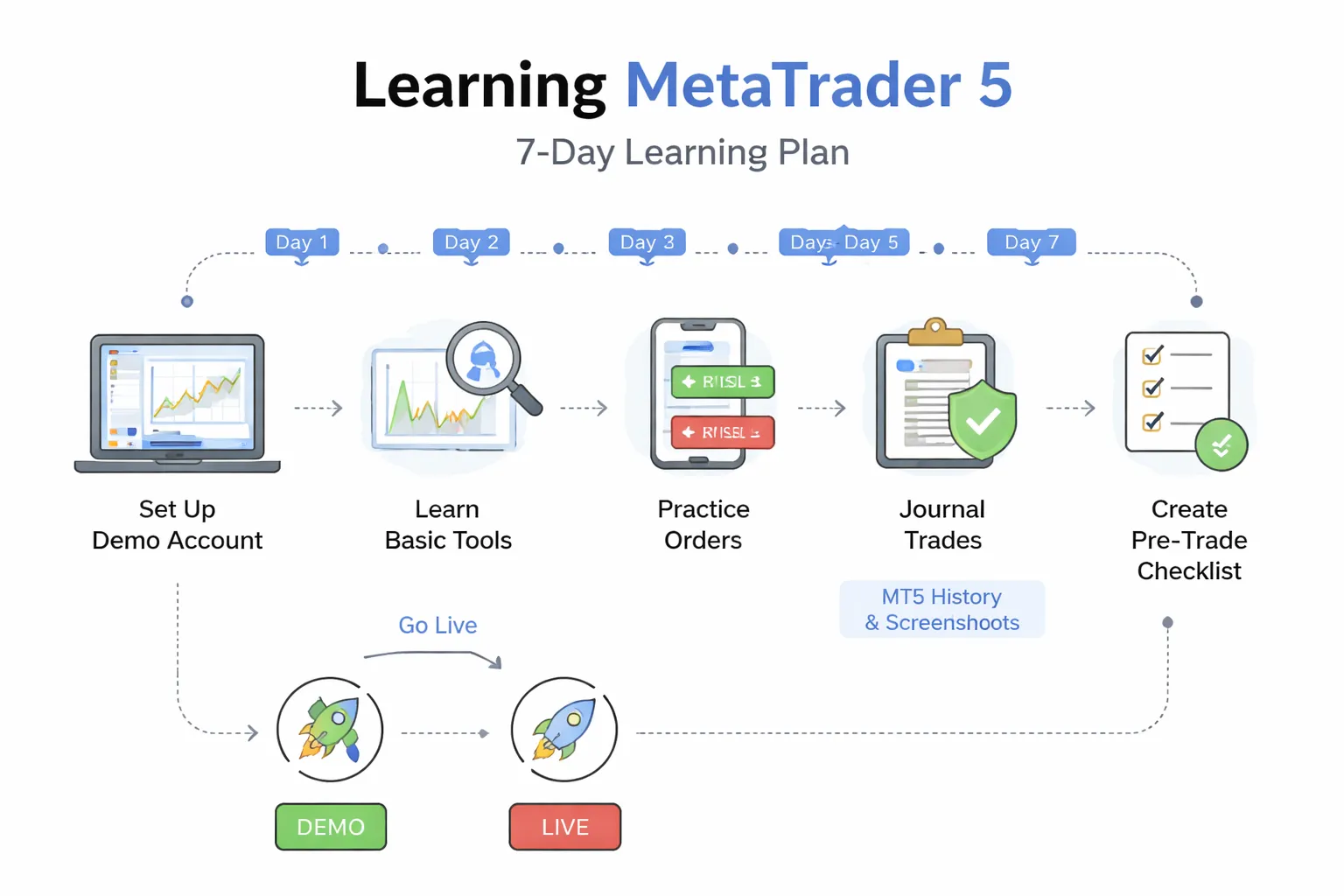
A 7-day learning path you can follow
Keep the goal simple. Learn one skill per day. Trade small on demo. Review every session.
- Day 1, Interface: Open Market Watch, Navigator, Terminal. Add one chart. Change timeframe. Add and remove one indicator. Save a template.
- Day 2, Orders: Place market buy and sell. Place buy stop, sell stop, buy limit, sell limit. Modify stop loss and take profit. Cancel pending orders.
- Day 3, Position sizing: Find contract size, tick size, and tick value in Symbol Specification. Calculate lot size from your stop distance. Keep risk fixed per trade.
- Day 4, Risk rules: Set max daily loss and max trades per day. Practice hard stops. No moving stops wider. No averaging down.
- Day 5, Journaling: Export your account history. Take screenshots of entry and exit. Write one short note per trade.
- Day 6, Execution quality: Track slippage and spreads at your trading hours. Use limit orders when your plan allows. Note fill speed and requotes.
- Day 7, Consistency test: Trade the same setup only. Follow the same hours. Review results and rule breaks.
What to practice in demo that transfers to live trading
Demo helps when you practice platform habits and risk control. It fails when you chase gains with fake money.
- Order entry speed: Practice placing orders in under 10 seconds without mistakes. Use One-Click Trading only if you can control it.
- Stop loss first: Set the stop before you think about profit targets. If your stop is not set, you do not have a trade.
- Lot sizing routine: Use the same calculation every time. Do not guess lots.
- Spread and session awareness: Record typical spreads for each symbol during your hours. Avoid news spikes until you can measure them.
- Trade management rules: Practice partial closes, break-even moves, and trailing stops only if your strategy requires them. Do not add features because MT5 offers them.
- Platform stability: Test your templates, indicators, and VPS setup on demo for a week. Fix crashes and lag before real money.
When to switch to live trading (readiness criteria)
Switch based on evidence. Use rules. Ignore excitement and fear.
- Process consistency: You follow your entry rules, stop placement, and sizing rules for at least 50 trades.
- Rule breaks are rare: You log fewer than 2 rule breaks per 20 trades, and you know the trigger for each one.
- Stable risk: Your risk per trade stays fixed. Your daily max loss rule holds with no exceptions.
- Repeatable edge check: Your setup shows positive expectancy on your sample, after spreads and commissions. If you cannot measure this, you are not ready.
- Operational readiness: You can place, modify, and close trades fast. You know where to find margin, swap, commission, and current exposure in MT5.
- Live plan is small: You start with the smallest position size your broker allows. You treat the first month as execution training.
If you plan to compare platforms before funding a live account, read this MetaTrader vs cTrader comparison.
How to journal trades using MT5 history and screenshots
Use a routine you can repeat in 5 minutes per trade. Do it the same day.
- Step 1, Capture the entry chart: Right after entry, take a screenshot that shows symbol, timeframe, entry price, stop loss, take profit, and the signal.
- Step 2, Capture the exit chart: At exit, take a second screenshot with the same zoom level. Mark where you exited and why.
- Step 3, Export the trade data: Open Toolbox, History. Filter the date range. Export deals or copy to a file so you keep ticket, time, price, volume, commission, and swap.
- Step 4, Write a short log: Setup name, timeframe, entry reason, stop logic, target logic, result in R, and one mistake or one improvement.
- Step 5, Weekly review: Sort by setup. Count wins, losses, average R, and rule breaks. Cut the worst mistake first.
Build a simple trading checklist to reduce mistakes
Your checklist stops preventable losses. Keep it short. Use it before every order.
- Market: Correct symbol. Correct timeframe. Spread is within your normal range.
- Setup: Your entry rule matches your plan. You can point to the trigger on the chart.
- Risk: Stop loss level is set. Risk per trade is fixed. Lot size matches your calculation.
- Limits: You did not hit max daily loss. You did not hit max trades per day.
- Order: Correct order type. Correct volume. SL and TP attached. No duplicate orders.
- After entry: Screenshot saved. Journal note started. Management rules are clear.
| Phase | Minimum target | What you measure |
|---|---|---|
| Demo practice | 50 trades | Rule breaks, sizing accuracy, stop placement speed |
| Demo consistency | 20 trades with low errors | Max loss compliance, same setup only, clean execution |
| Live micro | First 30 days | Slippage, emotions, fill quality, same rules as demo |
| Scale slowly | After stable process | Same metrics, larger size only after clean month |
Pros, Cons, and Common MT5 Mistakes to Avoid
Advantages for beginners
- Multi-asset access. You can trade FX, indices, metals, energies, and CFDs from one platform, if your broker offers them.
- Built-in tools. You get multiple order types, one-click trading, depth of market on many brokers, alerts, and an economic calendar.
- Strong charting. You can use multiple timeframes, templates, watchlists, and indicators without extra software.
- Automation support. You can test and run Expert Advisors (EAs) and scripts, then keep your execution rules consistent.
- Customization. You can save profiles, set hotkeys, and build a clean workspace that matches your process.
Limitations to know
- Broker differences. Symbols, leverage, margin rules, and trading hours change by broker. Your demo conditions may not match live.
- Learning curve. MT5 has many panels and settings. You can misclick and place the wrong order if you rush.
- Data and feeds vary. Price feeds, spreads, and swap rates differ across brokers. Backtests can mislead if your data quality is weak.
- EA quality varies. Many EAs show curve-fit results. Live slippage, spreads, and execution can break them fast.
- Mobile limits. Mobile MT5 works for monitoring and simple execution, but detailed chart work and management stay easier on desktop.
Top beginner mistakes to avoid
- Wrong lot size. You risk 2 to 5 times more than planned when you confuse lots, contracts, and account currency.
- No stop-loss. You turn a controlled loss into a margin problem. Always set the stop before you confirm the trade.
- Trading news blindly. You enter during spread spikes and fast moves. Slippage can skip your stop and ruin your risk math.
- Revenge trading. You increase size after a loss, then break your plan. Your next trade must follow the same rules as your demo set.
- Changing setups mid-trade. You move stops away, add to losers, or close early without rules. Track rule breaks, not just P and L.
| Common error | What happens | Simple fix |
|---|---|---|
| Lot size mismatch | Your risk per trade jumps | Calculate risk by stop distance and pip value, then set volume |
| No stop-loss | Losses expand, margin drops | Use a fixed stop rule, set SL first, confirm ticket |
| News entries | Slippage and spread widening | Avoid market orders around high-impact events, pre-plan levels |
| Revenge trades | Overtrading and rule breaks | Set a daily loss limit, stop after it hits |
Safety and security tips
- Use strong passwords. Use a unique password for your broker portal and your email. Turn on 2FA in your broker account.
- Protect your device. Keep your OS updated. Avoid public Wi-Fi for live trading. Do not install random MT5 plugins.
- Check the broker. Verify regulation, legal entity, and withdrawal terms. Avoid brokers that push bonuses, pressure deposits, or block small withdrawals.
- Back up your setup. Export templates and save profiles. Keep a copy of your login details and server name in a secure password manager.
- Confirm platform fit. If you compare execution, charting, and automation across platforms, use this trading platforms comparison.
Troubleshooting quick fixes
- Missing symbols. Open Market Watch, right-click, select Show All. Then search the symbol, right-click, select Show.
- Frozen charts. Check if Auto Scroll or Chart Shift settings changed. Restart MT5. Reduce indicators if CPU spikes.
- No prices. Check your connection status in the bottom right. Re-enter the correct server. Disable VPN if your broker blocks it.
- Trade disabled. Confirm you logged into a trading account, not investor mode. Check market hours, symbol mode, and if the broker set Close Only.
- Order rejected. Check free margin, min lot, step size, and stop level distance. Then reprice your SL and TP.
Frequently Asked Questions
Is MT5 good for beginners?
Yes, if you keep it simple. Use one watchlist, one chart template, and one order type. Start with market orders and fixed risk per trade. Switch on one-click trading only after you confirm lot size and stop distance rules.
Is MT5 free?
The platform app is free to download. You still need a broker account to get live prices and place trades. Your broker may charge spreads, commissions, swaps, and data fees. MT5 itself does not bill you.
Can you trade forex on MT5?
Yes, if your broker offers forex symbols on MT5. Check the Market Watch list. If you do not see pairs, right-click, select Symbols, then enable Forex. If prices stay blank, confirm you logged into the correct trade server.
What is the difference between a demo and a live account?
A demo uses simulated funds and often ideal fills. A live account uses real money and real execution. Expect slippage, requotes, and wider spreads during news and rollovers. Test your strategy on demo, then go small on live.
How do you add indicators in MT5?
Open a chart, click Insert, then Indicators. Pick the tool, set inputs, then press OK. Save your setup as a template so you can apply it fast to new charts. Avoid stacking many indicators, it slows the terminal.
How do you place a trade in MT5?
Press F9 or click New Order. Select the symbol, choose Market Execution or Pending Order, set volume, then set SL and TP. Check margin impact before you click Buy or Sell. Use the one-click panel only when you pre-set risk.
Why does MT5 say “trade disabled”?
You logged into an investor account, the market is closed, or the broker blocked trading on that symbol. Confirm account type, check symbol properties, and review Market Watch status. Some brokers set Close Only during volatility.
Why do orders get rejected in MT5?
Common causes include low free margin, wrong lot size, invalid step size, or stops too close to price. Check the symbol stop level and minimum volume. Move SL and TP farther out, then resend the order.
How do you change the timeframe and chart type?
Use the toolbar for M1 to MN timeframes. Right-click the chart to switch between bar, candlestick, and line charts. Save your preferred view as a template. Keep one default template to reduce setup errors.
Can you use MT5 on mobile and desktop together?
Yes. Log into the same trading account on both. Your open positions and orders sync from the broker server. Your indicators, templates, and layouts do not sync. Export your template files on desktop if you need the same look.
Does MT5 work with MT4 accounts?
No. MT4 and MT5 use different servers and account types. Your broker must create an MT5 account for you. If you need MT4, follow this MT4 walkthrough.
Where do you see swap, commission, and spread?
Open the Trade tab to see commission and swap per position. Check the symbol specification for swap rates and contract size. To view spread, add the Spread column in Market Watch or compare Bid and Ask on the chart.
How do you find your trading history in MT5?
Open the History tab in the Toolbox. Filter by date range, then export the report if you need a file. Use it to review entry, exit, commission, and swap. Keep screenshots for disputes, brokers rarely change server logs.
Conclusion
Conclusion
MT5 gets easier once you stick to a repeatable routine. Set up Market Watch and your charts. Check contract specs before you place a trade. Use the Toolbox to track positions, orders, and history.
Your final step is risk control. Before every order, confirm three numbers, lot size, stop loss distance, and estimated cost from spread, commission, and swap. If the math does not fit your plan, skip the trade.
- Save your chart template and profile after you finish setup.
- Use one order type until you can execute it fast and without errors.
- Export your History report weekly and store it with screenshots.
If you want the MT5 and MT4 differences before you commit to one platform, read MT4 vs MT5 for forex.
-
Forex Trading Platforms Comparison: MetaTrader vs cTrader vs TradingView
7 months ago -
MetaTrader 4 vs MetaTrader 5 for Forex: Which One Should You Use?
7 months ago -
TradingView for Forex: How to Use It (Charts, Alerts & Layouts)
7 months ago -
cTrader vs MetaTrader: Which Forex Platform Is Better?
7 months ago -
MetaTrader vs cTrader: Which Forex Trading Platform Is Better for You?
7 months ago
-
- 1) Open a chart and confirm the symbol, bid, ask, and spread
- 2) Open the order ticket
- 3) Market order vs pending order, what to use first
- 4) Set stop-loss and take-profit the right way
- 5) Choose lot size safely (micro sizing, pip value, margin check)
- 6) Place the trade
- 7) Modify or close a trade (what matters for you)
-
- Is MT5 good for beginners?
- Is MT5 free?
- Can you trade forex on MT5?
- What is the difference between a demo and a live account?
- How do you add indicators in MT5?
- How do you place a trade in MT5?
- Why does MT5 say “trade disabled”?
- Why do orders get rejected in MT5?
- How do you change the timeframe and chart type?
- Can you use MT5 on mobile and desktop together?
- Does MT5 work with MT4 accounts?
- Where do you see swap, commission, and spread?
- How do you find your trading history in MT5?
-
- 1) Open a chart and confirm the symbol, bid, ask, and spread
- 2) Open the order ticket
- 3) Market order vs pending order, what to use first
- 4) Set stop-loss and take-profit the right way
- 5) Choose lot size safely (micro sizing, pip value, margin check)
- 6) Place the trade
- 7) Modify or close a trade (what matters for you)
-
- Is MT5 good for beginners?
- Is MT5 free?
- Can you trade forex on MT5?
- What is the difference between a demo and a live account?
- How do you add indicators in MT5?
- How do you place a trade in MT5?
- Why does MT5 say “trade disabled”?
- Why do orders get rejected in MT5?
- How do you change the timeframe and chart type?
- Can you use MT5 on mobile and desktop together?
- Does MT5 work with MT4 accounts?
- Where do you see swap, commission, and spread?
- How do you find your trading history in MT5?
-
How to Place a Forex Trade Step by Step (Your First Trade Explained)
5 months ago -
Forex Trading vs Crypto Trading: Which Market Is Better for Beginners?
5 months ago -
Forex Lot Size Calculator: How to Use It to Size Trades Correctly
7 months ago -
How to Calculate Position Size in Forex (Position Sizing Formula + Examples)
7 months ago -
Forex Leverage Explained: How It Works, Pros, Cons & Examples
7 months ago
-
Forex Trading Platforms Comparison: MetaTrader vs cTrader vs TradingView
7 months ago -
Stop Loss vs Take Profit: Differences, Examples & Best Practices
7 months ago -
Is Forex Trading Legal in the United States? Rules, Regulators & What to Know
7 months ago -
Forex Market Hours & Trading Sessions Explained (Best Times to Trade)
7 months ago -
Forex Leverage Explained: How It Works, Pros, Cons & Examples
7 months ago